DL06 Micro PLC User Manual; 3rd Edition Rev. E
4–10
Chapter 4: System Design and Configuration
1
2
3
4
5
6
7
8
9
10
11
12
13
14
A
B
C
D
DirectNET Port Configuration
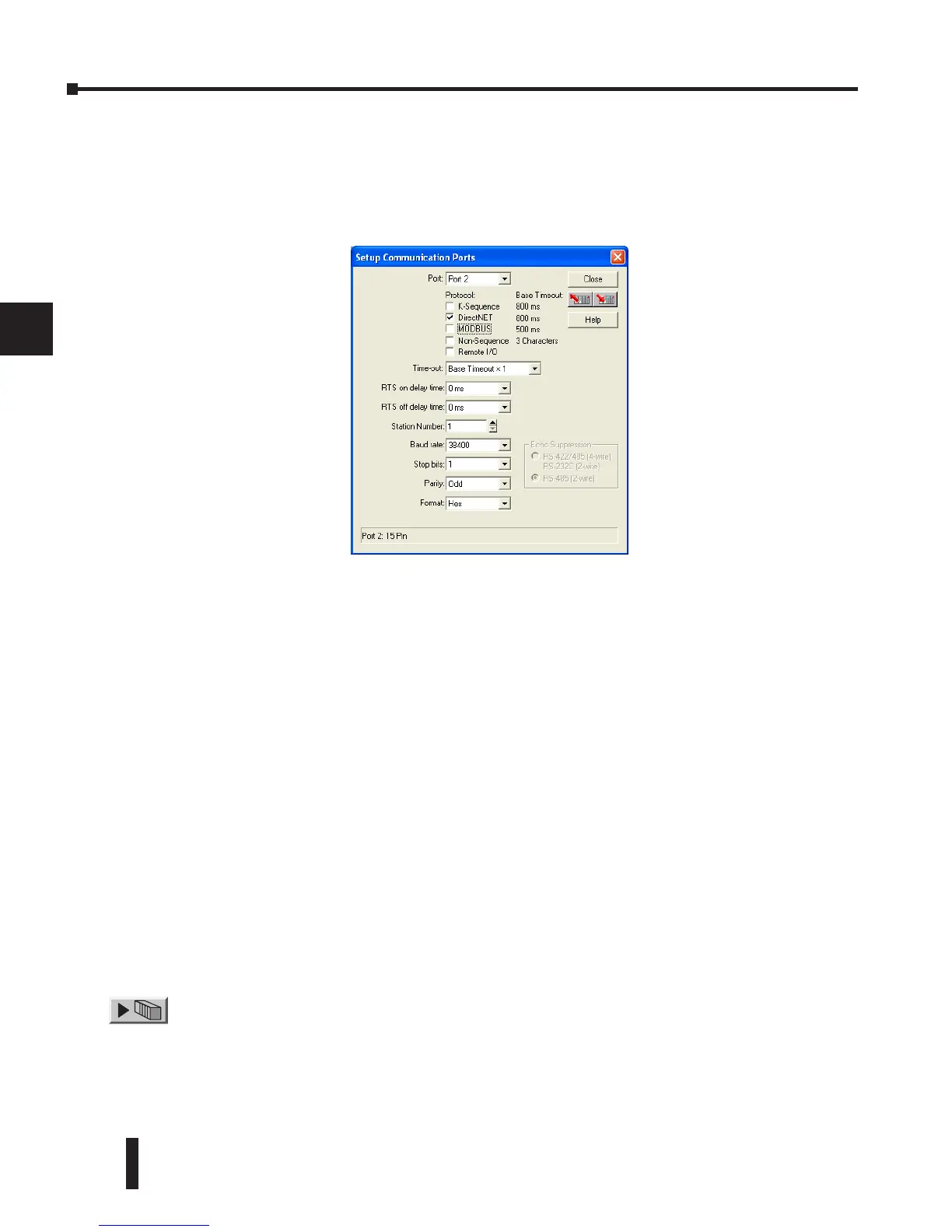
In DirectSOFT, choose the PLC menu, then Setup, then “Secondary Comm Port”.
• Port: From the port number list box, choose “Port 2 ”.
• Protocol: Check the box to the left of “DirectNET” (use AUX 56 on the HPP, then select “DNET”),
and then you’ll see the dialog below.
• Timeout: Amount of time the port will wait after it sends a message to get a response before logging
an error.
• RTS ON / OFF Delay Time: The RTS ON Delay Time specifies the time the DL06 waits to send
the data after it has raised the RTS signal line. The RTS OFF Delay Time specifies the time the DL06
waits to release the RTS signal line after the data has been sent. When using the DL06 on a multi-drop
network, the RTS ON Delay time must be set to 5ms or more and the RTS OFF Delay time must be set
to 2ms or more. If you encounter problems, the time can be increased.
• Station Number: For making the CPU port a DirectNET master, choose “1”. The allowable range
for DirectNET slaves is from 1 to 90 (each slave must have a unique number). At powerup, the port
is automatically a slave, unless and until the DL06 executes ladder logic instructions which attempt
to use the port as a master. Thereafter, the port reverts back to slave mode until ladder logic uses the
port again.
• Baud Rate: The available baud rates include 300, 600, 1200, 2400, 4800, 9600, 19200, and 38400
baud. Choose a higher baud rate initially, reverting to lower baud rates if you experience data errors
or noise problems on the network. Important: You must configure the baud rates of all devices on
the network to the same value.
• Stop Bits: Choose 1 or 2 stop bits for use in the protocol.
• Parity: Choose none, even, or odd parity for error checking.
• Format: Choose between hex or ASCII formats.
Then click the button indicated to send the Port configuration to the CPU, and click Close.



 To Next Page