How to Use Smart Frame
and Audio Tracking Function
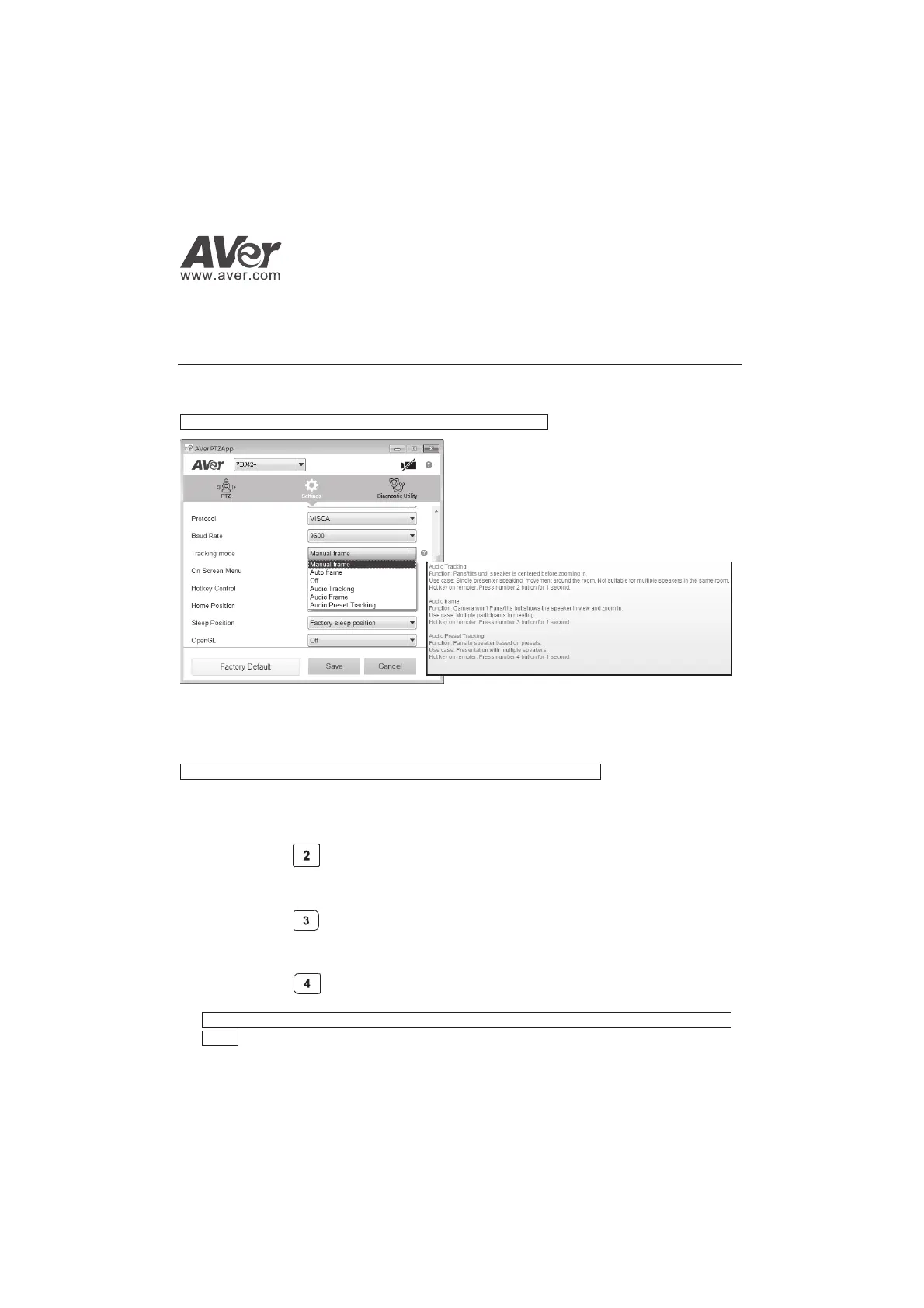
1. Run the AVer PTZApp on your laptop/PC which is connected with VB342+.
2. Select “Settings” > “Tracking mode”. Then select the function from drop-down list.
Tip: Move the mouse to “?” icon can see the functions’ description.
Manual frame/Auto frame: FOV (field of view) adjustment to fit all participants. Enable manual or
auto smart frame function.
Off: Turn off all function included the hotkey on remote controller.
! To trigger the audio tracking, the presenter needs to speak over 3 seconds.
Audio Tracking:Pans/tilts until speaker is centered before zooming in. To use when single
presenter speaking, movement around the room. Not suitable for multiple speakers in the same
room.
[Hotkey]
Press
button on remote controller for 1 second to enable Audio Tracking function.
Audio Frame: Camera won’t Pans/tilts but shows the speaker in view and zoom in. To use when
Multiple participants in meeting.
[Hotkey]
Press button on remote controller for 1 second to enable Audio frame function.
Audio Preset Tracking: Pans to speaker based on presets. To use when Presentation with
multiple speakers.
[Hotkey]
Press
button on remote controller for 1 second to enable Audio Preset Tracking
function.
! In tracking mode, the preset cannot be set. Please setup the preset in “Manual Frame” or “Off”
mode.
P/N: 300AU320-EDH



 To Previous Page