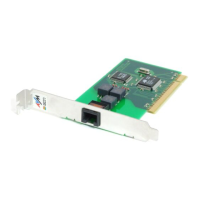
2 Installing FRITZ!Card PCI
12
Select driver in Windows 95 4.00.950
Enter the path to the installation files, e.g.
<CD-ROM drive>:\WIN95\
•
WW
WW
W
indoindo
indoindo
indo
ww
ww
w
ss
ss
s
95 4. 95 4.
95 4. 95 4.
95 4.
0000
0000
00
..
..
.
950 B/C950 B/C
950 B/C950 B/C
950 B/C: When the “Update Device Driver
Wizard” prompts you to install new hardware drivers, click
the
Other LOther L
Other LOther L
Other L
ococ
ococ
oc
ationation
ationation
ation
s…s…
s…s…
s… button in the following window. Then
enter the path to the installation files, e.g.
<CD-ROM drive>:\WIN95\
Select the location of the driver in Windows 95B
Ignore the message in the next window, “Insert Disk” and
simply click
OKOK
OKOK
OK. In the “Copying Files” window, enter the
path to the installation files again.
•
CC
CC
C
ontinue fontinue f
ontinue fontinue f
ontinue f
or both or both
or both or both
or both
vv
vv
v
erer
erer
er
ss
ss
s
ionion
ionion
ion
ss
ss
s
of of
of of
of
WW
WW
W
indoindo
indoindo
indo
ww
ww
w
ss
ss
s
95: 95:
95: 95:
95:
The driver information now are copied to a temporary folder
on your computer.
• Next appears the welcome window of the installation pro-
gram for the AVM ISDN-Controller FRITZ!Card PCI.
• Specify the folder in which the driver software is to be installed
on your computer.
• In the next window, indicate which D-channel protocol is used
on your ISDN line (DSS1 or 1TR6).


 To Next Page
 Loading...