Installation
16
English
1)
2)
3)
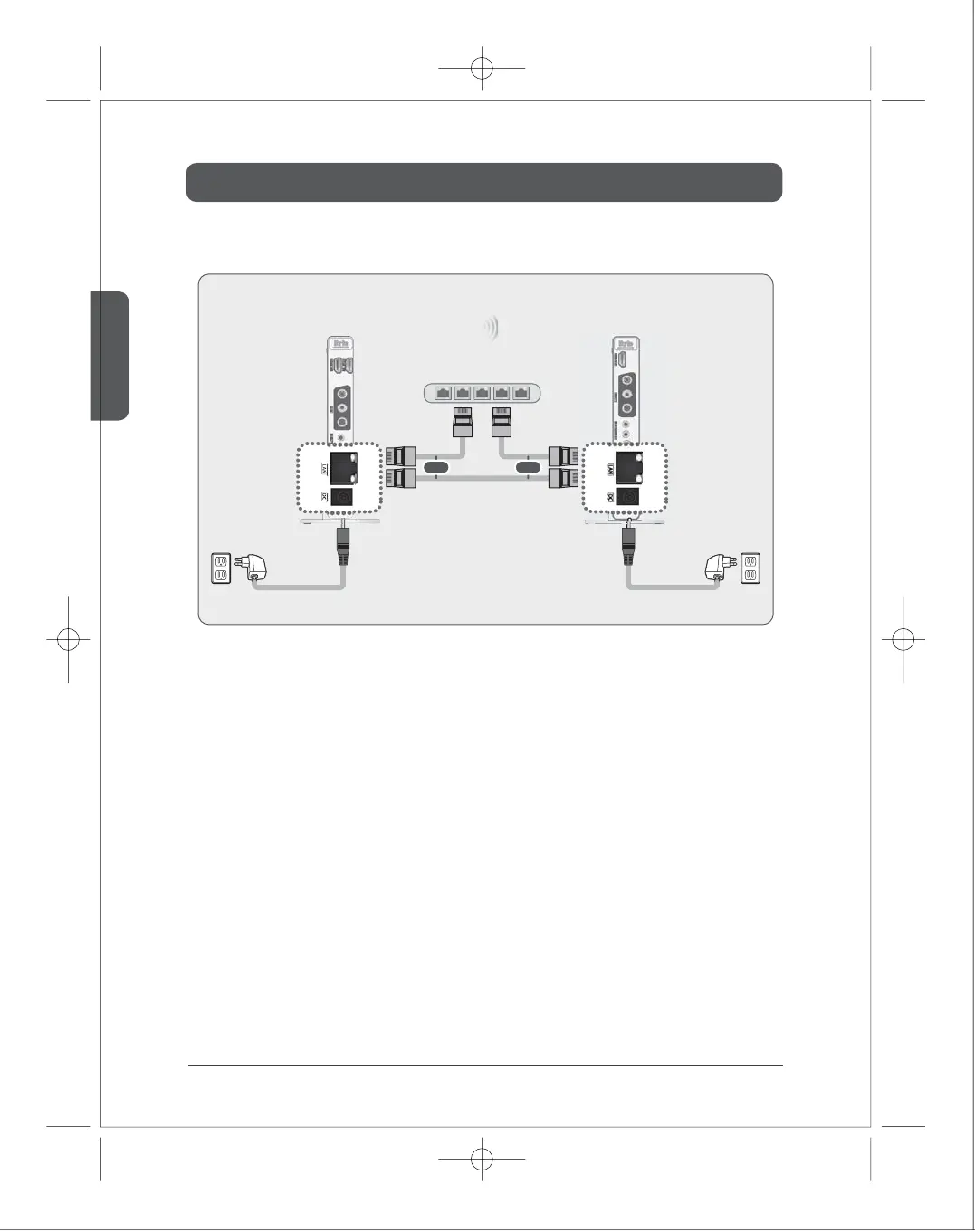
Connect LAN cable directly between the transmitter and the receiver, or to the IP router/LAN hub.
When you connect the transmitter and the receiver directly by UTP LAN cable, input the both end of
LAN cable to the each LAN port of the product. Then, turn the power on.
When you connect to the IP router/L2 switching hub, please follow the process below.
a.
b.
c.
d.
Please check the IP address of the device.
As a default conguration, transmitter’s IP address is 192.168.0.151, and receiver’s is 192.168.0.152.
The product has simple built-in web server inside. So, you can check and change the conguration. You can
connect the product to the PC via LAN cable and enter the IP address of the device on the web browser. At any
time, you can change the IP conguration as a default by factory set. (please refer to the Factory Reset on Page 16.)
When the default IP address of the transmitter/receiver are not used in your current network, just connect the
LAN cable to the IP router or LAN hub and turn the power on.
When the default IP address of the transmitter/receiver are already being used, you have to set the available IP
address to the transmitter and the receiver separately.
Connect the product to the PC via LAN cable, and enter new IP address of the transmitter/receiver respectively.
After setting new IP address, please follow the process.
For more information, please refer to the instruction at website (www.i-trio.com)
■
LAN model
LAN Cable
LAN Hub
Adapter
Receiver
Transmitter
Adapter
or or



 To Next Page