Fehler! Formatvorlage nicht definiert.. Fehler! Formatvorlage nicht definiert. - Page 27
AZUREM2.DOC 18.03.1999 12:40
CHAPTER SIX
6. Recording and playing back chases
In this chapter: how to record chases
?? explanation of chases
?? programming a chase
?? running a chase
?? stacks and sequence control
?? editing a chase
?? sound activation of chases
As well as being used for recalling static memories, the playback buttons
on the Azure can also be used for recalling chases.
6.1 What is a chase?
A chase is simply a sequence of static positions. Each position is known as
a “step”. It is normally used to flash lights in a sequence without you
having to keep pressing buttons, or to move fixtures around. Chases can
run automatically, or by pressing a “Go” button. If you are using the Azure
for theatrical lighting, you can use a chase to store cues for a show.
Don’t get shapes confused with chases. A shape simply moves one
attribute of the fixture around in a pattern. A chase allows you to move the
fixture around in a much more controlled way.
However, you will find that using shapes saves you a lot of work, and you
won’t have to program as many chases as you would on a conventional
lighting desk.
6.2 Programming a chase
To program a chase, you have to set up the lighting
for each step of the chase. You can either set all the
fixtures and dimmers manually for each step, or you
can use Include to load in the information from
memories you have already recorded.
Note: You can’t use shapes in a chase.
6.2.1 Programming a chase
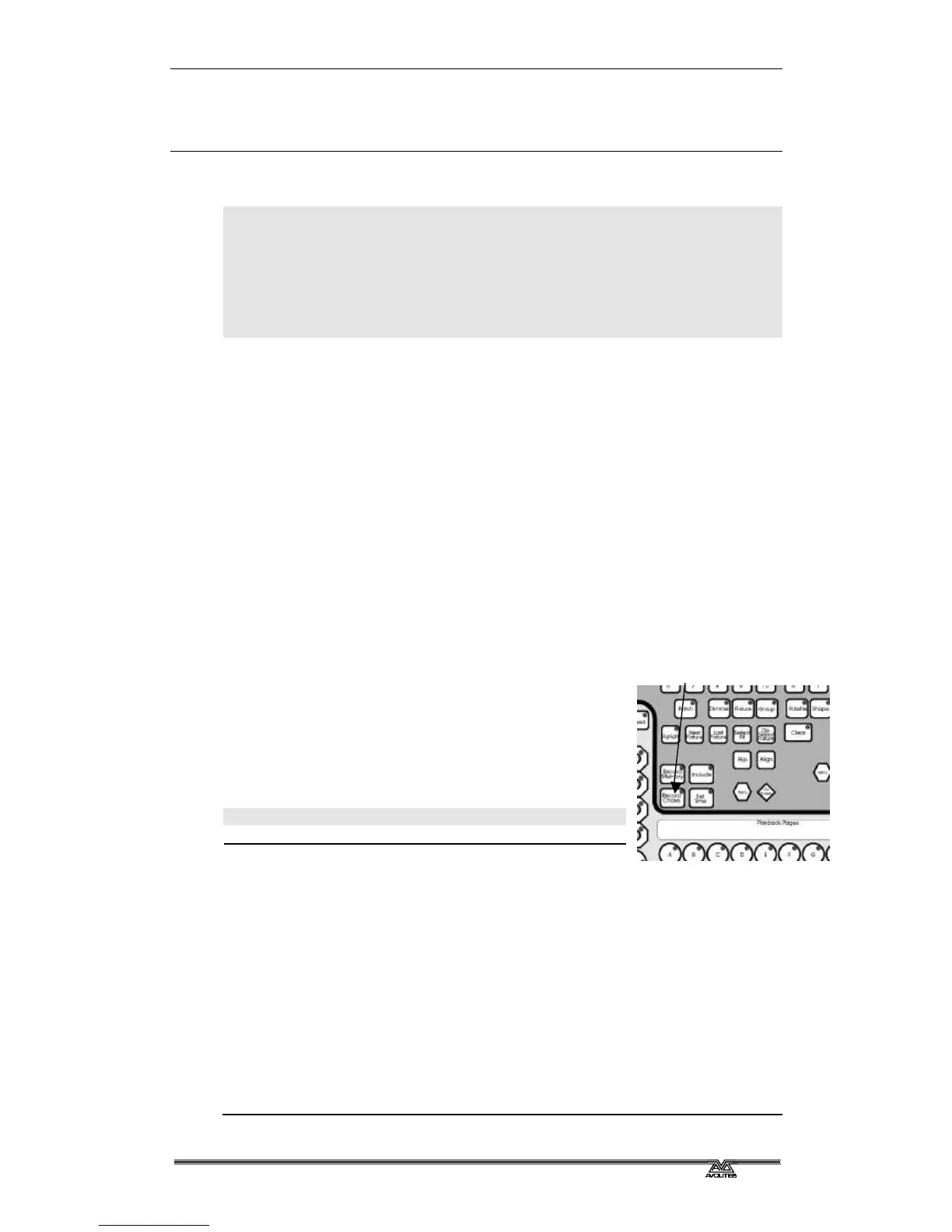
? ? Press the Record Chase button.
? ? All the free playbacks will flash. Press the button where you want to
store the chase.
? ? Set up the lighting for the first step, either manually or by using
“Include” on existing memories.
? ? The VGA display is showing “Press the flashing key to record Step 1”.
? ? Press the flashing key. The information from the programmer is stored
as Step 1 of the chase.
? ? Press Clear, set up the lighting for the second step, then press the
flashing key again to save step 2.
? ? When you have saved as many steps as you want, press Record Chase
again to finish.
Record Chase button



 To Next Page