Fehler! Formatvorlage nicht definiert.. Fehler! Formatvorlage nicht definiert. - Page 139
AZUREM2.DOC 18.03.1999 12:40
CHAPTER SEVEN
7. Environments, the scheduler, script files
This chapter contains: Recording an environment; playing back an
environment; other environment controls; the scheduler; script files.
An environment allows you to store the state of the playbacks on the
console, which includes all memories and chases which are turned on.
They can have a fade in and fade out time. Environments can be useful in
a show if you need to turn on several memories at the same time.
The Azure’s Scheduler system can be set up to turn on environments at a
given time or date. This is used to run a timed show automatically, for
exhibition or installation applications.
The Azure can store 2 pages of 10 environments.
7.1 Recording an environment
To record an environment you set the playbacks you want
at the levels you want them, then use the Record
Environment menu option.
1> Turn on the playbacks you want in the
environment at the levels you want them
2> Press the environment Menu button
3> Press Softkey B, “Record an Environment”
4> Press the Environment button you want to use (change page by
pressing one of the environment Page buttons)
5> All active playbacks will be recorded into the environment
?? If the environment was already used, it will be overwritten by the new
environment.
?? The fade in and fade out times will be set to 3 seconds, you can change
these using the Parameters option (Softkey A).
?? You can assign a text label to an environment using the Set Legend
button, which works the same as for memories. Press the On Screen
button below the environment buttons to display the contents of the
environments.
7.2 Playing back an environment
You play back an environment by pressing its select button.
1> Press the button for the environment to turn on.
2> The playbacks in the environment will fade up in the Fade In time
3> To turn it off, press the button again
4> The playbacks in the environment will fade down in the Fade Out
time
?? You can take over control of a playback from the environment by
pressing the button (for a 11-50 playback), or by putting the fader to
full then to zero (for a 1-10 playback).
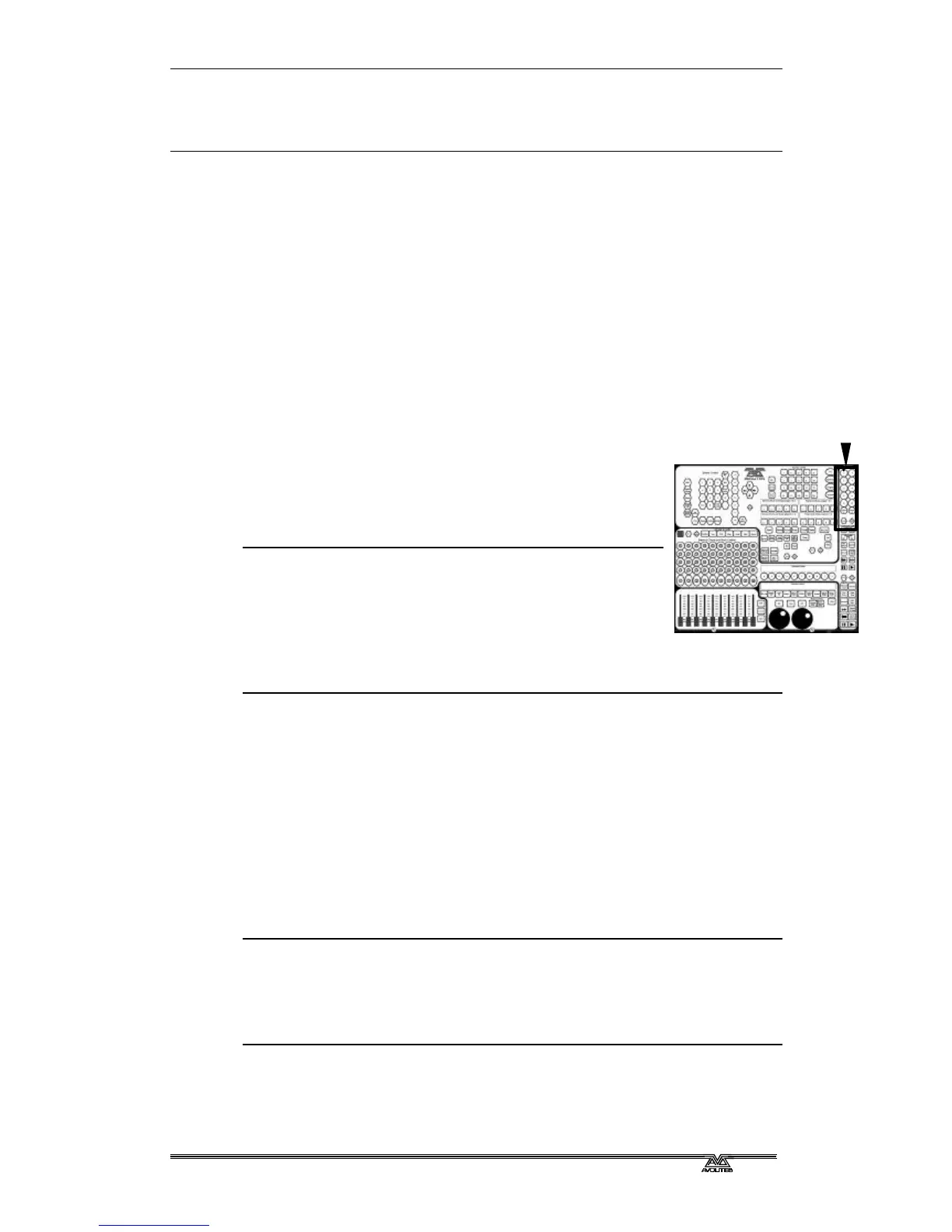
Environment buttons,
menu and on-screen



 To Next Page