Fehler! Formatvorlage nicht definiert.. Fehler! Formatvorlage nicht definiert. - Page 145
AZUREM2.DOC 18.03.1999 12:40
CHAPTER EIGHT
8. Using the graphics tablet
This chapter contains: Connecting the graphics tablet; using the tablet;
selecting fixtures on the tablet; changing the position of the fixtures;
changing colours and other attributes; storing palette entries; other
functions.
The graphics tablet is an optional extra to the Azure, which allows you to
use a pen to select fixtures, groups, colours, and position the fixtures by
simply drawing with the pen. When you use the Azure’s Tracking mode
you can instantly make all your fixtures point at one place on the stage
just by pressing on the tablet.
The tablet makes programming and operating a show on the Azure much
more intuitive. If you don’t have a graphics tablet you’re missing out!
8.1 Connecting the graphics tablet
The tablet connects to the serial port on the Azure, and is powered from
the Azure. Switch off the Azure before connecting the tablet. Ensure the
tablet power switch is on (small blue switch pressed down in the rear left
hand corner).
When you turn the Azure on, the tablet should come on too. If you have
problems getting it to work, check that the 5th option on the User
Preference menu is set to Graphics Tablet.
The graphics tablet and pen are specially modified to work with the Azure.
Only use the tablet supplied by Avolites.
8.2 Using the tablet
To use the tablet, press the pen onto it (the button on the side of the pen
doesn’t do anything). A quick press is like pushing a button on the Azure.
You can also draw on the tablet by keeping the pen pressed down while
moving it. This is used to move fixtures or change attributes.
The Azure will behave as if you are pressing buttons on it in the normal
way, so the LEDs and the VGA display will change as you use the tablet.
Many of the functions of the Azure are quicker and easier using the tablet.
Sometimes you might find it easier to do part of the function on the tablet
and part on the console. The end result is the same.
The tablet has a paper overlay on it. You can write your fixture names,
group names, attributes, palette entries and even draw your stage layout
on the overlay so that you know what’s what.
Spare overlays are available from Avolites.
8.3 Selecting fixtures on the tablet
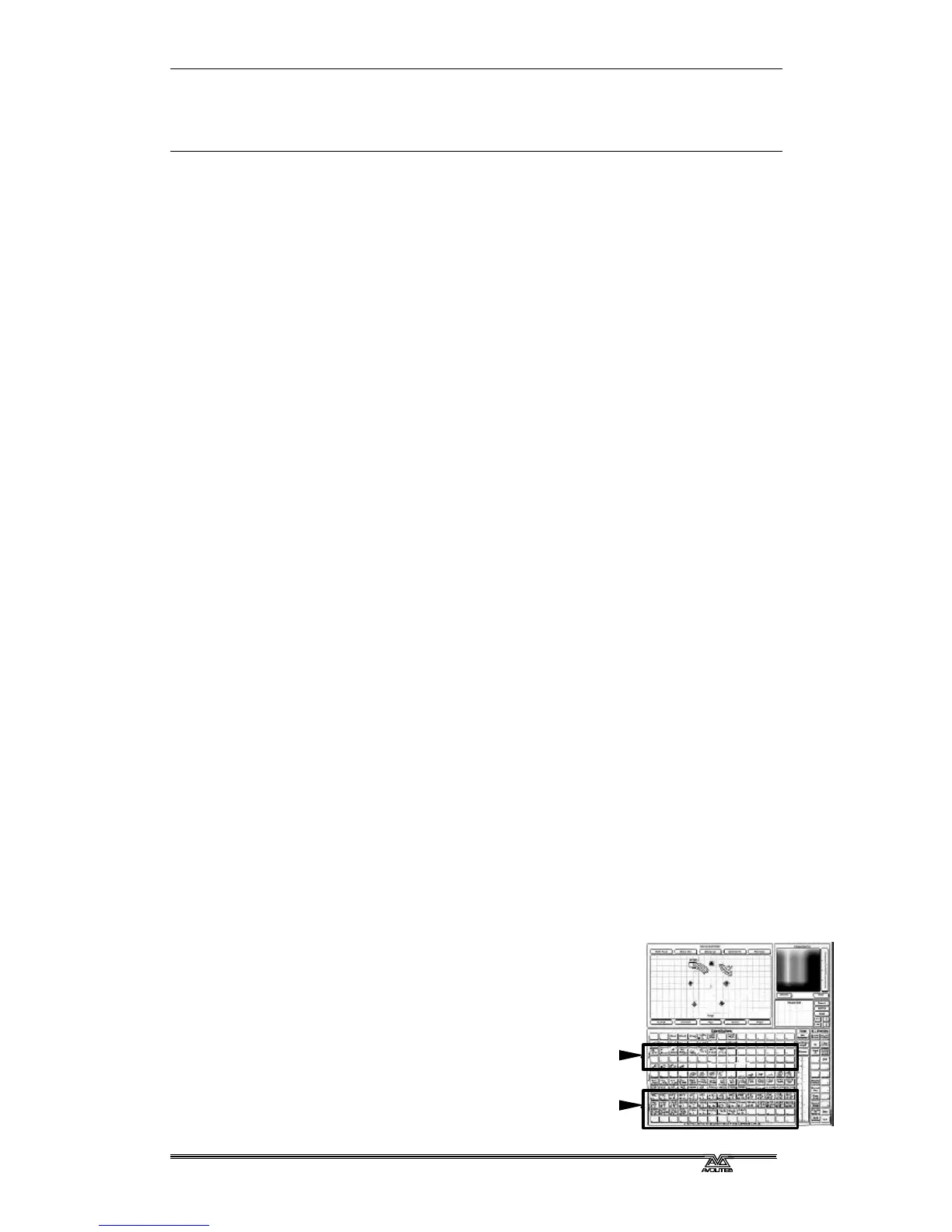
To select a fixture or a group, just press the pen
onto the fixture button or the group button. The
first 60 fixtures which are patched will appear in
order on the tablet (press the Menu button below
the “Flip” button, then Softkey A “Fixture Layout on
Tablet” to display a list). Only the first 30 groups
are available on the tablet.
Groups and fixtures



 To Next Page