Access through IP-Tool
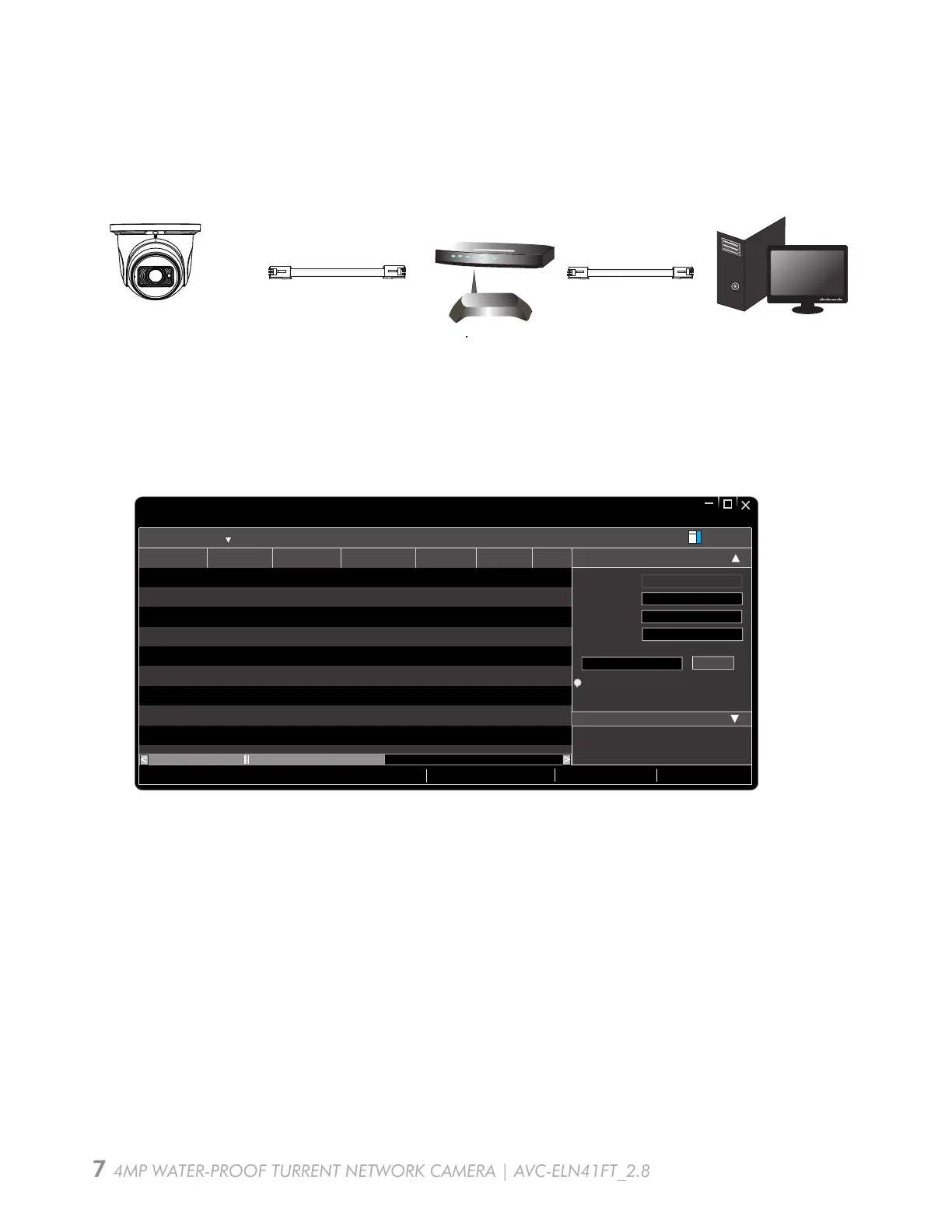
Here we take accessing IP camera via LAN for example.
Network Connection
AVC-ELN41FT_2.8
4MP WATER-PROOF TURRENT NETWORK CAMERA | AVC-ELN41FT_2.8
MENU
IPC
Network Cable
Network Cable
Router
Switch
Computer
Device Network Search
name
name
Immediate Refresh
name
IPC
IPC
IPC
unknown
unknown
unknown
192.168.226.201
192.168.1.2
80
80
80
192.168.1.3
9008
9008
9008
255.255.
255.255.
255.255.
Modify Network Parameter
Mac Address
IP Address
Modify
CE :98 :23 :75 :35 :22
192 .168 . 226 . 201
255 . 255 . 255 . 0
192 .168 . 226 . 1
i
Tip: Enter the administrator password, and
Total Device: 3
then modify the network parameters.
Device Name Device Type IP Address Http Port Data Port
Subnet
About
Product Model
Local IP Address:192.168.1.4
Subnet Mask:255.255.255. 0 Gateway: 192.168.1. 1 DNS:210.21.196.6
Subnet Mask
Gateway
Restore IPC Default Configuration
Step 1:Make sure that the camera and the PC are well connected to the local network.
Step 2: Install IP-Tool from the CD and run it after installation.
Step 3: Double click the camera information listed in the IP-Tool to open the web browser.
Or manually enter the default IP address in the address bar of your browser.
The default IP address of this camera is
192.168.226.201. Then follow directions to download
and install the plugin if prompted.
Step 4: Activate and log in the camera. The default username is admin; the default password
is 123456 or you need to self-define the password. Please operate according to the actual
situation.


 To Next Page