21 CLOCK AND EDITOR
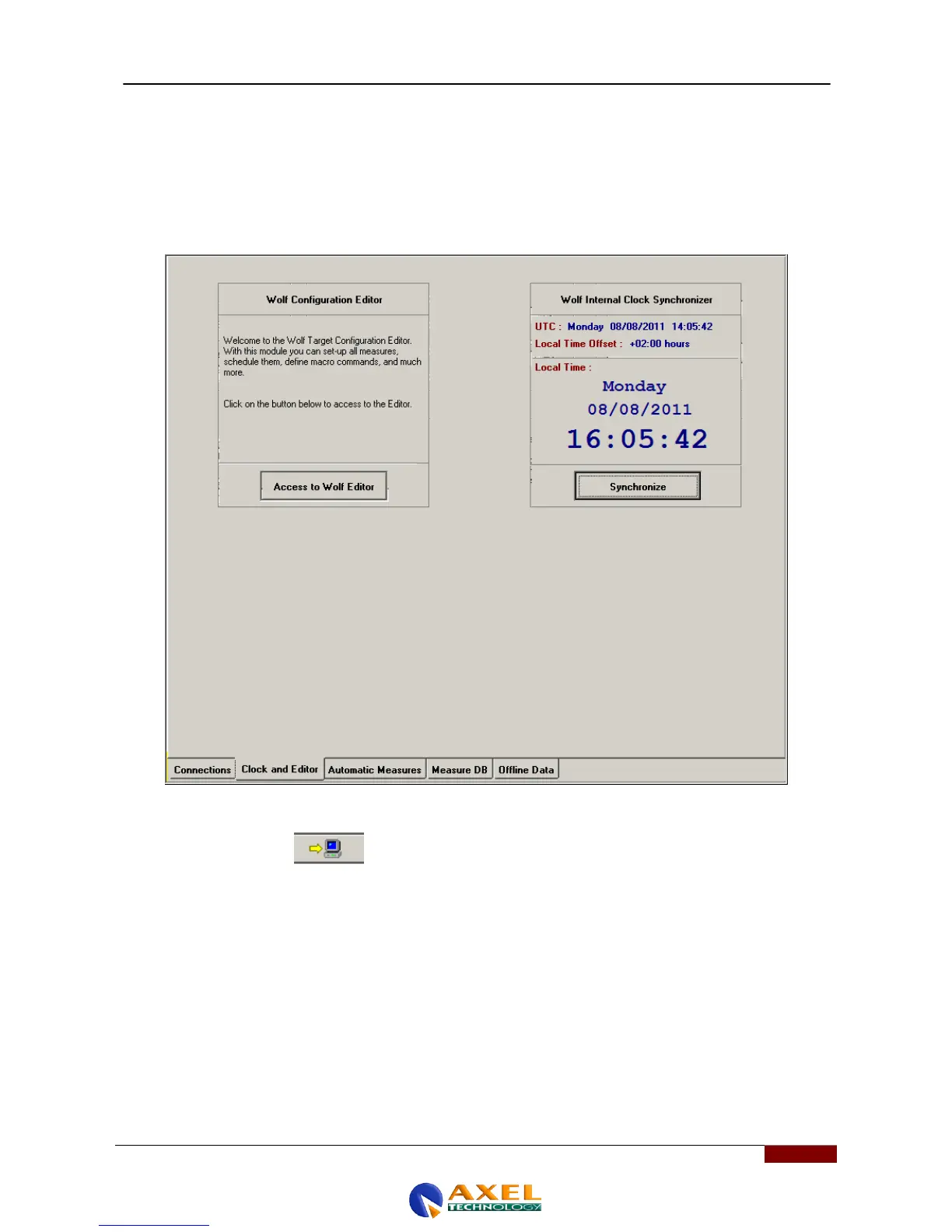
By clicking Clock and Editor you can access the most important part of the device, the part where you can set the
minimum and maximum setpoints and the Wolf Network trigger thresholds. The Clock and Editor submenu window that
appears is divided into two and features the Wolf Configuration Editor on the left-hand side and the "Wolf Internal Clock
Synchronizer" on the right, which shows not only the current time taken from the PC but also the UTC (Universal Time
Code) and the Local Time Offset according to the country of use and the offset from GMT. When you press the
Synchronize button, the program asks whether you want to the enter the time taken by the Wolf Network from the PC
where you are configuring the device.
If you press Access to Wolf Editor you will enter the Wolf Network device and so will be able to configure the machine to
work in your network. Once this has been pressed, a window opens where you can send commands to the Wolf
Network device. Clicking the IMPORT button allows you to view the data inside the Wolf Network device
and configure the setpoints and operating values.



 To Next Page