Numpad Modes & Switches
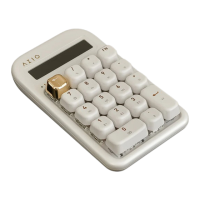
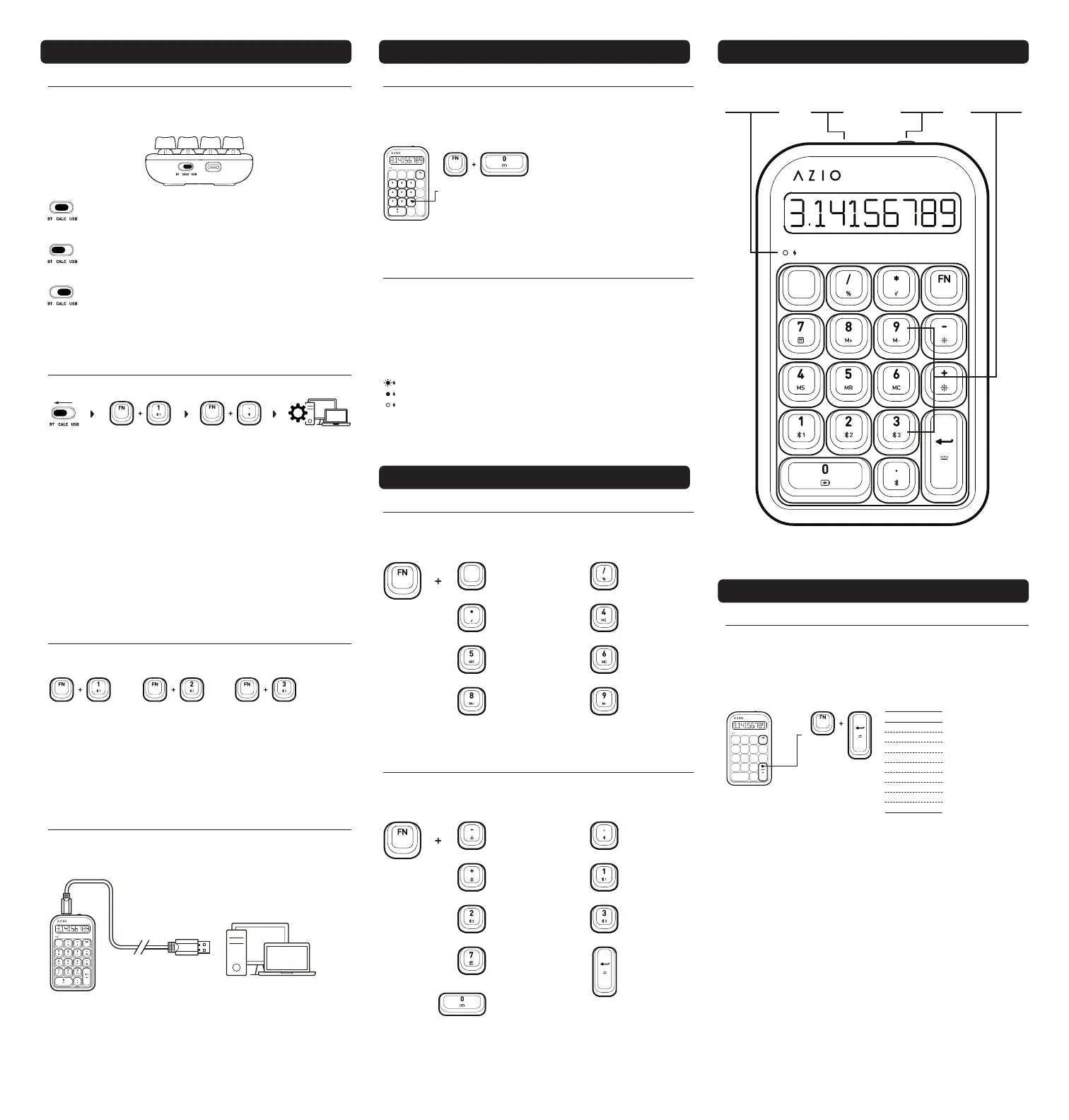
The AZIO IZO numpad is a versatile numpad that supports Mac/PC and can be
connected wirelessly via Bluetooth or wired via USB. The operating system selection
and interface mode switches are both located on the rear side of the numpad. (Fg 01)
Fig. 01 / Numpad Switch
CALC : In CALC mode, the numpad will function as a standalone
calculator. When idle for 5 minutes, the numpad will enter sleep mode.
Press any key on the numpad to wake the numpad. Please note that the
numpad can still be charged in this mode.
BT : In BT mode, you may connect the numpad to your computer
wirelessly. While in Bluetooth mode, the backlight will automatically
turn on. When idle for 5 minutes, the numpad will enter low power mode
and automatically go to sleep after 60 minutes of inactivity.
USB : In USB mode, please connect the included USB Type-C cable to
the numpad and your computer. While in USB mode, the numpad will
automatically begin charging and the backlight will turn on. This is the
default “off” mode of the numpad.
Multiple Bluetooth Profiles Setting
This numpad supports pairing of up to 3 Bluetooth devices simultaneously with 1
profile/device activated at a time via combination keys “FN + 1”, “FN + 2”, and “FN + 3”.
The default profile is BT1, and to change, simply short-press combination keys “FN + 2”
or “FN + 3” and follow the previous procedures to pair with other devices.
To switch between the 3 connected BT profiles, short-press combination keys “FN + 1”,
“FN + 2”, or “FN + 3”.
Short-press FN + 1 to
change to BT Profile 01.
Short-press FN + 2 to
change to BT Profile 02.
Short-press FN +3 to
change to BT Profile 03.
Connecting the Numpad through USB Connection
To connect via USB port, please use the Type-C Cable included in the package. Please
connect the cable to the Numpad USB port (Fg 02) and to your computer. When
connection is successfully established, the numpad will light up and be ready for use.
The AZIO IZO Numpad has 9 different backlight modes : Static, Breathing, Shadow Splash,
Splash, Reactive, Discreet, Row Splash, Light Off & Wave. The default when the numpad is
connected to a device is static mode and can switch between 9 backlight modes.
Press the FN key + Enter key to switch between backlight modes. The backlight brightness
increases and decreases in increments of 25%. When the numpad is switched to calculator
mode, the backlight will be a constant static mode.
Checking the Battery Level
To check the battery power level of the numpad, press the FN key and 0 key. The
Battery Level Indicator LEDs (Fg 03) will light up from the 0 - 9 keys, with each key
indicating 10% of total power. When all 10 keys light up, the battery is at 100%; when
all keys are unlit, the battery is at is 0% power remaining.
Each key indicates 10% of total power level.
Press FN+0 keys to activate power level LED.
Keys 0 to 9 :
Standalone Calculator Hot Keys Legend
The AZIO IZO Numpad has hotkeys designated for its standalone calculator function.
While the numpad is in “CALC” mode, you may use the numpad as a regular calculator
and holding down FN + (Key) allows for use of certain functions in this mode.
Memory
Store
Backspace/Clear
Memory
Recall
Percentage
Function
Memory
Add
Memory
Clear
Square Root
Function
Memory
Subtract
Numberpad Hot Keys Legend
The AZIO IZO Numpad hotkeys are supported on both MAC & PC modes by default;
holding down FN + (Key) allows for control of backlight, bluetooth, battery, and calculator
app functions.
Calculator
Application (PC Only)
Bluetooth
Function
Bluetooth
Profile 2
Bluetooth
Profile 1
Bluetooth
Profile 3
Increase Backlight
Brightness
Decrease Backlight
Brightness
Switch between
Backlight Modes
Check Battery
Level
Charging the Numpad
When the battery level is less than 20%, the Battery Indicator Light (Fg 04) will start
blinking in red. Insert the included USB cable into the numpad and plug the other end to
a USB port or a USB charger. When plugged in, the indicator light will stop blinking and
stay a static red, indicating that the numpad is charging. Once fully charged, the indicator
light will be off. Charging a completely drained battery to full on a USB 3.0 port will take
approximately 6 hours due to its large power capacity. Actual charging time may vary
depending on the power output of the charging source. The numpad can be charged in any
mode - BT, USB, or CALC mode.
Fig. 04 / Battery Indicator Light
Blinking Red Light > Battery Low Power (<20%)
Steady Red Light > Battery Charging
Light Off > Battery Fully Charged
LED Cycle
Static
Reactive
Breathing
Discreet
Shadow Splash
Row Splash
Splash
Light Off
Wave
Standalone Calculator Hot Keys Legend
Figure 01 :
Numberpad
Switch
Figure 02 :
USB
Port
Figure 04 :
Battery
Indicator Light
Figure 03 :
Battery Level
Indicator LED
Pairing the Numpad in Bluetooth Mode
Switch the numpad to BT Mode. The mode switch is located on the backside
of the numpad.
Select which bluetooth profile to connect to by pressing the FN key and 1, 2,
or 3 key together. For example, when pairing with the bluetooth profile 1, hold
down FN key and 1 key. For first time connection, the default module is set at
bluetooth profile 1. Please refer to the next section for changing BT profiles.
Put the numpad in Pairing Mode by holding down the FN key and the “.” key
for a few seconds until the BT Profile Indicator Light goes from a quick flash to
a slow continuous flash. The numpad is now in Pairing Mode.
On your Mac, navigate to ‘System Preferences’ and select ‘Keyboard’. Next,
click on ‘Set Up Bluetooth Keyboard’. For Windows 10, go to ‘Bluetooth
Settings‘ and select ‘Add Bluetooth or other device’. Once the setup wizard
finds ‘‘IZO_NP’’, click on ‘Pair’. Once pairing is successfully completed, the
numpad backlight will stop flashing. The numpad is now ready for use.
Step.1
Step.2
Step.3
Step.4
Step.1 Step.2 Step.3 Step.4
BACKLIGHT MODES
NUMPAD DIAGRAM NUMPAD BATTERY
KEY FUNCTIONS
NUMPAD SETUP


 To Previous Page
 Loading...