NOTE
If you connect the smart camera to your PC or laptop directly and cannot access the smart
camera via the web broser, then you have to switch of your Wi-Fi or internet connection.
Some internet service providers forward local address requests, which they do not know, to
own addresses.
• Access is then via the web browser. To go to the configuration software page,
a. open the web browser,
b. enter the address or URL of the device on which mvIMPACT-CS is running.
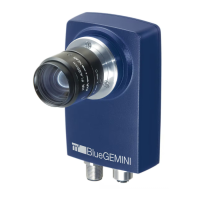
For the mvBlueGEMINI smart camera, this may look something like: "http://gemini-
000110".
c. Confirm your entries.
Please replace 000110 with the serial number of the used smart camera (without "MS").
You will find the serial number on the rear side of the camera printed on a label (starting
with "MS").
• If there are other smart cameras in the network, you can also connect to them.
If you are connected to the smart camera correctly, you will see the homepage of mvIMPACT
Configuration Studios (mvIMPACT-CS).
Alternatively, you can use Windows Explorer to find the smart camera or the PC in the network. To
do this,
• select the network folder to display all connected network devices or
• press Windows + R and enter the address of the smart camera (e.g. \\gemini-000110\).
As soon as you have chosen a smart camera, the shared folders of the smart camera are
displayed:
• images
Here you can drop *.bmp images, which can be opened using the camera simulation ("File
Device") (see chapter "Tool Box" → "Image capturing tools" → "Set up camera" → "Active
camera" in the "mvIMPACT Configuration Studio (mvIMPACT-CS) User Manual").
• logs
Here you can find the log files of the smart camera (see chapter "User Interface" → "System


 To Next Page