mvBlueGEMINI Technical Manual (EN) v2.6
FIRST STEPS 18
8 First steps
8.1 Connect the smart camera
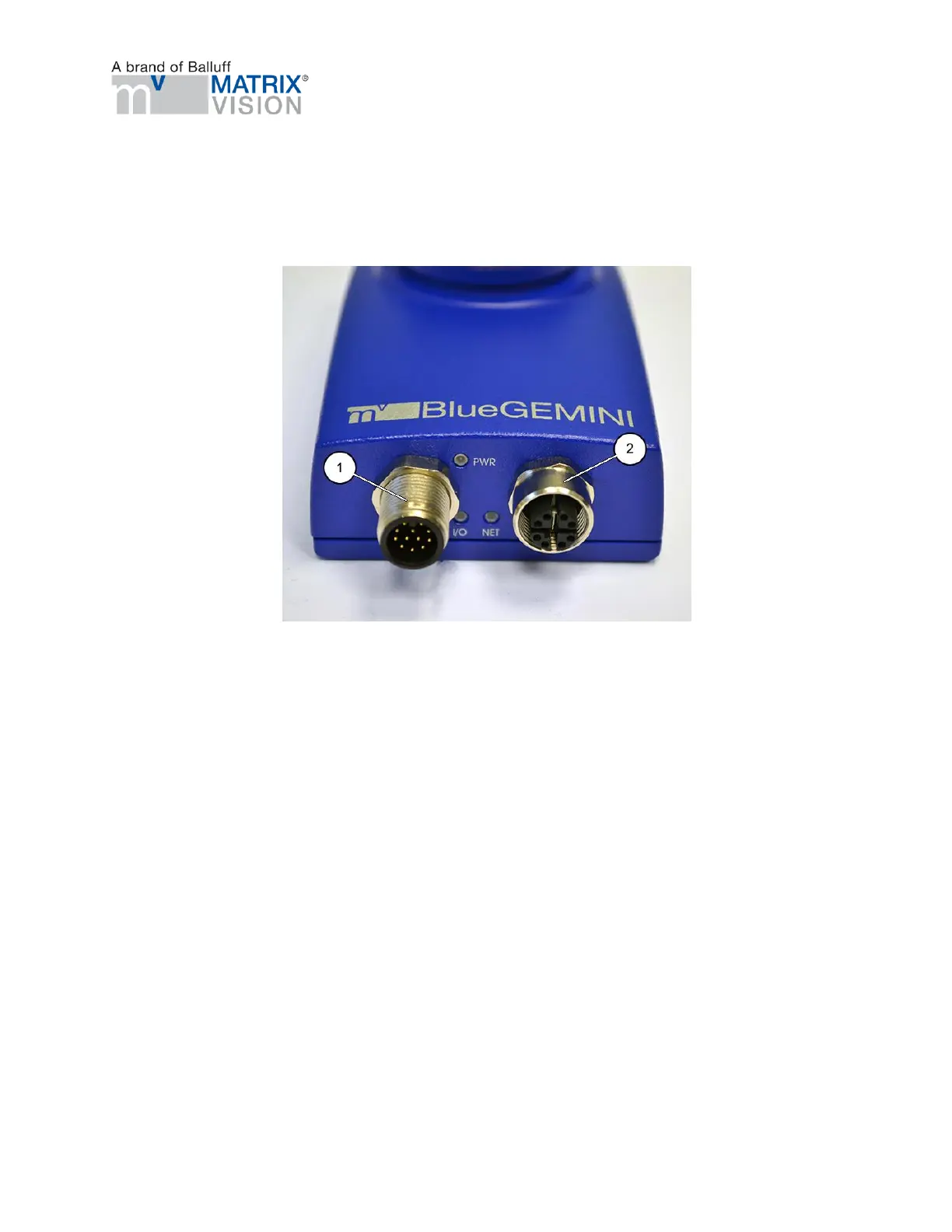
Figure 3 Connector side
• Connect the smart camera with the local network using the NET (2) connector .
• Power the camera using the connector PWR/IO (1).
• Now, the smart camera will start which will take approx. 30 seconds.
• The smart camera will load the most recently opened inspection program and will continue with
the most recently used operating mode (active/inactive).
8.2 Connect with the smart camera
• The smart camera is configured via PC, tablet or smartphone. It is assumed that the device
used for this purpose
o has a minimum resolution of 1024 x 768 pixels,
o has an supported web browser and
o is connected to the same network as the smart camera. In Windows, you need to
apply the setting "Obtain an IP address automatically" (DHCP) for the network
adapter for the PC or smart camera.
Supported web browsers are:
• Google Chrome version 32.0 and above
• Mozilla Firefox version 24.0 and above
• Microsoft Internet Explorer version 11 and above


 To Next Page