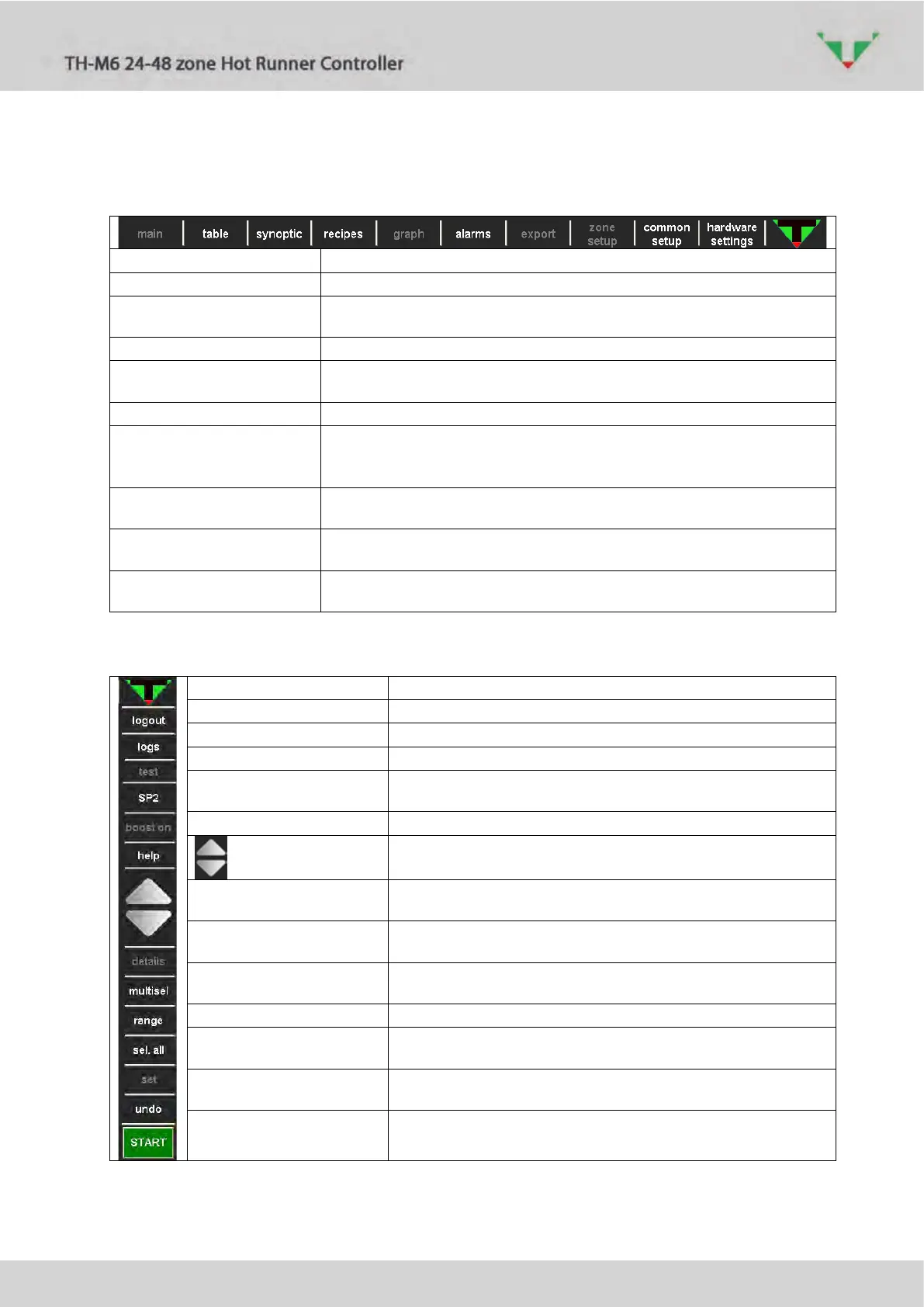
As soon as the supervisory software start is compete, Figure 5 page will be displayed.
Particularly, upper bar allows to navigate between all the environments.
Table 3: upper bar
Main page, refer to paragraph 6.3
Table page, refer to paragraph 6.4
Allows to identify each zone on the real mould
Refer to paragraph 6.10
Recipes management, refer to paragraph 6.11
Graph historical data (temperature and Set Point of the selected
zones). Refer to paragraph 6.12
Active and historical alarms. Refer to paragraph 6.16.1
Export of historical working data of the selected zones according to a
selected time range.
Allows to visualize and change “zone parameters”.
Refer to paragraph 6.13
Allows to visualize and change “common parameters”.
Refer to paragraph 6.14
Allow to visualize and change hardware settings and identification
label of each zone. Refer to paragraph 6.18
Table 4: right side bar
Login and logout functions. Refer to paragraph 0
Event log page. Refer to paragraph 6.15
Make test on the selected zones. Refer to paragraph 6.8
Switch between SP2-SP1. Refer to paragraph 6.6
boost on – boost off
Switch ON and OFF “boost” function.
Refer to paragraph 6.9
Display the help page according to the active page.
If controller has more than 50 zones, allows the scrolling
between the pages.
details
Displays all the details of the selected zone.
Refer to paragraph 6.5
multisel
If pushed, allows the contemporary selection of many zones.
Refers to paragraph 6.3.6
range
If pushed, allows the selection of a range of zones. Refer to
paragraph 6.3.6
Select – deselect all the zones of the controller.
set
Allows to change the status and Set Point values of the
selected zones. Refer to paragraph 6.3.6
undo
Undo the last setting that was made.
Refer to paragraph 6.7
Start - Stop
Heating start and stop. Refer to paragraph 6.3.1



 To Next Page