EasyManua.ls Logo

BCN3D Sigma - Page 21

BCN3D Sigma
23 pages
Print Icon
To Next Page IconTo Next Page
To Previous Page IconTo Previous Page
Loading...
Haz
tu
primera
impresiön
dual
Your
first
dual
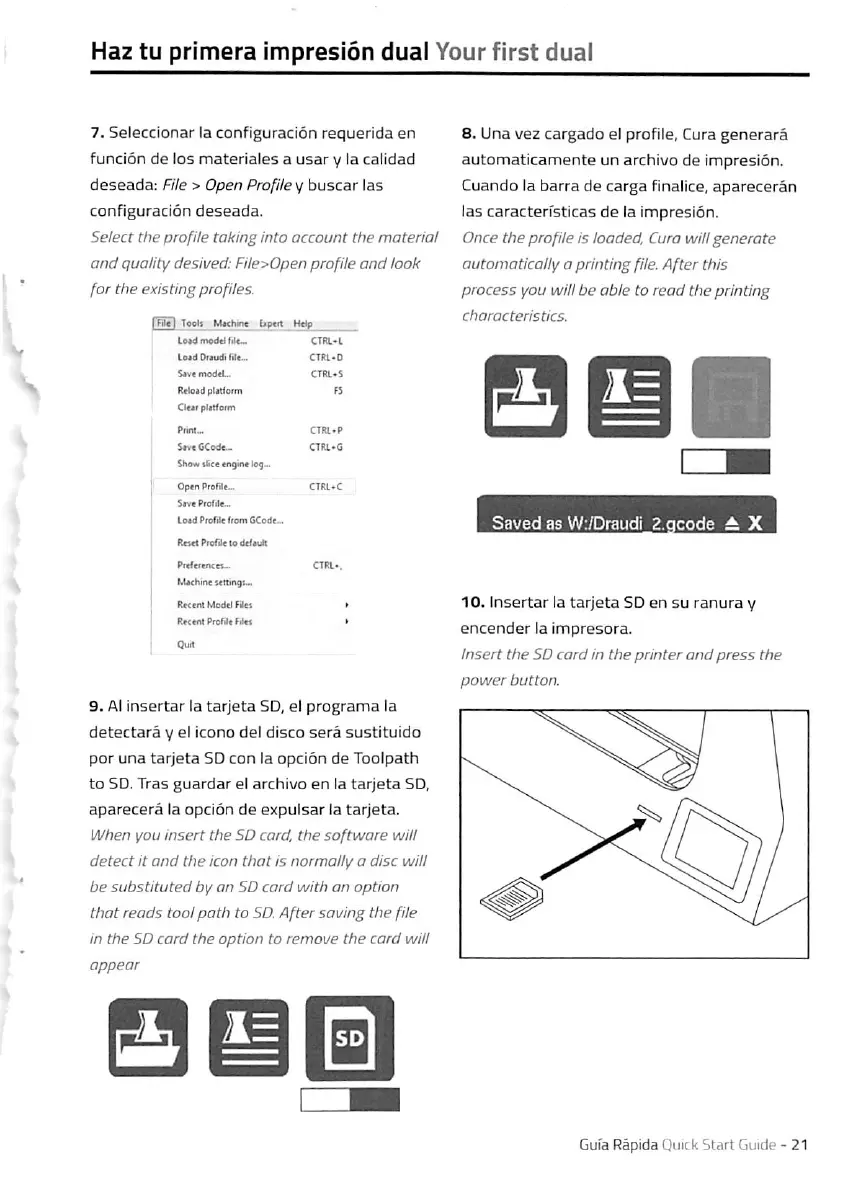
7.
Seleccionar
la
configuraciön
requerida
en
funciön
de
los
materiales
a
usar
y
la
calidad
deseada:
Fite
>
Open
Profiley
buscar
las
configuraciön
deseada.
Select
the
profile
taking
into
account
the
material
and
quality
desived:
File>Open
profHe
and
look
for
the
existing
profiles.
I
Fit
I
Tooh
MKhme
bpen
Hdp
LctamoMfit-
CT1tl-L
Loid
Drcudi
fn«...
CTRL*D
Snc
modtU
CTRL'S
Rtlgtd
pMoim
fi
CIcir
plftform
I
Piint-
CTRL-P
SmCCodc-
CTHL-G
Show
tfke
cngino
(og-.
Optn
Ptafile..
CTRL*C
S*VB
ProTrie..
logd
Prorde
ffom
GCDde~
RcMI
ProHcto
dc(*uk
8.
Una
vez
cargado
ei
profile,
Cura
generarä
automaticamente
un
archiuo
de
impresiön.
Cuando
la
barra
de
carga
finalice,
aparecerän
las
caracterfsticas
de
la
impresiön.
Once
the
profile
is
loaded,
Cura
will
generate
automatically
a
printing
fHe.
After
this
process
you
will
be
able
to
read
the
printing
characteristics.
0
MMhin«
Mttingb..
9.
AI
insertar
la
tarjeta
SO,
el
prcgrama
la
detectarä
y
ei
icono
del
disco
serä
sustituido
por
una
tarjeta
SD
con
la
opciön
de
Tooipath
to
SD.
Tras
guardar
el
archivo
en
la
tarjeta
SD,
aparecerä
la
opciön
de
expulsar
la
tarjeta.
When
you
insert
the
SD
card.
the
Software
will
detect
It
and
the
icon
that
is
normally
a
disc
will
be
substituted
by
an
SD
card
with
an
Option
that
reads
tool
path
to
SD.
After
saving
the
fHe
in
the
SD
card
the
Option
to
remove
the
card
will
10.
Insertar
la
tarjeta
SD
en
su
ranura
y
encender
la
impresora.
Insert
the
SD
card
in
the
printer
and
press
the
power
button.
SfSH
Gufa
Räpida
Quick
Start
Guide
-
21

Other manuals for BCN3D Sigma

Related product manuals