Making & Streaming Videos
Access Control Screen by selecting “Next”
Button from Home Screen.
Step 1
On Control Screen, select mode icon (#6
in image below) and select “Record”.
Step 2
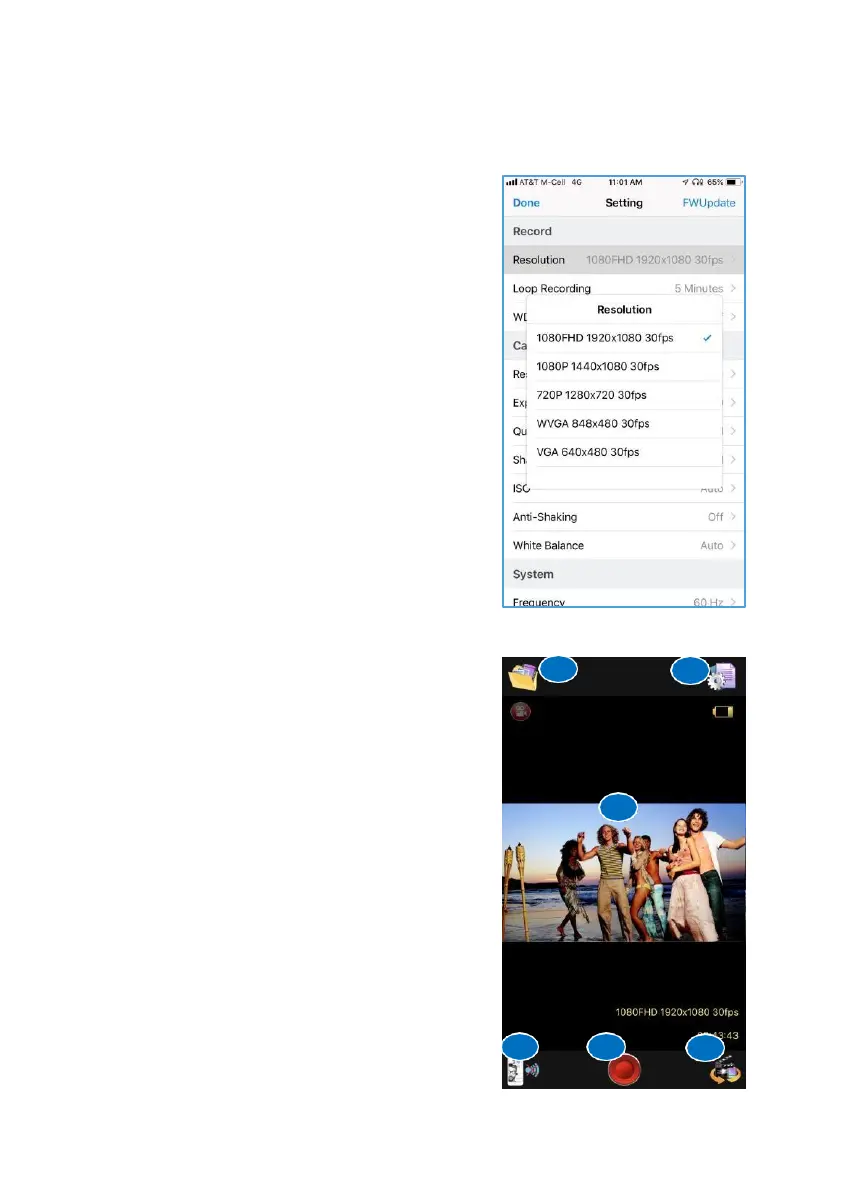
You can adjust the following:
Resolution - Open Resolution setting
and make your selection. Note: the
higher the resolution the more space
will be used on your data card.
Loop – Select "Off “ or auto recording loop
times. Tap "Done".
WDR – Wide Dynamic Range can
balance difficult lighting situations. Select
"On" or "Off".
Step 3 – Control Screen
Take the Video using phone from Control
Screen - Put HeadsUp on your head or neck.
Make sure it’s on and is connected to app via
private Wi-Fi. From Control Screen Press
Start Record button. Your video will live
stream to your phone and will auto save to
your data card. You can stream recorded
files to your phone as well while connected.
Take Video without phone – HeadsUP can
take the video without using the phone.
HeadsUp will provide voice confirmations
to assist you in selecting the correct button.
Recorded video can be streamed to phone
for viewing in the App.
1. FileManager
3. LiveDisplay
5. Start / Stop Record
2. Settings
4. Home
6. Mode – Video / Image
3
1
2
4
5
6


 To Next Page