20
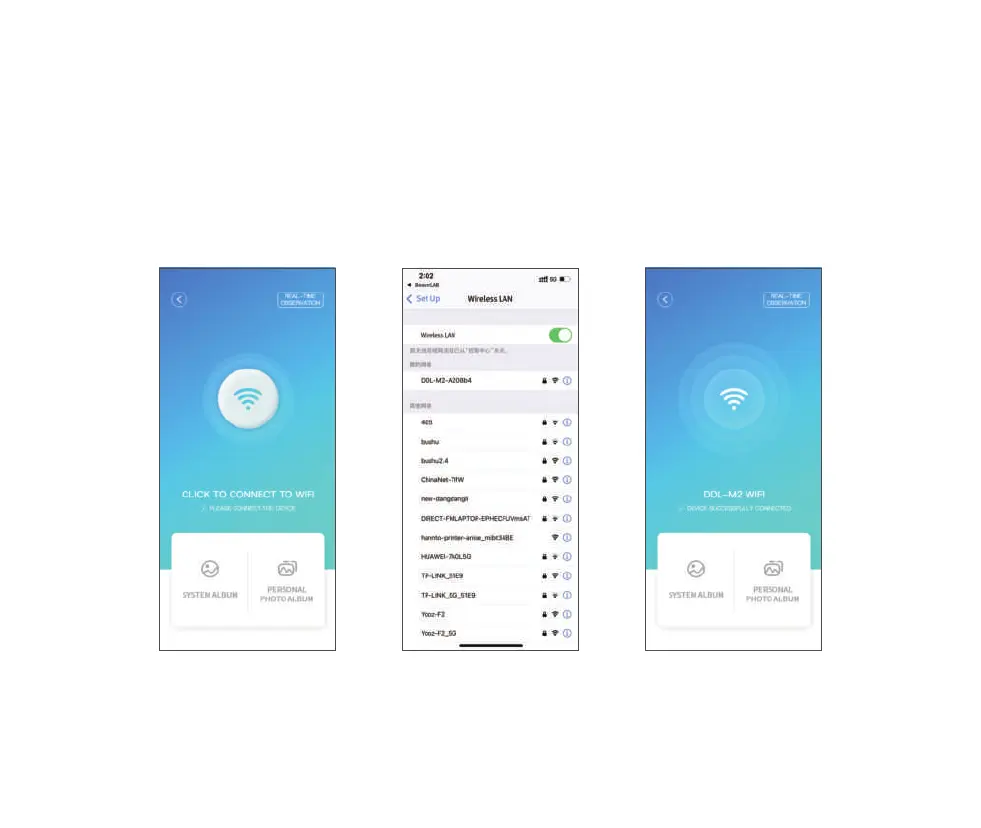
Click to connect to WIFI Select the corresponding
WIFI name
(WIFI initial password: 12345678)
Device successfully connected
After the device is turned on, open the mobile APP. Click to connect to WIFI and find the hotspot of
"DDL-M2-XXXXXX";
Tap and connect to the hotspot. If a connection confirmation prompt pops up, please click "Stay connected"
(Android version)/click "OK";
After the connection is successful, the return software will display that the device has been successfully
connected, which proves that the microscope has successfully connected with your device.


 To Next Page