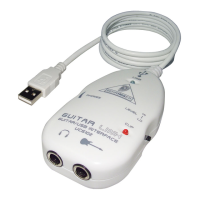
13 GUITAR LINK UCG102 Software Installation Guide
2.4 Troubleshooting
See the list of common problems, and hints on how to resolve them,
ifyou encounter any software problems.
USB AUDIO codec not recognized by Windows,
no entry for USB AUDIO device in Windows
device manager
• Check USB connection. If possible, try using a dierent USB cable
or USB port
• Connect UCG102 directly to PC or Laptop, not via a USBhub
• Ensure that USB port is functional (does it work with digital
camera, printer, etc.?)
• If necessary, check if USB ports are activated in host systemBIOS
Windows driver installation not completed
(eg.Windowserror code 10, error code 39)
• Check USB connection. If possible, try a dierent USB cable or
USB port
• Connect UCG102 directly to PC or Laptop, not via a USBhub
• If possible, try to install on another PC or Laptop
Installation of BEHRINGER USB AUDIO driver
failed with “Error 0x0006”
• Check USB connection. If possible try using a dierent USB cable
or USB port
• Close the application and re-run “setup.exe“ in the folder
“ASIO_driver“ on the CD
• Download up-to-date ASIO driver les from behringer.com
ASIO-USB control panel does not show
BEHRINGER USB AUDIO as device
• Check USB connection. If possible, try a dierent USB cable or
USB port
• Connect UCG102 directly to PC or Laptop, not via a USBhub
• Close the application and re-run “setup.exe“ in the folder
“ASIO_driver“ on the CD
Latency time too long
1) Start the ASIO-USB Control Panel from within the audio
software (may be called ASIO Cong orsimilar).
2) USB Device = BEHRINGER USB AUDIO.
3) Click on the ASIO tab.
4) System Performance = rapid (or even highspeed).




 To Next Page