14 GUITAR LINK UCG102 Software Installation Guide
Clicks or dropouts in recording
1) Start the ASIO-USB Control Panel from within the audio software
(may be called ASIO Cong or similar).
2) USB Device = BEHRINGER USB AUDIO.
3) Click on the ASIO tab.
4) System Performance = normal.
Visit musicXP.net for some helpful advice about optimizing
Windows XP for music applications.
3. Installation for Mac
3.1 Installing the UCG102
To setup the UCG102, proceed as follows:
1) Power on your computer.
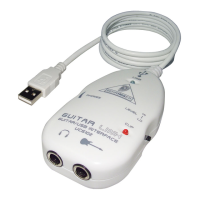
2) Connect the UCG102 with the USB cable to your Mac.
3.2 Installing the guitar combossoftware
The Guitar Combos software consists of three dierent combos.
Chooseany or all of them for installation. Withthe serial number on
the CD sleeve you can fully activate onecombo. The other combos can
be run in demo mode with the followingrestrictions:
• Saving of sounds is disabled
• Quits after 30 minutes
• Total recall is disabled
To install a combo on your system,
proceedasfollows:
1) From the folder “NI Guitar Combos“ on your CD, choosethe
combo you wish to install and open the respective archive le
(ZIP) bydouble-clicking on itsentry.
2) Double-click on the installer icon on the desktop, tostart
theinstallation.
3) Follow the on-screen instructions.
If you have the serial number for the installed combo:
4) Accept to start the NI Service Center, upon request.
◊ If your computer is not connected to the internet, choose the
offline registration method to activate the combo via
another computer.





 To Next Page