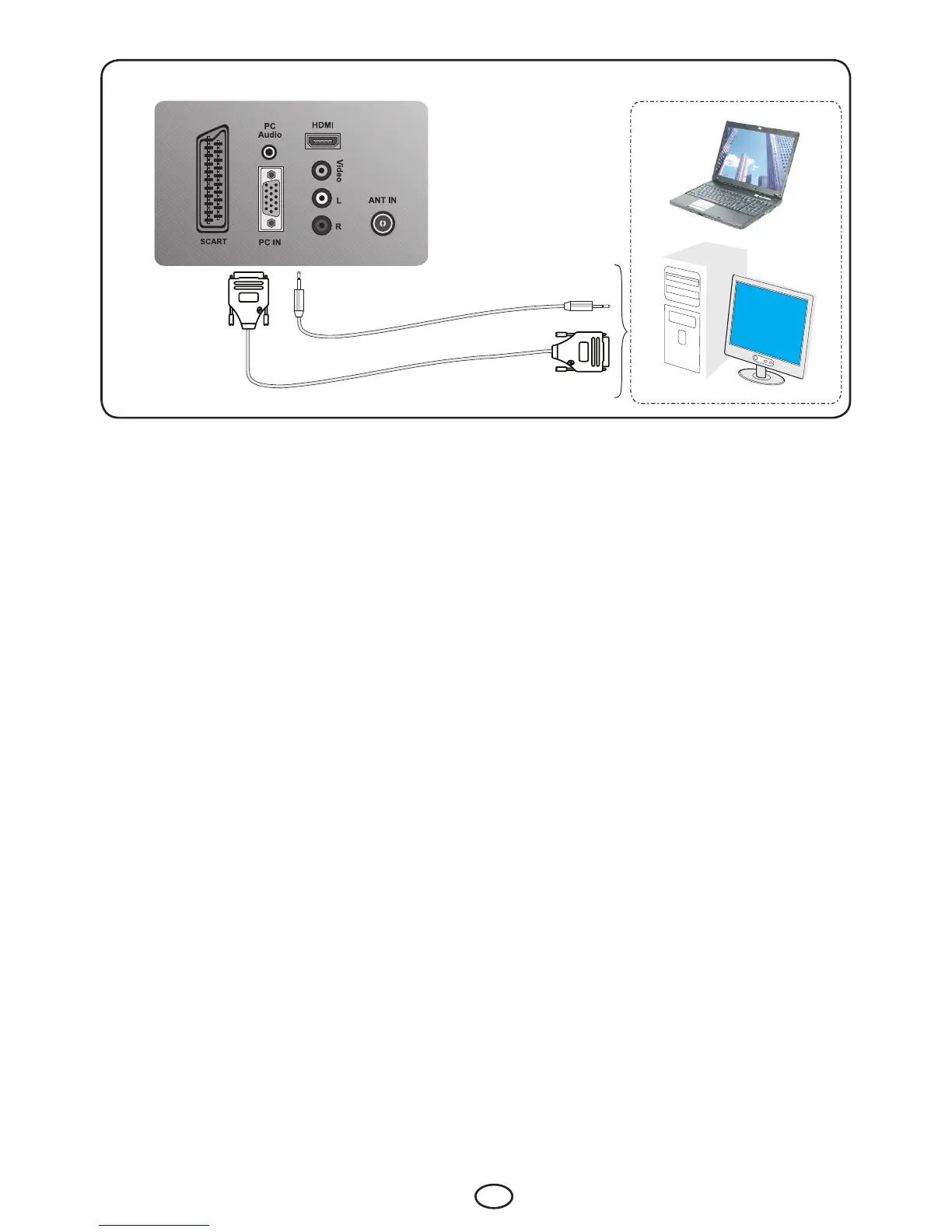
9.5-PC connection
Rear view of the TV
Picture connection
Audio connection
9.5.1-PC Connection:
ConnecttheD-Sub15connectortothePC-INsocketatthebackofyourtelevisionbyusing
anappropriatecable(notsuppliedwithyourtelevision).Again,byusinganappropriatecable,
connecttheaudiooutputofyourPCtothePCAUDIO-INatthebackofyourtelevisionto
listen to sounds from your PC and you can adjust the volume level of your source by using
VOL+/VOL- buttons.
9.5.2-Transition to the PC mode
ForyourLCD-TVtoswitchtothemonitor(PC)mode,presstheAV button on your remote
control. Source menu will be displayed. Select PC by pressing the Up/Down navigation
buttons and press the OK button.
9.5.3-PC Setting
Enter into the Setup menu from the Main Menu by pressing the MbuttoninthePCmode.In
order to make the necessary settings in this menu, you can select the headings with the Up/
Down buttons on your remote control to perform the following monitor-related settings.
9.5.4-AUTOCONFIGURATION
The most suitable geometric settings in accordance with the entry mode are configured by
this function. For this operation, select the AUTOCONFIGURATION tab and press OK
button.
9.5.5-HORIZONTAL POSITION: Horizontal position setting.
9.5.6-VERTICAL POSITION: Vertical position setting.
9.5.7-CLOCK FREQUENCY:Thisisthepixelclockfrequency.Usercannarrowdownor
enlarge the display by selecting a desired value.
9.5.8-PHASE:Usingtheright/leftnavigationbuttons,youcanensurethatthecolorsand
shapes are exactly consolidated on the PC image.
9.5.9-PICTURE FORMAT
YoucanselectthePCimagetobedisplayedin16:9or4:3formats.



 To Next Page