11
After successfully installing the Belkin Wireless Networking Utility
(WNU), configurations for wireless connection and security are just a
few easy clicks away.
Accessing the WNU from the Windows System Tray
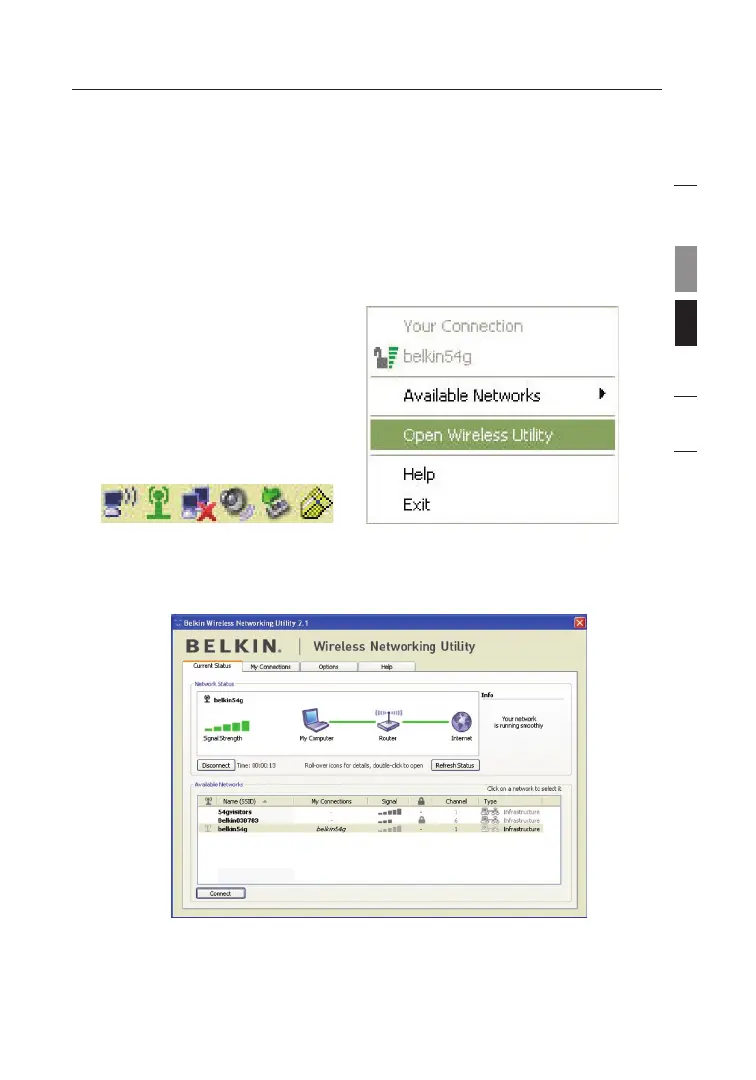
To access the WNU, simply place your mouse pointer and right-click
over the WNU icon on the Windows task tray.
If the icon is not present, click on “Start > Programs >
Wireless Utility”.
The WNU’s default screen is the “Current Status” tab. The “Current
Status” tab displays the current Network Status and Available
Networks.
Using the Belkin Wireless Networking Utility
11
section
1
2
3
4
5
6








 To Next Page