1918
Using the Belkin Wireless Networking Utility
WPA2 requires Advanced Encryption Standard (AES) for encryption of
data, which offers much greater security than WPA. WPA uses both
Temporal Key Integrity Protocol (TKIP) and AES for encryption.
Setting up your Wireless Router to use Security
To start using security, you need to first enable WEP or WPA for your wireless
router. For Wireless Routers from Belkin, these security features can be
configured by using the web-based interface. See your wireless router’s
manual for directions on how to access the management interface.
IMPORTANT:
You must now set all wireless network cards/adapters to
match these settings.
Configuring your Wireless G Plus Notebook Card to use
Security
At this point, you should already have your wireless router set to use WPA or
WEP. In order for you to gain wireless connection, you will need to set your
Wireless G Plus Notebook Card to use the same security settings.
Changing the Wireless Security Settings
The Wireless G Plus Notebook Card supports the latest WPA security
feature as well as the legacy WEP security standard. By default,
wireless security is disabled.
To enable security, you will first need to determine which standard is
used by the router. (See your wireless router’s manual for directions
on how to access the security settings.)
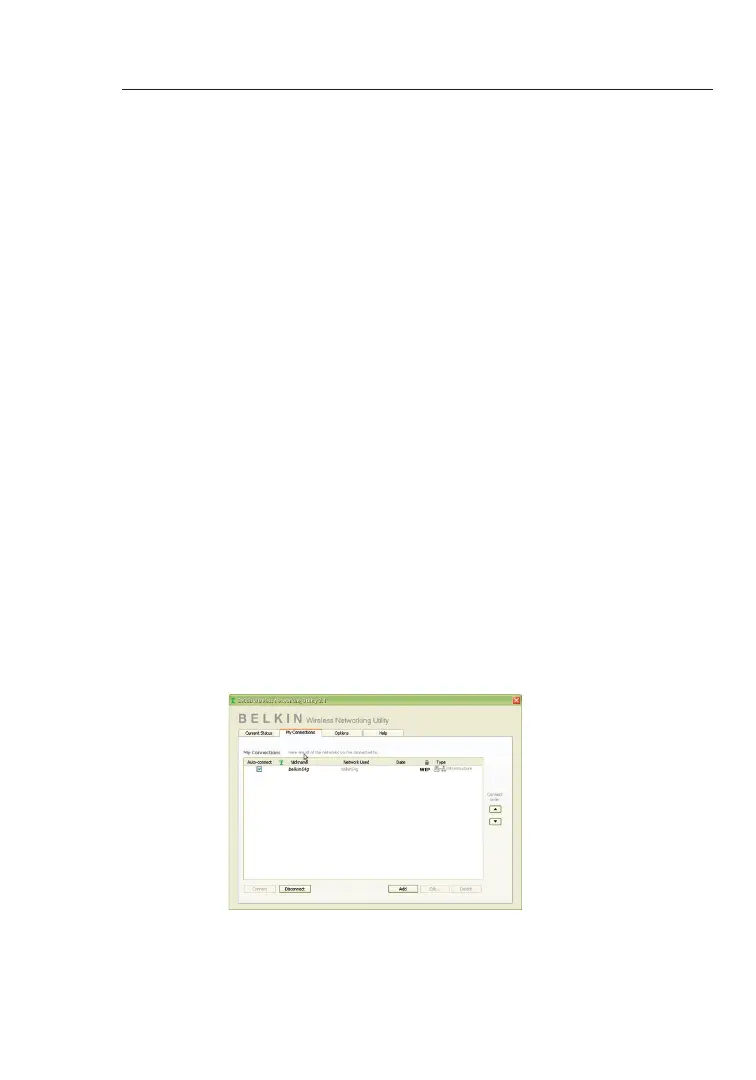
To access the security settings on your Card, click the “My
Connections” tab and point to the connection for which you want to
change security settings. Click “Edit” to change settings.








 To Next Page