Using the Belkin Wireless Networking Utility
21
1
2
3
4
5
6
section
3. Click “Save” to finish. Encryption in the wireless router is now
set. Each of the computers on your wireless network will now
need to be configured with the same security settings.
WARNING: If you are using a wireless client to turn on the security
settings in your wireless router, you will temporarily lose your wireless
connection until you activate security on your wireless client. Please
record the key prior to applying changes in the wireless router. If
you don’t remember the hex key, your client will be locked out of the
wireless router.
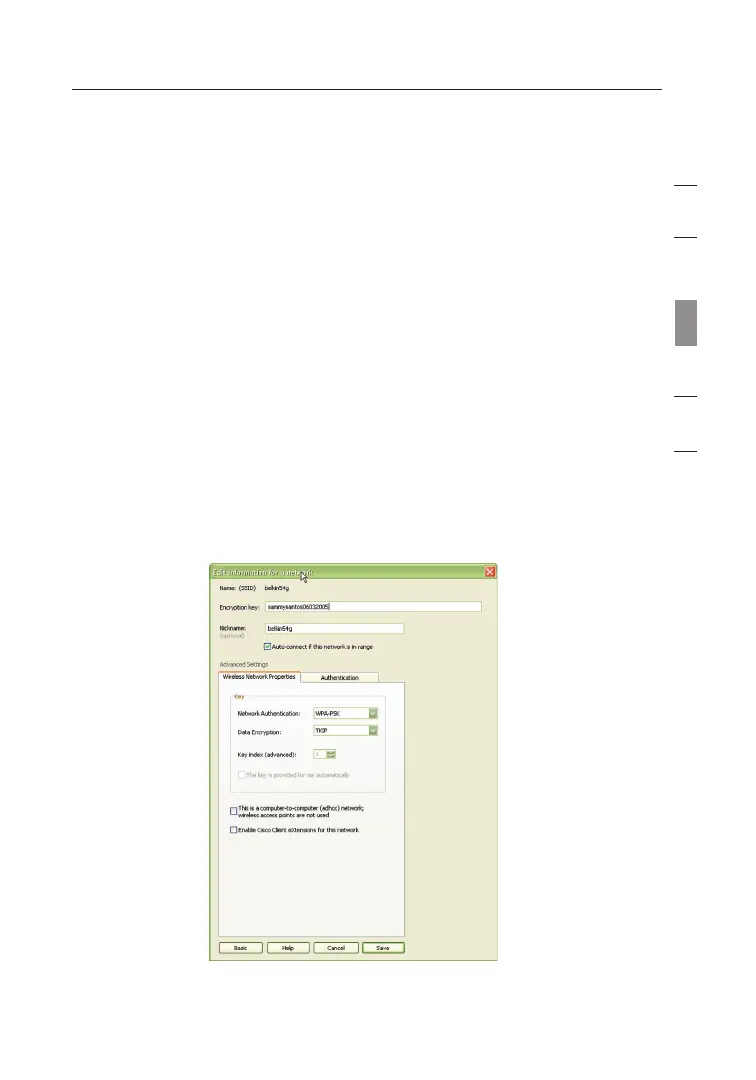
WPA-PSK (no server)
Choose this setting if your network does not use a radius server. WPA-PSK
(no server) is typically used in home and small office networking.
1. From the “Network Authentication” drop-down menu, select
“WPA-PSK (no server)”.
2. Enter your network key. This can be from eight to 63 characters
and can be letters, numbers, or symbols. This same key must be
used on all of the clients (network cards) that you want to include
in your wireless network.
3. Click “Save” to finish. You must now set all clients (network
cards) to match these settings.








 To Next Page