English
Using the Camera 11
3.4.2 Video mode
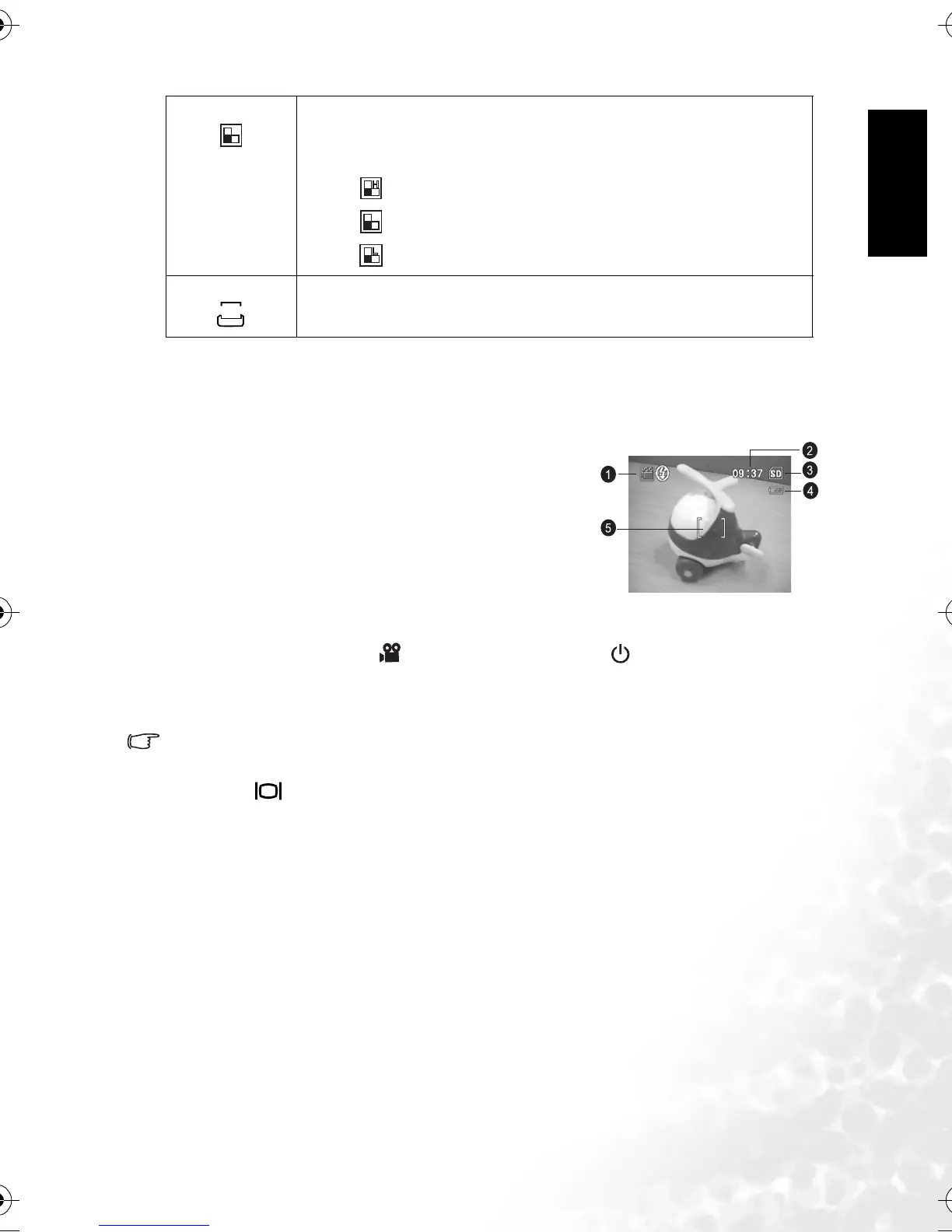
3.4.2.1 LCD monitor information (video mode)
1. Video mode
2. Recordable movie time available
3. SD memory card indicator (if present)
4. Battery power indicator
5. Focus area
3.4.2.2 Recording video clips
This mode allows you to record video clips with sound
via built-in microphone.
1. Rotate the mode dial to [ ] mode, and then press the [ ] button to turn on your
camera.
2. To start recording, press the shutter button.
3. To stop recording, press the shutter button again.
• The zoom function of optical zoom (3X) can be activated before you start to record video
clips.
• Pressing [ ] switches the LCD monitor display mode.
Saturation
[]
To capture an image, your camera offers you three different degrees of color to
match with your preference.
Your images will demonstrate different impression by selecting different degrees of
color. This is called “Saturation”.
–[ ] High
–[ ] Medium
–[ ] Low
Date Imprint
[]
This option allows the date of recording to be printed directly on the still images.
This function must be activated before the image is captured.
– On / Off
DA TE
DC_C630_UM.book Page 11 Tuesday, February 14, 2006 10:01 AM



 To Next Page