49 Upotreba (pod Launcher izvorom)
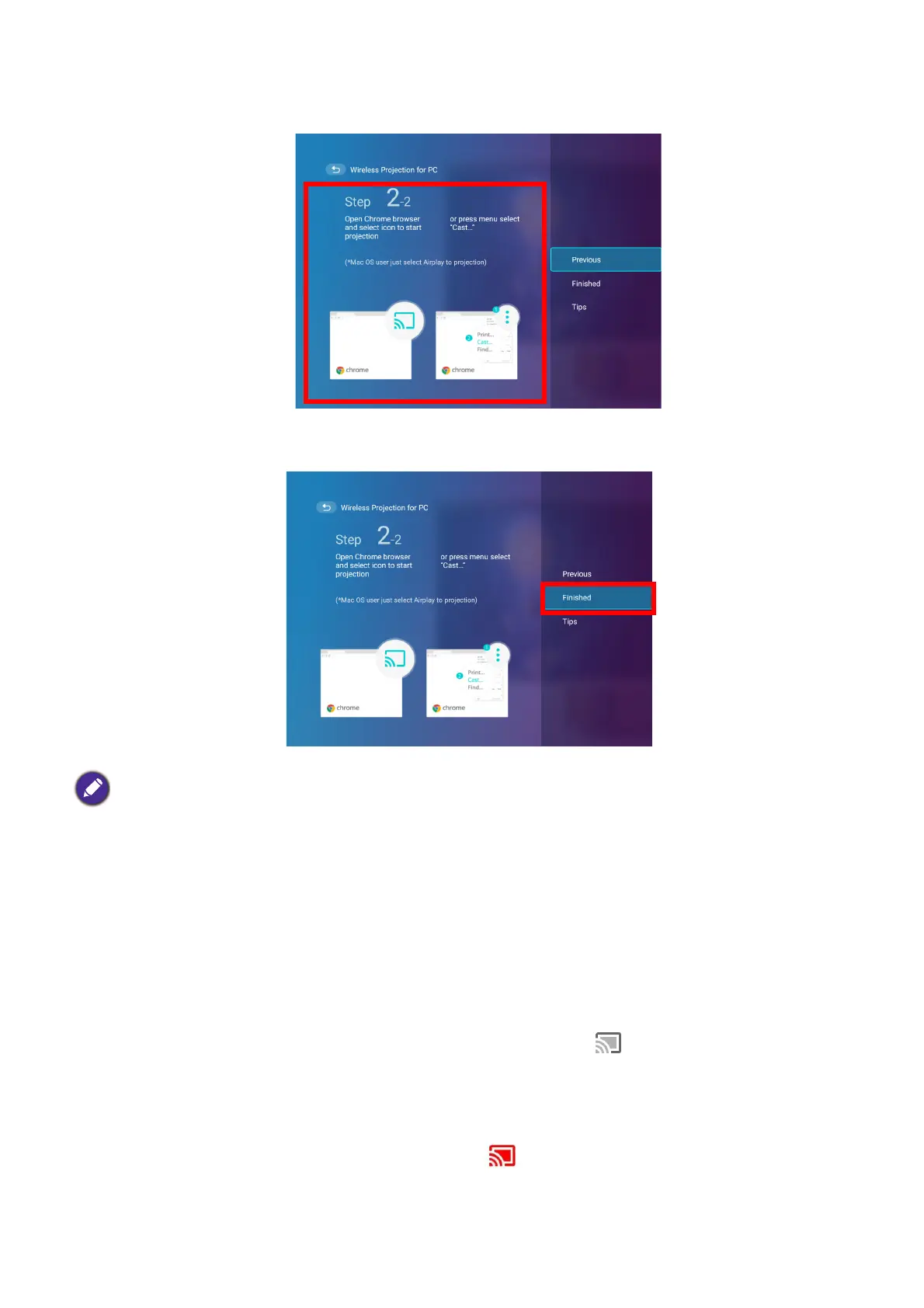
4. Follow the instructions shown on the Wireless Projection for Windows screen to project
your PC’s screen.
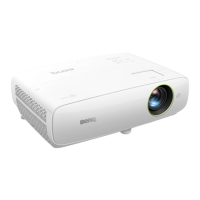
5. Select Finished on the Wireless Projection for Windows menu to finish the tutorial and
return to the home screen.
Once you have finished projecting, disable screencasting on your PC to end the connection.
YouTube Broadcast
To connect a mobile device to the projector and broadcast your device’s YouTube screen:
1. Make sure your projector and the mobile device are connected to the same wireless AP. To
connect your projector to a wireless network, see Connecting the projector to a wireless
network on page 41.
2. Launch the YouTube app on your mobile device.
3. On the upper-right corner of your YouTube screen, click the icon.
4. A list of available devices is displayed. Choose to connect to your projector. The YouTube
screen is casting to your projector. Note that options and procedures may vary by app
version or OS version. Follow the on-screen instructions to select your projector to cast.
5. To end the connection / broadcasting, click the icon on the upper-right corner of your
device’s YouTube screen.
The quality of the wireless projection may depend on the quality of the wireless signal along with the screen
mirroring compatibility of the PC.







 To Next Page