31 Menu operation
Settings
Image
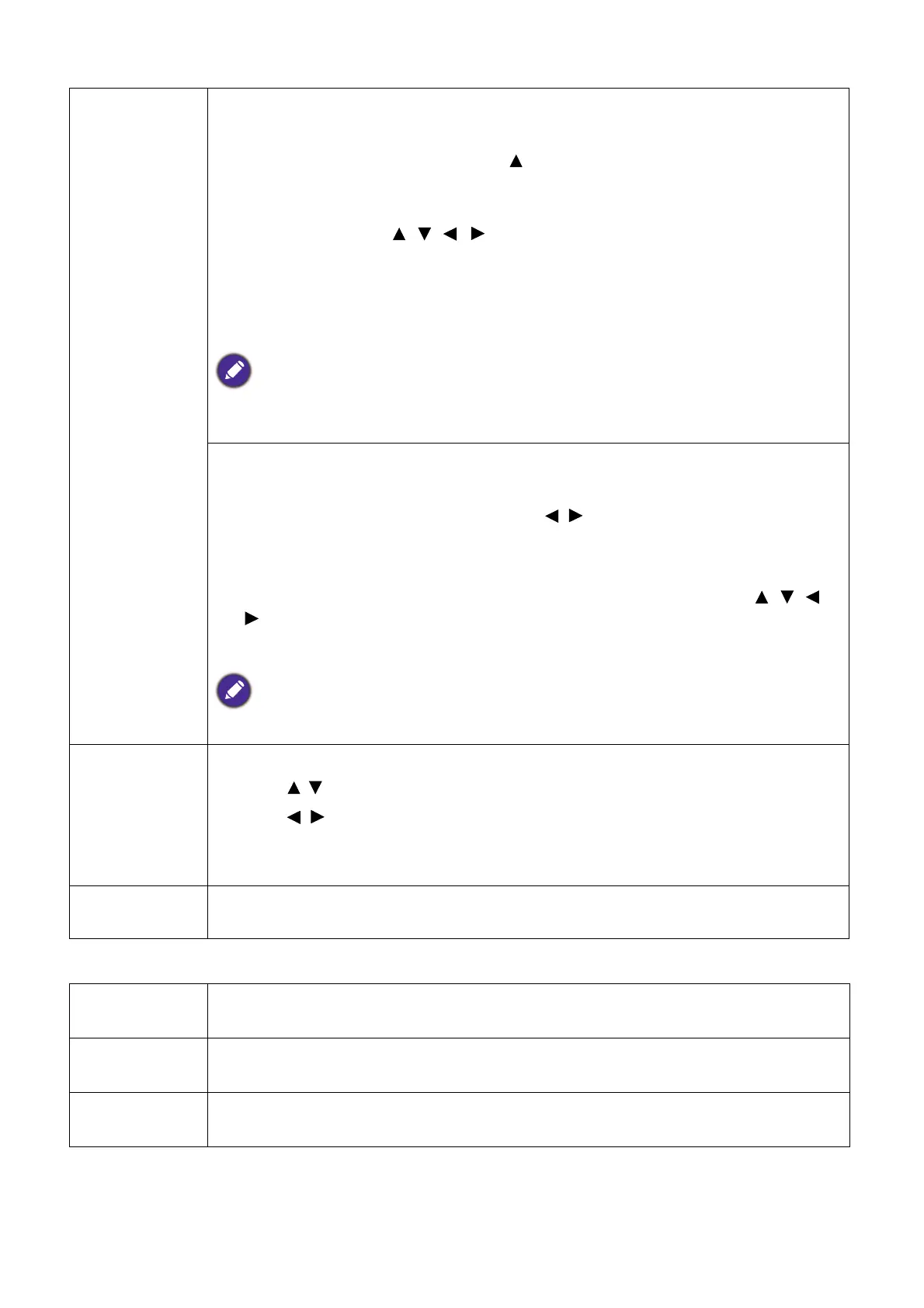
Resizing
Digital Zoom
Magnifies or reduces the projected image.
1. After the Zoom bar displays, press repeatedly to magnify the picture to a
desired size.
2. To navigate the picture, press OK to switch to the panning mode and press the
directional arrows ( , , , ) on the projector or remote control to
navigate the picture.
3. To reduce size of the picture, press OK to switch back to the zoom in/out
function, and press AUTO to restore the picture to its original size. You can
also press repeatedly until it is restored to the original size.
The picture can only be navigated after it is magnified. You can further magnify the picture while
searching for details.
Digital Shrink & Shift
Shrinks and/or shifts the projected image.
1. After the adjustment bar displays, press / repeatedly to shrink or magnify
the picture to a desired size.
2. Press OK to activate digital shift function.
3. After digital shift function is activated, press the directional arrows ( , , ,
) to shift the image.
4. Press AUTO to restore the picture to its original size.
The picture can only be shifted after it shrank.
Teaching
Template
The projector provides several preset patterns for various teaching purposes.
1. Press / to select Blackboard or Whiteboard.
2. Press / to choose the pattern you need from among Letter Formation,
Worksheet and Coordinate Chart.
3. Press OK to display the pattern.
Reset Display
Returns all of the adjustments you’ve made for the Display menu to the factory
preset values.
Projector
Installation
The projector can be installed on a ceiling or behind a screen, or with one or more
mirrors. See Choosing a location on page 12.
Remote
Receiver
Allows you to enable all the remote receivers or one specific remote receiver on
the projector.
Auto Source
Search
Allows the projector to automatically search for a signal.


 To Next Page