EasyManua.ls Logo

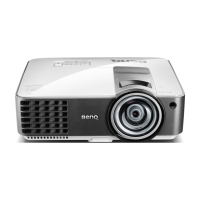
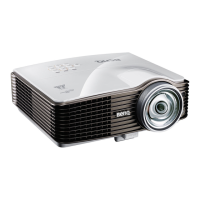
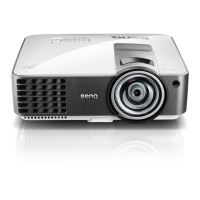
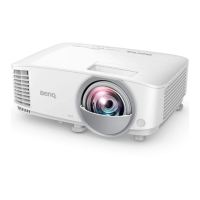
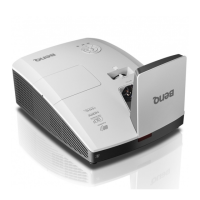
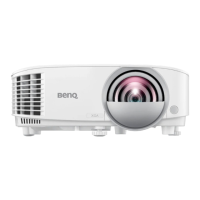
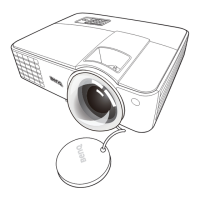
BenQ MX816ST - User Manual

BenQ MX816ST
61 pages
Print Icon
To Next Page IconTo Next Page
Loading...
MX815ST/MX815ST+/MX816ST/
MW817ST
Digital Projector
User Manual

Other manuals for BenQ MX816ST

Questions and Answers

  • M
    martincharlesAug 8, 2025
    How to fix BenQ Projector that does not turn on?
    • C
      Carol KingAug 8, 2025
      If your BenQ Projector isn't turning on, here are a couple of things to check: * Ensure the power cord is securely plugged into both the projector's AC power jack and a working power outlet. If the outlet has a switch, make sure it's on. * If you've recently tried turning it on, wait for the cooling process to complete before attempting to power it on again.
  • S
    stoutlarryAug 13, 2025
    What to do if BenQ Projector remote control does not work?
    • A
      Amy SimsAug 14, 2025
      If your BenQ Projector remote control isn't working, try these steps: * Replace the battery with a new one. * Ensure there are no obstructions between the remote and the projector. * Make sure you are within 8 meters (26 feet) of the projector.
  • M
    Matthew ScottAug 18, 2025
    Why is my BenQ MX816ST Projector image blurred and how to fix it?
    • T
      Tyler RogersAug 19, 2025
      A blurred image on your BenQ projector can be caused by a few things. First, adjust the focus of the lens using the focus ring. Second, make sure that the projector and the screen are aligned properly, adjusting the projection angle, direction, and height if needed. Finally, ensure the lens cover is open.
  • T
    Tanya GarciaAug 23, 2025
    What to do if the BenQ Projector remote control does not work?
    • R
      Rebecca KnightAug 23, 2025
      If your BenQ projector's remote control isn't working, try these solutions: * **Battery:** Replace the battery with a new one. * **Obstacles:** Remove any obstacles between the remote control and the projector. * **Distance:** Ensure you are within 8 meters (26 feet) of the projector.
  • A
    annariveraAug 28, 2025
    Why is my BenQ MX816ST image blurred?
    • J
      Jason RayAug 28, 2025
      If your BenQ Projector image is blurred, consider the following: * Adjust the focus of the lens using the focus ring. * Ensure the projector and screen are properly aligned by adjusting the projection angle, direction, and projector height if needed. * Verify that the lens cover is open.
  • M
    Mrs. Kristen MooreSep 2, 2025
    What to do if my BenQ Projector has no picture?
    • P
      Pamela ClaytonSep 2, 2025
      If your BenQ Projector displays no picture, several factors could be responsible: * Ensure the video source is powered on and correctly connected. * Verify the projector is properly connected to the input signal device. * Select the correct input signal using the SOURCE key on the projector or remote. * Make sure the lens cover is open.

Summary

Important Safety Instructions

Safety Instructions

Essential guidelines for safe operation and handling of the projector.

Connection

Connecting Video and Audio Sources

Guides on connecting video sources and audio devices for optimal playback.

Operation

Starting Up the Projector

Step-by-step instructions for powering the projector on safely.

Adjusting the Projected Image

Adjusts image focus, projection angle, and clarity for optimal viewing.

Correcting Keystone Distortion

Manual correction methods for trapezoidal image distortion.

Securing the Projector

Instructions for setting up password protection and using a security cable lock.

Shutting Down the Projector

Step-by-step instructions for safely powering the projector off.

Maintenance

Lamp Information and Replacement

Details lamp life, replacement procedures, and lamp timer resetting.

Troubleshooting

Common Issues and Solutions

Provides solutions for common problems like no power, no picture, or blurred images.

BenQ MX816ST Specifications

General IconGeneral
Brightness3000 ANSI Lumens
ResolutionXGA (1024x768)
Contrast Ratio13000:1
Lamp Life (Economic)6000 hours
Weight2.6 kg
Display TechnologyDLP
Zoom Ratio1.2x
Input Lag16 ms
Power Consumption (Standby)<0.5W
Throw Ratio0.9 - 1.08
Speakers10W
Input TerminalsHDMI, VGA, Composite, USB
Keystone CorrectionVertical ±40°
Aspect Ratio4:3 (native), 16:9 (compatible)

Related product manuals