8
Wireless projection
You can project your mobile device’s screen wirelessly via Wireless Projection.
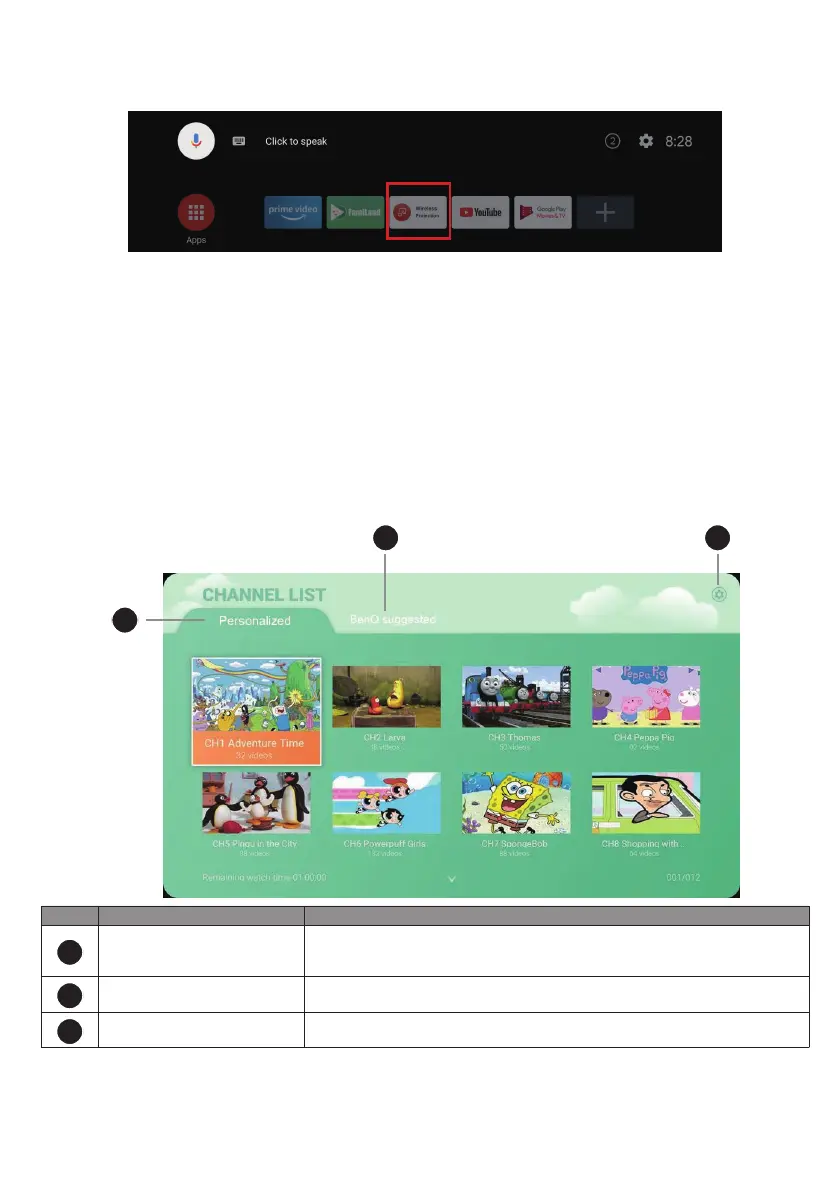
1. Select Wireless Projection from the Home screen.
2. Follow the on-screen instructions to select the operating system of your mobile device.
3. The connection information is displayed. On the wireless network settings of your device, enable Wi-Fi function.
Search for the provided network name and input the provided password to establish the connection.
4. Enable the screencasting function on your device and select QS01 for wireless projection. Your device's screen is
then projected wirelessly.
BenQ FamiLand
BenQ FamiLand provides a quick access to the channels and videos that are suitable for kids. You can customize a
preferred channel list or simply watch the most popular channels FamiLand collects for you.
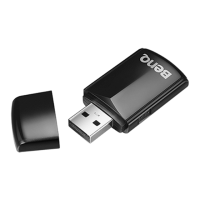
1. Make sure the dongle is connected to the Internet.
2. Select FamiLand from the Home screen.
3. Finish reading the privacy policy and select Agree to proceed.
4. Follow the on-screen instructions to pair a smart device (e.g., a mobile phone or a tablet) with the dongle to edit
the channel list. Or you can pair a device later as instructed in "Pairing with your mobile device" on page 8 .
1
32
No. Item Descriptions
1
Personalized channel list
Watch your favorite videos from different channels and edit the list as you
wish. You can add up to 29 channels to the list. See “Creating a channel and
saving videos for kids” on page 9 for more information.
2
Recommended channel list
Watch the most popular kids video contents recommended by BenQ.
Available contents may vary by language.
3
Settings
Access to change channel language, manage the paired devices, and check
version information.
Pairing with your mobile device
The channel list can only be edited from a paired mobile device (e.g., mobile phone or tablet). Pair your mobile device
with the dongle rst.


 To Next Page