Need help?
Do you have a question about the BenQ QS01 and is the answer not in the manual?
Detailed description of each button on the remote control and its function.
Instructions for opening the battery cover, inserting batteries, and replacing the cover.
Information on the optimal angle and distance for remote control operation.
Overview of key elements on the home screen, including app launchers, search, recommendations, and settings.
Watch and edit favorite videos from different channels. Add up to 29 channels.
Watch popular kids video content recommended by BenQ.
Access settings to change language, manage devices, and check version.
Steps to create custom channels and save YouTube videos to them.
Mark videos as favorite for quick access within the FamiLand app.
Reorder, revise information, or delete videos from a custom channel.
Procedure to remove an entire custom channel from the personalized list.
How to play videos from a paired device on the projector.
This document serves as a user manual for the BenQ QS01 HDMI Media Streaming device, providing comprehensive instructions for its setup, operation, and various features. The QS01 is designed to enhance your viewing experience by enabling wireless projection and offering a curated content platform, FamiLand, specifically tailored for children.
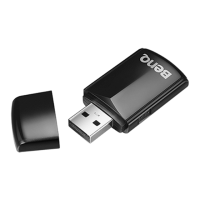
The BenQ QS01 is an HDMI media streaming dongle that facilitates the wireless projection of content from mobile devices to a projector. It acts as an intermediary, receiving content wirelessly from your smartphone or tablet and then transmitting it via an HDMI connection to your projector. This allows for a larger, more immersive viewing experience for various types of media.
Beyond simple screen mirroring, the QS01 integrates with the BenQ FamiLand platform, a specialized kid-friendly channel. FamiLand provides a safe and curated environment for children to access videos, offering features like personalized channel lists, recommended content, and parental controls for managing watch time. The device supports Google Voice Search and Google Assistant, allowing for hands-free control and content discovery. It also provides direct access to popular streaming services such as Amazon Prime Video, YouTube, and Google Play Movies & TV, expanding the range of available entertainment.
The QS01 offers a straightforward initial setup process. To begin, connect the Micro-USB cable to the dongle's Micro-USB port, then connect the dongle's HDMI connector to an HDMI port on your projector. The USB type-A connector of the Micro-USB cable should then be connected to a USB port on the projector that provides 5V/1A power. If the dongle's LED indicator does not light up blue after the projector is powered on, an external USB power adapter may be required. Once the projector is on, switch its input source to the HDMI port where the dongle is connected. The remote control, which requires two AAA batteries, needs to be paired with the dongle by pressing and holding the OK key for three seconds. After successful pairing, the Home screen will be displayed, prompting you to establish a network connection and log in to your Google account to complete the initial setup.
The remote control is central to interacting with the QS01. It features dedicated buttons for power, auto focus (for compatible projectors), FamiLand access, input selection, home, back, mute, keystone correction, and Amazon Prime Video. Navigation is handled by arrow keys and an OK button, while volume up and down buttons control audio output. The remote also includes buttons for Android options, projector menu, Google Assistant, and LED indicators to show pairing status (blue for paired, red for not paired).
For wireless projection, select "Wireless Projection" from the Home screen and follow the on-screen instructions to connect your mobile device. This involves enabling Wi-Fi on your device, searching for the provided network name, inputting the password, and then enabling screencasting to select the QS01.
The FamiLand feature is a key highlight for families. After selecting FamiLand from the Home screen and agreeing to the privacy policy, you can pair a smart device (mobile phone or tablet) with the dongle to customize channel lists. This pairing process involves downloading the FamiLand app, scanning a QR code, and inputting a PIN code displayed on the projector. Once paired, you can create personalized channels, save YouTube videos to these channels, and mark videos as favorites for quick access. The FamiLand app allows for editing channel information, setting video display order (latest or oldest), and deleting videos or entire channels. Playback of FamiLand videos is controlled directly from your paired mobile device.
A crucial parental control feature is the ability to limit watching time. Through the FamiLand app on your mobile device, you can access "Watch time and rest time" settings, enable the function, set a time interval, and save the settings. A countdown timer will appear on the projector's screen, and playback will pause when the time limit is reached, requiring a press of the back button on the remote to resume.
While the manual does not explicitly detail maintenance features in a dedicated section, several aspects contribute to the device's longevity and optimal performance. Ensuring the remote control batteries are correctly inserted and replaced when needed is a basic maintenance task. The remote control has an effective range of within 8 meters (26 feet) and an effective angle of within 30 degrees, so keeping the line of sight clear between the remote and the dongle's IR sensor(s) (or the projector's IR sensor(s) if applicable) is important for uninterrupted operation. Avoiding physical obstructions will ensure reliable command transmission.
The device's reliance on a stable power supply (5V/1A from the projector's USB port or an external adapter) is also a form of maintenance; ensuring adequate power prevents unexpected shutdowns or performance issues. Regularly checking for and installing any available software updates for the QS01 and the FamiLand app on your mobile device will ensure you have the latest features, bug fixes, and security enhancements, contributing to the overall stability and performance of the system. The manual implies that the device's functionality is largely software-driven, meaning software updates are a primary form of "maintenance" to keep the user experience smooth and up-to-date. Should any issues arise, contacting the content or service providers for questions, concerns, or disputes related to third-party content is advised, as BenQ disclaims responsibility for such content.
 General
| Operating System | Android 7.1.2 |
|---|---|
| Wi-Fi Standard | 802.11ac |
| Ports | HDMI |
| Power Supply | 5V/1A |
| Connectivity | Wi-Fi, Bluetooth |

 To Next Page