41 How to adjust your monitor
1. Press any of the control keys or the key on the Hotkey Puck to bring up the hot key
menu. Select (Menu) to access the main menu.
2. Go to Display and Aspect Ratio.
3. Select an appropriate display mode. The setting will take effect immediately.
Choosing an appropriate picture mode
Your monitor provides various picture modes that are suitable for different types of images.
See Color Mode on page 45 for all the available picture modes.
Go to Color Adjustment and Color Mode for a desired picture mode.
Video source selection in PIP/PBP mode (for models with
PIP/PBP function)
Your monitor scans for the available video sources in the following order: HDMI, DP, mini DP,
and USB-C (if all available), and displays the first available one. This video source will become
the main source in PIP/PBP mode. You will need to decide the second source for PIP/PBP mode
from the menu in PIP/PBP Source on page 52. Menu options that are not available will become
grayed out.
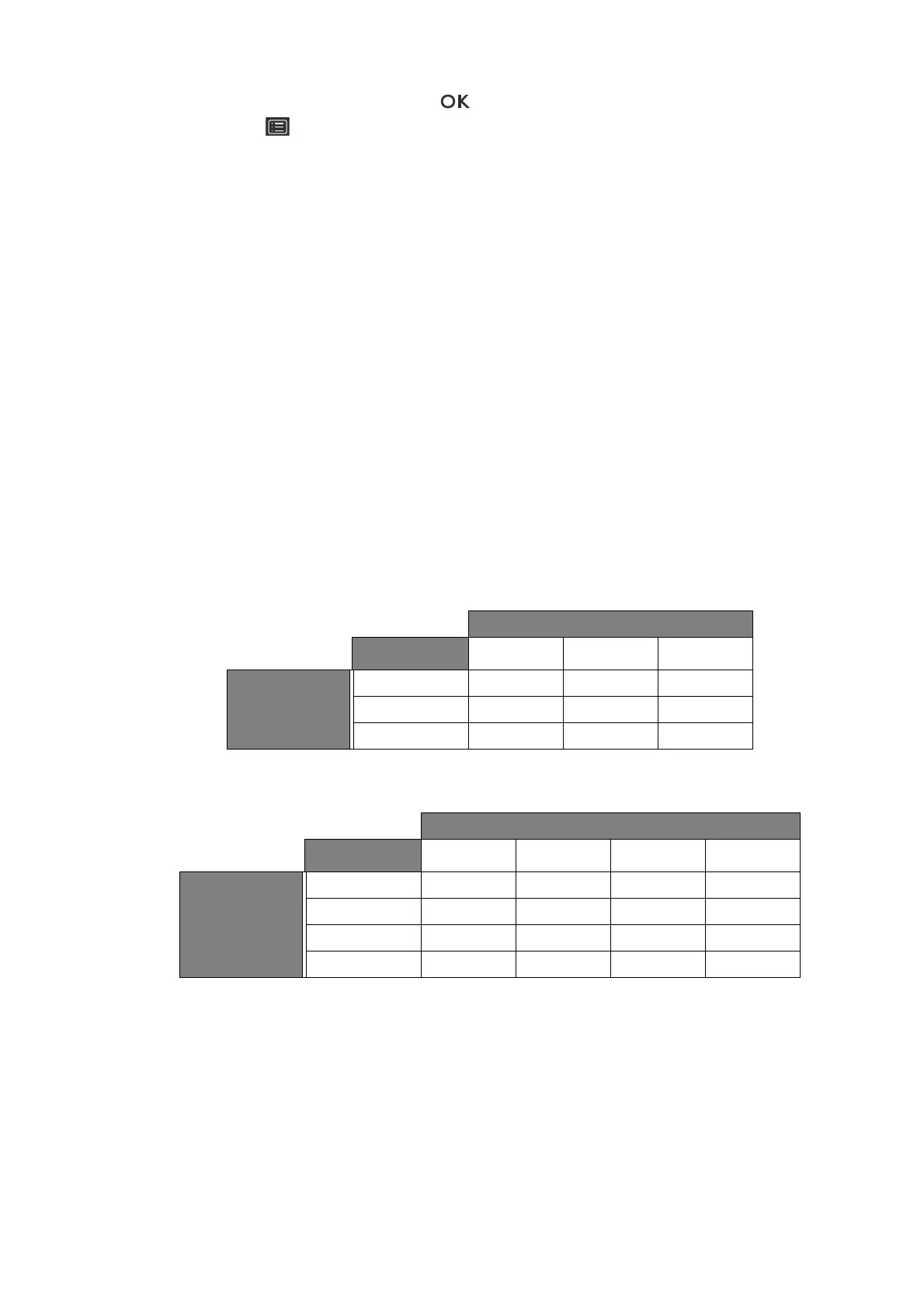
Refer to the following table to find your main source and its supporting second sources.
SW320 Possible second sources
Inputs
HDMI DP Mini DP
Main source
HDMI V V
DP V V
Mini DP V V
SW271
Possible second sources
Inputs
HDMI-1 HDMI-2 DP USB-C
Main source
HDMI-1 VVV
HDMI-2 V V V
DP V V V
USB-C V V V


 To Next Page