12
Overview
English
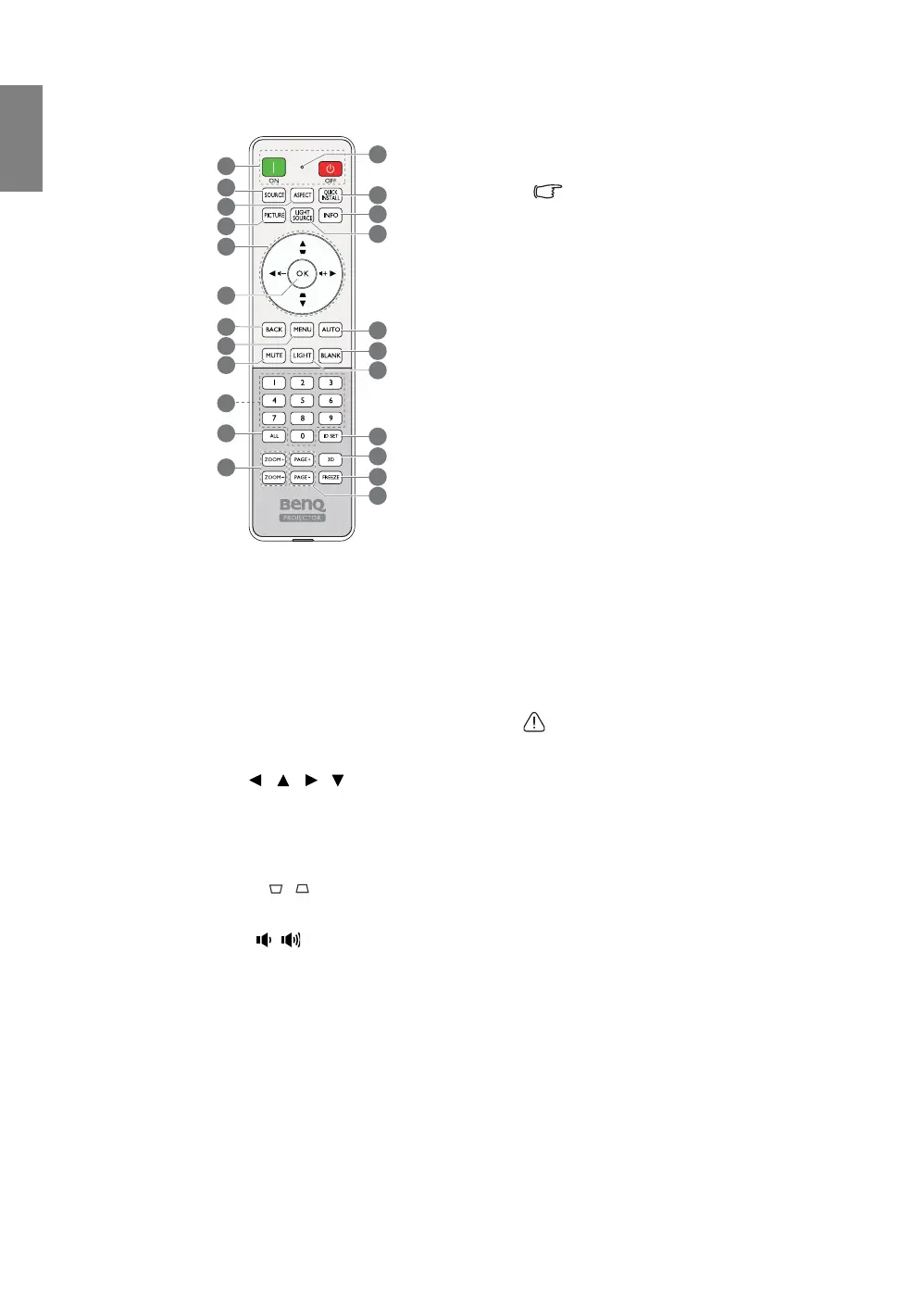
Remote control
1. Power ON/OFF
Toggles the projector between standby mode and
on.
2. SOURCE
Selects an input source for display.
3. ASPECT
Selects the display aspect ratio.
4. PICTURE
Selects an available picture setup mode.
5. Arrow keys ( , , , )
When the On-Screen Display (OSD) menu is
activated, these keys are used as directional arrows
to select the desired menu items and to make
adjustments.
Keystone keys ( , )
Displays the keystone correction page.
Volume keys ( , )
Decreases or increases the projector volume.
6. OK
Confirms On-Screen Display (OSD) menu item.
Same as MODE/ENTER on keypad.
7. BACK
Goes back to previous OSD menu, exits and saves
menu settings. Same as MENU/EXIT on keypad.
8. MENU
Turns on the On-Screen Display (OSD) menu.
9. MUTE
Toggles projector audio between on and off.
10.Numeric buttons
Enters numbers in network settings.
Numeric buttons 1, 2, 3, 4 cannot be
pressed when asked to enter password.
11. ALL
Press and hold ID SET until the ID setting
indicator lights up. Press ALL to clear current ID
setting of the remote control. The ID is cleared
successfully when you see the ID setting indicator
starts flickering and then blackout.
12. ZOOM+/ZOOM-
Magnifies or reduces the projected picture size.
13.ID setting indicator
14.QUICK INSTALL
Quickly selects several functions to adjust the
projected image and displays the test pattern.
15.INFO
Displays the projector information.
16.LIGHT SOURCE
Selects a suitable light source power among the
provided modes.
17. AUTO
Automatically determines the best picture timings
for the displayed image.
18. BLANK
Used to hide the screen picture.
Do not block the projection lens from
projecting as this could cause the blocking
object to become heated and deformed, or
even cause a fire.
19.LIGHT
Turns on the remote control backlight for a few
seconds. To keep the backlight on, press any other
key while the backlight is on. Press the key again
to turn the backlight off.
20.ID SET
Sets the code for this remote control. Press and
hold ID SET until the ID setting indicator lights
up. Enter the ID for the remote control (between
01~99). The remote control ID should be the
same as the corresponding projector ID. The ID is
saved successfully when you see the ID setting
indicator starts flickering and then blackout.
21. 3D
Displays the 3D menu.
22. FREEZE
Freezes the projected image.
23. PAGE+/PAGE-
No function.
14
15
17
18
20
21
22
16
13
19
23
2
1
5
6
3
8
4
9
12
11
7
10



 To Next Page