EasyManua.ls Logo

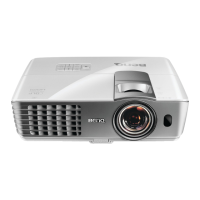
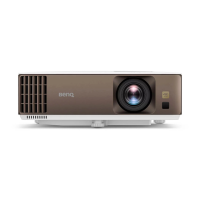
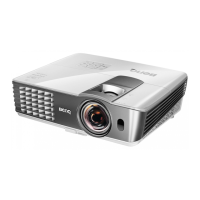
BenQ W1210ST - User Manual

BenQ W1210ST
59 pages
Print Icon
To Next Page IconTo Next Page
Loading...
W1210ST/HT2150ST
Digital Projector
Home Cinema Series
User Manual
V 1.01

Table of Contents

Questions and Answers

  • A
    Amanda StewartJul 28, 2025
    How to fix BenQ W1210ST when it does not turn on?
    • S
      Sean SmithJul 28, 2025
      If your BenQ Projector isn't turning on, here are a few things to check: * **Power Cable:** Ensure the power cable is securely plugged into both the AC inlet on the projector's rear and a functioning power outlet. If the outlet has a switch, make sure it's on. * **Cooling Process:** If you've recently turned the projector off, wait for the cooling process to complete before attempting to turn it on again. * **Lamp Cover:** Verify that the lamp cover is correctly and securely attached.
  • T
    Timothy GonzalezAug 2, 2025
    What to do if my BenQ Projector has no picture?
    • J
      Jenny PowersAug 2, 2025
      If your BenQ Projector is not displaying a picture, consider the following: * **Video Source:** Ensure that the video source is turned on and that the signal cable is correctly connected. * **Connection:** Verify the projector is correctly connected to the input source device. * **Input Source:** Use the SOURCE key on the projector or remote control to select the correct input source.
  • R
    richardheathAug 8, 2025
    Why is my BenQ W1210ST Projector remote control not working?
    • M
      Mr. Jeffrey Richard DVMAug 8, 2025
      If your BenQ Projector's remote control isn't working correctly, here are some things to try: * **Batteries:** Replace both batteries in the remote with new ones. * **Obstacles:** Make sure there are no obstructions between the remote control and the projector. * **Distance:** Ensure you are within 8 meters (26.2 feet) of the projector.
  • C
    Christopher BrownAug 12, 2025
    How to fix a blurred picture on my BenQ Projector?
    • B
      barrycastilloAug 12, 2025
      If the picture on your BenQ Projector is blurred, try these solutions: * **Focus:** Adjust the focus of the lens using the focus ring. * **Alignment:** Adjust the projection angle, direction, and height of the projector to properly align it with the screen. * **Lens Cover:** Remove the lens cover.
  • T
    Tracy McguireAug 17, 2025
    What to do if 3D content doesn't display correctly on BenQ Projector?
    • J
      Jennifer HowardAug 17, 2025
      If 3D content isn't displaying correctly on your BenQ Projector, check the following: * **3D Glasses:** Recharge the 3D glasses. * **3D Menu Settings:** Ensure the settings in the 3D menu are correctly configured. * **Blu-ray Disc Format:** Use a 3D Blu-ray Disc. * **Input Source:** Select the correct source using the SOURCE key on the projector or remote control.
  • H
    hcampbellAug 23, 2025
    Why is the image unstable on my BenQ W1210ST?
    • M
      Michael GallagherAug 23, 2025
      If the image on your BenQ Projector is unstable, it might be due to loose connection cables. Ensure that the cables are correctly connected to the appropriate terminals on both the projector and the signal source.

Summary

Important Safety Instructions

General Operating and Placement Guidelines

Read manual, use level surface, avoid unstable carts, and do not store vertically.

Environmental Restrictions

Avoid restricted environments: poor ventilation, high temperature, humidity, dust, smoke, fire alarms, and altitude.

Operational Safety Precautions

Ensure ventilation, avoid liquids, do not step on projector, avoid looking into lens, respect lamp life and cooling.

Electrical and Liquid Hazards

Use power stabilizers, avoid liquids near projector; it voids warranty.

Ceiling Mounting, Disassembly, and Service

Use correct mounting kits, avoid disassembly, and ensure qualified service.

Environmental Precautions and Disposal

Prevent condensation, avoid volatile liquids, and follow disposal guidelines.

Overview

Key Projector Features

Details on Full HD compatibility, high picture quality, brightness, vivid color, dual OSD, ISF, 3D, and audio.

Shipping Contents

Standard and Optional Accessories

Lists included accessories like remote, cables, and optional items like Wireless FHD Kit.

Projector Exterior View

Front and Upper Side View

Labels and descriptions of projector ports and controls on the front and top.

Rear and Lower Side View

Labels and descriptions of projector ports and controls on the rear and bottom.

Controls and Functions

Control Panel Operations

Explains the function of each button on the projector's control panel.

Remote Control

Remote Control Functions

Details the purpose and operation of each button on the remote control.

Remote Control Setup

Battery Installation and Range

Instructions for replacing batteries and understanding the effective operating range.

Installation

Choosing an Installation Location

Guides on selecting installation positions: Front, Rear, Front Ceiling, Rear Ceiling.

Projected Image Size

Projection Dimensions

Table and illustration for determining projection distance based on screen size and aspect ratio.

Connection

Connecting Video Equipment

Details on connecting HDMI, MHL, and PC (D-SUB) devices for video input.

Connecting Smart Devices and Computers

Instructions for connecting smart devices via HDMI and computers via VGA.

Operation

Starting Up and Initial Setup

Guide to powering on, setup wizard steps (Projector Position, Language, Keystone, Auto Source, Menu Type).

Initial Setup Wizard Steps

Details on specifying Keystone, Auto Source, and Menu Type during initial setup.

Security Features

Securing and Password Protection

Using a cable lock and enabling password security for unauthorized use.

Password Management

Steps for setting, recalling, and handling password errors.

Password Functionality

Changing and disabling the password function, and keeping notes.

Selecting Input Source

Renaming Input Sources

Procedure for renaming current input sources on the selection bar.

Adjusting Projected Image

Adjusting Projection Angle

Using adjuster feet to change image height and projection angle.

Auto-Adjust and Fine-Tuning

Using AUTO for PC signal optimization and fine-tuning image size/clarity.

Correcting Keystone Distortion

Manually correcting image distortion caused by non-perpendicular projection.

Menu Functions

OSD Menu Overview

Introduction to Basic/Advanced OSD menus and how to switch between them.

Basic OSD Menu Functions

Details on Picture Mode, Sound Mode, Settings, and other options in the Basic OSD menu.

Advanced OSD Menu Functions

Comprehensive guide to Picture, Audio, Display, System Setup, and Information menus in Advanced OSD.

Picture Menu Settings

Picture Mode and User Management

Selecting preset picture modes and managing user-defined settings.

Image Adjustments (Brightness, Color, etc.)

Adjusting brightness, contrast, color, tint, sharpness, and color temperature.

Lamp Power, Gamma, and Brilliant Color

Settings for lamp power, gamma selection, brilliant color, and color temperature fine-tuning.

Color Management and Noise Reduction

Advanced color adjustments and noise reduction settings.

Audio Setup Menu

Sound Modes and EQ

Selecting sound modes (Standard, Cinema, User) and adjusting user EQ.

Mute, Volume, and Ring Tone

Controlling audio output, volume levels, and power on/off ring tones.

Display Menu Settings

Aspect Ratio and Wall Color

Adjusting aspect ratio and correcting colors for non-white projection surfaces.

Image Position and Overscan

Adjusting image position and concealing edges with overscan settings.

PC;Component Tuning and 3 D Features

Tuning PC/Component signals and configuring 3D viewing options.

System Setup Menu

Basic System Setup

Configuring Language, Splash Screen, Projector Position, Auto Off, Menu Settings, Source Rename, Auto Source.

Advanced System Setup

Advanced settings including Lamp Settings, HDMI Settings, CEC, Baud Rate, Test Pattern, Quick Cooling.

Advanced System Options

High Altitude Mode, Password, Key Lock, LED Indicator, Reset All Settings, ISF calibration.

Information Menu

Projector Information Display

Displays source, picture mode, resolution, color system, lamp usage time, 3D format, and firmware version.

Advanced OSD Menu Structure

Menu Options Overview

Summary of submenus and options available within the Advanced OSD menu.

Maintenance

Care of the Projector

Guidance on cleaning the lens, case, storing, and transporting the projector.

Lamp Information and Settings

Checking lamp usage time and extending lamp life by setting lamp power.

Auto Off and Lamp Replacement Timing

Setting auto-off function and understanding lamp replacement warnings.

Replacing the Lamp

Lamp Replacement Procedure

Step-by-step instructions for safely removing and installing the projector lamp.

Completing Lamp Replacement

Steps for reconnecting, securing, and finishing the lamp replacement process.

Projector Indicators

Indicator Status and Error Explanations

Explanation of projector indicator lights (POWER, TEMP, LAMP) for status and error codes.

Indicator Error Codes

Detailed descriptions of light patterns for power, lamp, thermal, and fan errors.

Troubleshooting

Common Problems and Solutions

Table of common issues like no power, no picture, unstable image, and their causes/remedies.

Specifications

Projector Technical Details

Technical specifications including optical, electrical, mechanical, input/output, and environmental requirements.

Dimensions and Ceiling Mount

Physical dimensions and guidelines for ceiling mount installation.

Timing Charts

PC Input Timing

Table listing resolutions, refresh rates, and frequencies for PC input.

HDMI (HDCP) Input Timing

Table listing resolutions, refresh rates, and frequencies for HDMI input.

Warranty and Copyright Information

Warranty Terms and Conditions

BenQ's warranty terms, conditions, and claim procedures.

Copyright and Disclaimer

Copyright notice for the publication and BenQ's disclaimer.

BenQ W1210ST Specifications

General IconGeneral
Display TechnologyDLP
Brightness2200 ANSI Lumens
Contrast Ratio10, 000:1
Lamp Life (Normal)3500 hours
Lamp Life (Economic)5000 hours
Weight3.6 kg
Native Resolution1080p (1920x1080)
Speakers10W
Image Size60"
Noise Level33 dB
InputsHDMI x 2

Related product manuals