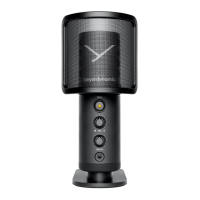
FOX – Professional USB studio microphone
9
english
5. Use with PC / use FOX with Windows®
• Use the supplied USB-C cable to connect the microphone to a PC.
• The device driver will inall automatically.
• A message will appear that the device is set up.
• Aer a few seconds FOX is ready for use.
• For more settings, open the “Sound Settings” menu (click with the right mouse
button onto the loudspeaker symbol) and select “Recorders”.
• If the audio signal is not automatically recorded via FOX, select FOX as
default.
6. Use with a Mac® / FOX auf macOS® einrichten
• Use the supplied USB-C cable to connect the microphone to a Mac®.
• The device driver will inall automatically.
• A message will appear that the device is set up.
• Aer a few seconds FOX is ready for use.
• For more settings, open the “Sound Settings” menu (click with the le mouse
button onto the loudspeaker symbol) and select “Sound”.
• In the “Sound” menu you can select input and output devices. Select FOX.
7. Use with a smaphone
• Use an appropriate adapter (not included in the delivery) to connect FOX to a
smaphone.
• For USB devices Apple® provides an “Camera Adapter’ or “Camera
Connection Kit”.
• Android® devices require an “OTG adapter” (On The Go).
• Now you should be able to record with an app of your choice.



 To Next Page