4
SETUP
MSP11 parameters are all adjustable using the 'BiampWin
' software and null-modem cable provided with the unit. The BiampWin software
provides programs for various BIAMP products, including the MSP11. The MSP11 program includes several control screens, which are
described on the following pages. Once the software is started (and Comm Port Configuration is set), the control screens are accessed via
the drop-down menus at the top of the opening screen. The Main
screen appears whenever an MSP11 file is opened. Gain Manager, EQ,
& Delay
screens are then available from the Main screen. Logic Definition, Button Definition, & Configuration Options screens are also
available from the Configure MSP11
menu. The File menu provides functions such as save, open, download, etc. The Settings menu
recalls the Comm Port Configuration screen. The Window
menu arranges active product screens. The Help menu explains available
adjustments. To install BiampWin Software
: Select ‘Run’ from ‘Start’ menu, and browse to 'BiampWin' on appropriate drive. System
Requirements: Windows
®
95/98/NT/2000/XP with 8MB of available hard disk space (serial port required for ‘on-line’ operation).
MAIN SCREEN
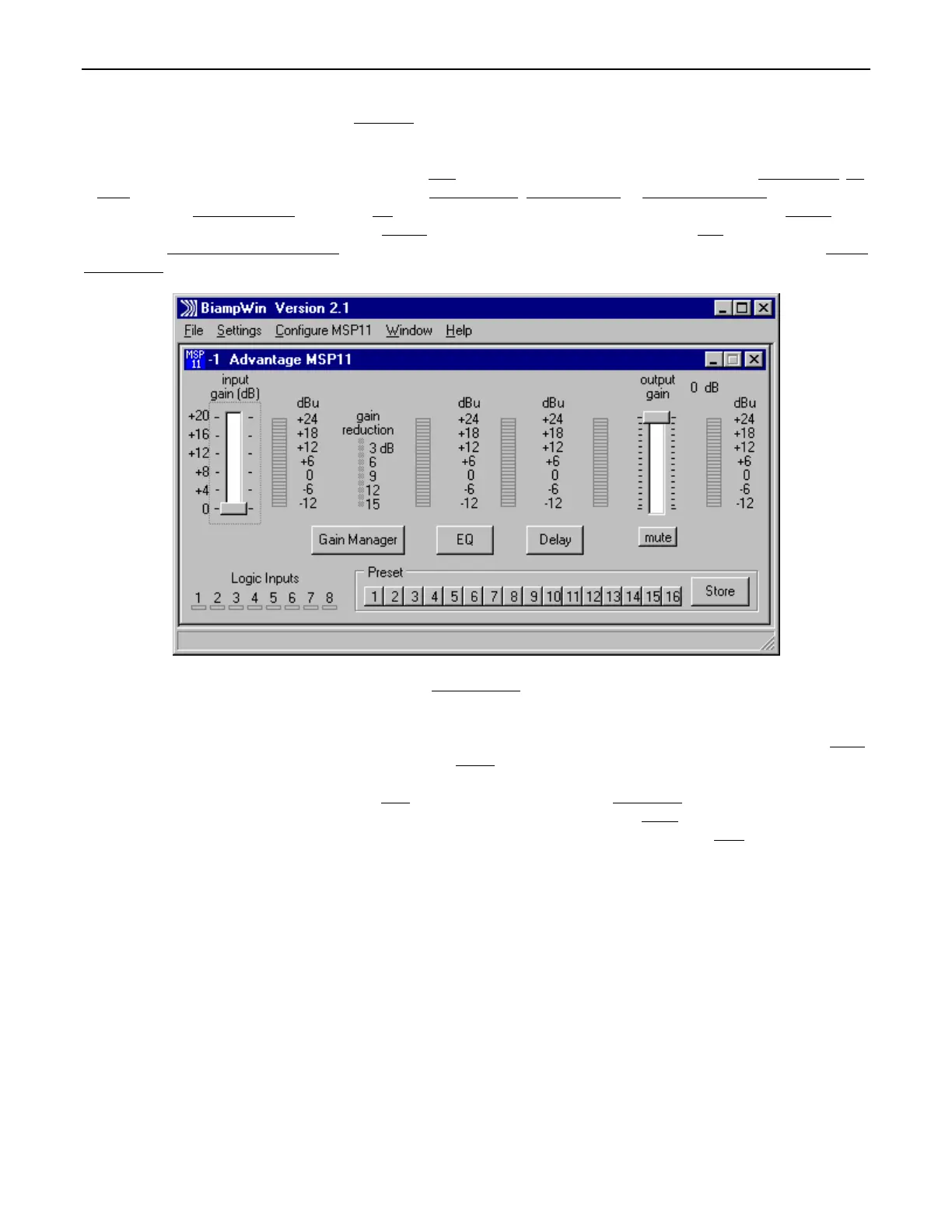
The Main Screen is used to adjust MSP11 input/output levels, to access the processing control screens, and to store/recall Presets 1~16.
Adjustments are made with the computer mouse (or keyboard). Input & output levels are adjusted by dragging the corresponding ‘faders
’
up or down. These are the analog signal input & output circuits. ‘Meters
’ are provided to display input/output levels at specific points along
the digital signal processing path, and at the analog output. NOTE: For best performance, adjust levels so the meters show occasional
peaks in the yellow area, but never to the top (red). Mute
will toggle the output signal on/off. Logic Inputs indicators will light whenever the
respective Logic Inputs are turned on via external remote control (see Logic Inputs on pg. 12). Preset
buttons recall the corresponding
presets from non-volatile memory. Presets must first be created & stored by the user (no factory presets). The Store
button opens a menu
for storing current settings in any of the Presets 1~8. The title bar across the top of the Main screen will indicate the Device #, the custom
Device Name, and the model of product being controlled. The BiampWin software can operate ‘off-line’ (with no product connected) by
opening a ‘new’ file for the desired product. The Device # for ‘off-line’ files is assigned sequentially as a negative number.


 To Next Page
 Loading...