TesiraFORTÉ Installation and Operation Guide page 3
Display Navigation Buttons
Capacitive-touch buttons allow navigation through the OLED display menu to
view and congure device and networking information, as well as view system-
wide faults. Navigate the display using the touch-sensitive UP, DOWN and
SELECT buttons.
OLED Display
The OLED display provides information about the server device as well as the
Tesira system that is connected to the server. The OLED display is read-only.
Home Screen
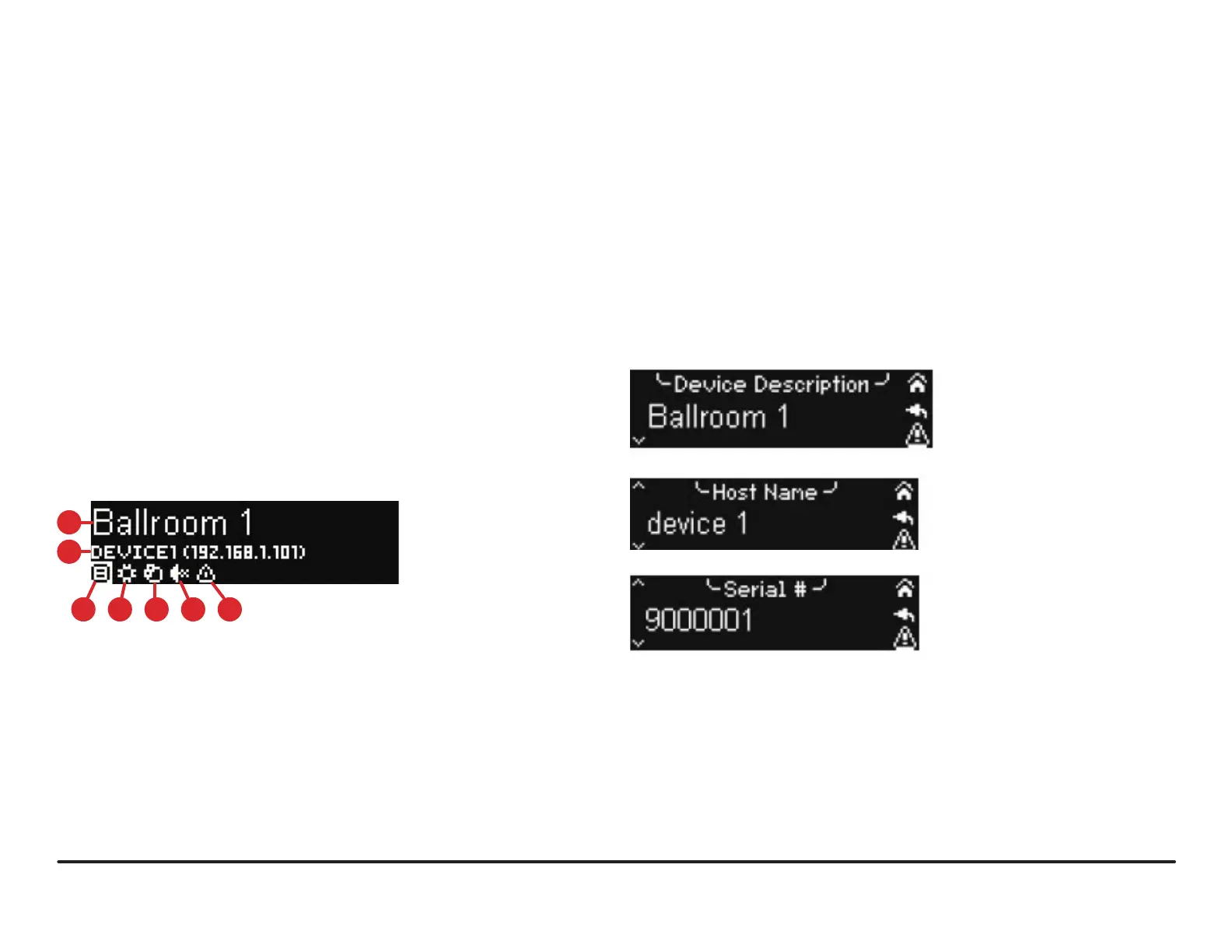
The home screen is the default screen that shows the overview of the device.
If the text is too long to t on the entire display, it will scroll to the left. Menus
at the bottom allow other selections. By default the main menu icon will be
selected.
Some menu icons double as status indicators. They change depending on the
status of the device. The fault status icon only appears if there is an active fault
in the system.
After a period of inactivity, the Front Panel Display will transition back to the
home screen.
Figure 2. Home Screen
1. Device description
2. Host Name and IP address
3. Main Menu
4. Display Settings Menu
5. Network Menu/Status
6. Audio Menu/Status
7. Fault Menu/Status
Use the UP or DOWN buttons to highlight a menu icon and press the SELECT
button to access the item.
Menu Screen
A menu screen containing a list of items that are used to navigate to other menus
can be accessed from the home screen. On the right are icons that provide
quick navigation to other screens. Pressing the SELECT button on an item will
transition to the screen that displays that information. A scroll indicator at the left
shows if there is more information to show by scrolling down.
Device Information
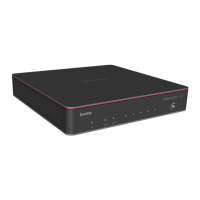
The device information screen shows the following information:
• Device description
• Host name
• Serial number
• Firmware revision
Figure 3. Device Information
5 6 743
2
1



 To Next Page