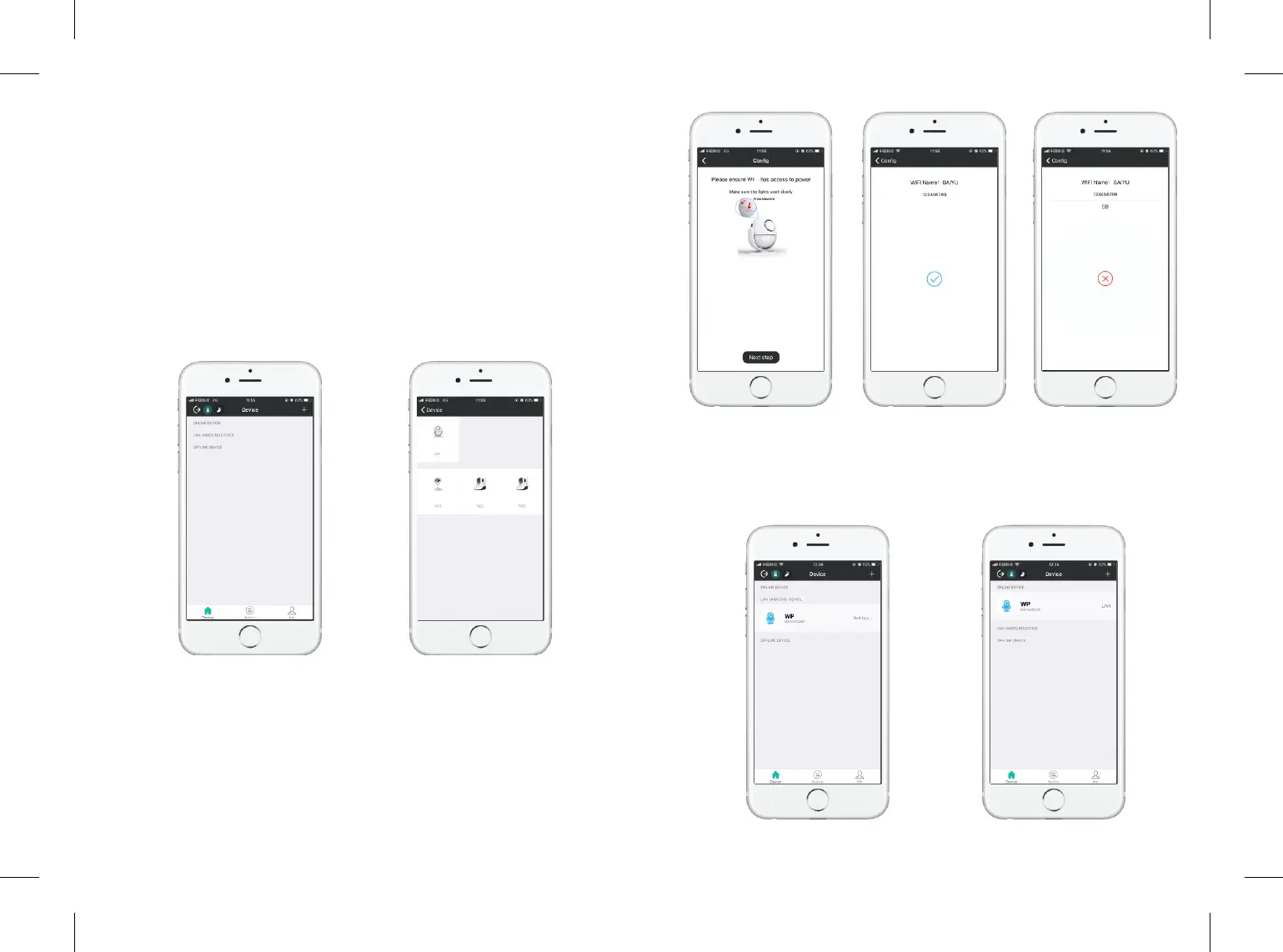
Step 2: Make sure your phone is connected to your WIFI network
Important: WP7 doesn’t support WIFI of 5Ghz band. If your WIFI router is dual
band(5Ghz and 2Ghz), please make sure to connect with the 2Ghz. Meanwhile,
WP7 works with most of router, like TP-Link, if you cannot connect WP7 into
your WIFI, please contact us with your router brand, thanks.
Step 3: Aer account registraon,you will enter into device list. Click “+”,
choose “WP7”.
Step 4: Long pressing the “Music” & “ Volume” buon on main panel
simultaneously, the red light will flash. Click “Next Step” to enter WIF I
Password, then click “ ” to enter configuraon process, the APP will start the √
60 seconds of countdown.
Step 5: Aer countdown or while countdown, the main panel will flash blue,
indicated that the WP7 is successfully connected to your WIFI. Go back to the
front page, the device will under “LAN UNBOUND DEVICE”, click the device
then it will change into “ONLINE DEVICE”.
5 6
7
7
7
7


 To Next Page