Shenzhen Bigtree Technology Co.,Ltd
19
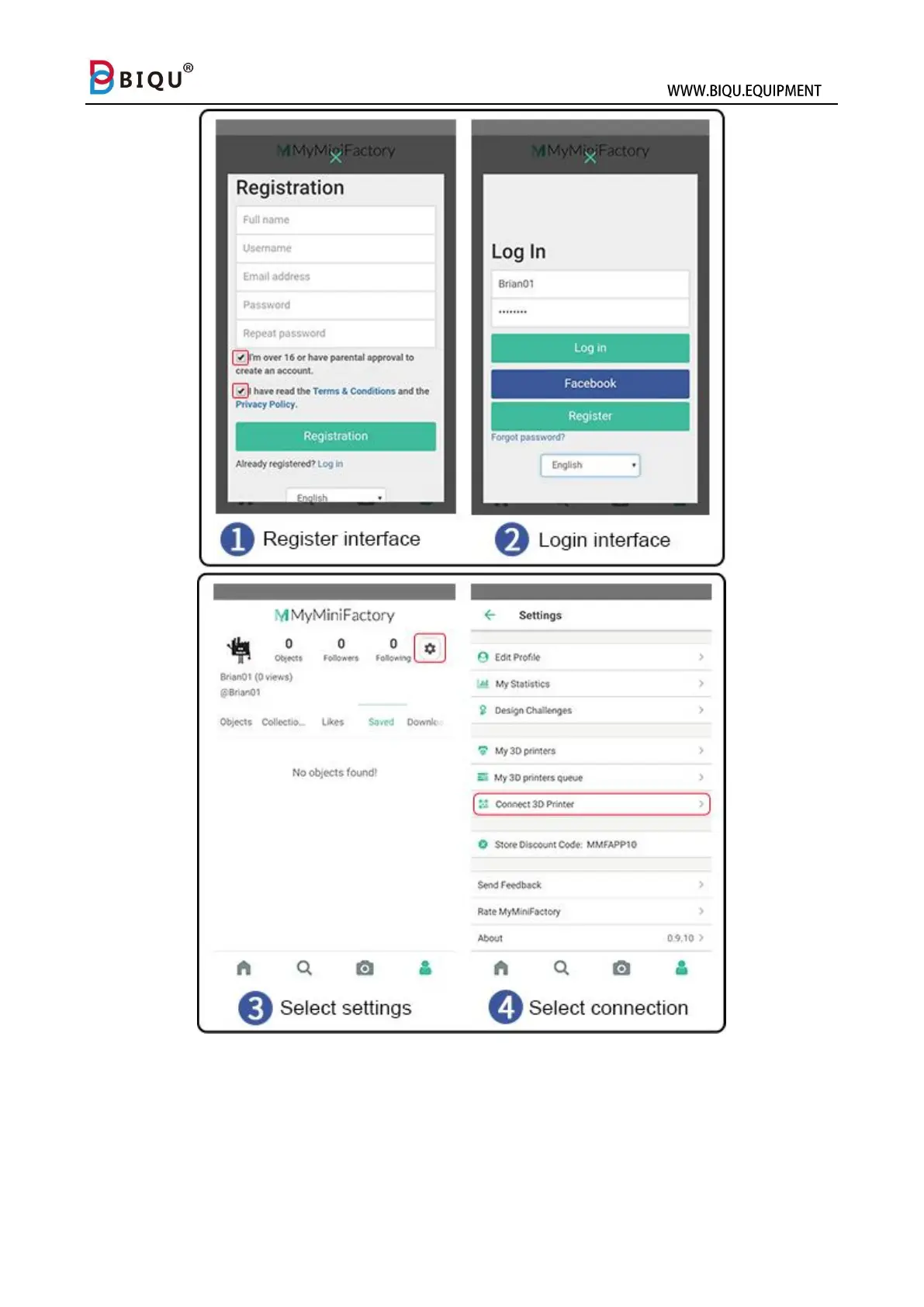
7.3 Click "+" to scan the QR code to add 3D printer. Click "Settings" -
"WIFI" on the main interface of the machine, select Connect to WIFI,
enter the password to confirm the connection, then click the icon
"MyMiniFactory" to pop up the QR code, the phone is aligned with the
machine. The QR code on the scan completes the connection.


 To Next Page