Home
BIQU
3D Printers
Thunder
Page 23
BIQU Thunder - Page 23
40 pages
Manual
Save Page as PDF
To Next Page
To Next Page
To Previous Page
To Previous Page
Loading...
Shenzhen Bigtree Technology Co
.,
Ltd
21
7.4
Co
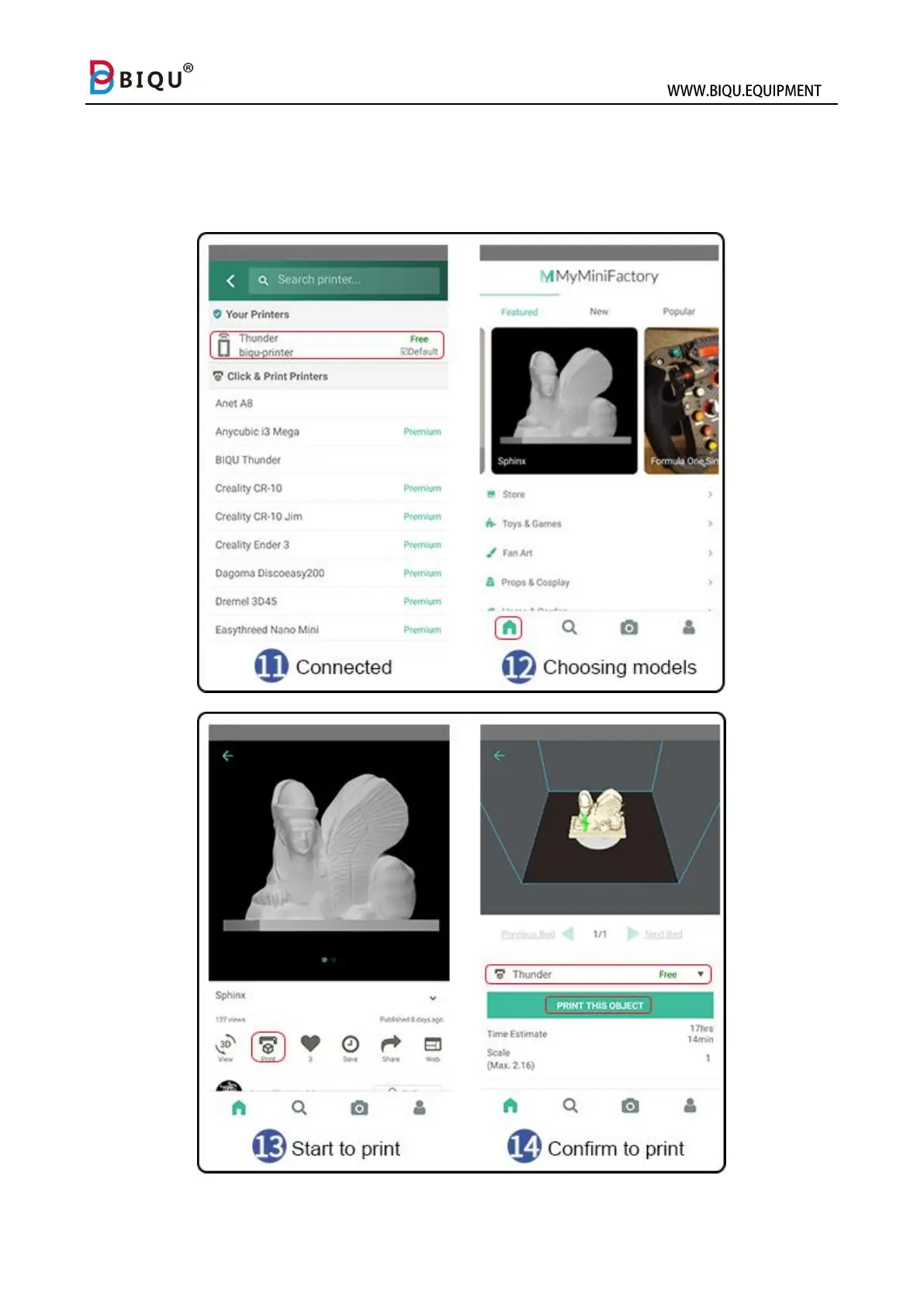
nfirm that the mobile app i
s connected to
the printer, display the
idle state, select the model to
slice on the hom
e page, click “print”, select
the idle machine, and cli
ck “PRINT THIS OBJECT”.
22
24
Table of Contents
Main Page
Table of Contents
2
One: Product Overview
3
Two: Tools and Supplies
5
Three: Assembly
6
Machine Assembly
6
Machine Wiring
9
Four: User Interface
11
Five: Specification
17
Six: Feature Overview
18
Seven: Smart Phone Connection
20
Eight: Slicer
25
Nine: Connect and Print
30
Repetier-Host Installation
30
Connect Printer with Repetier-Host
31
Ten: Trouble Shooting
36
Eleven: Important Information
38
Related product manuals
BIQU B1
67 pages
BIQU Hurakan
63 pages
BIQU BIQU-Hurakan
62 pages
BIQU Magician
32 pages
BIQU H2 V2S Lite
2 pages


 To Next Page