7
Getting Started with PLAY
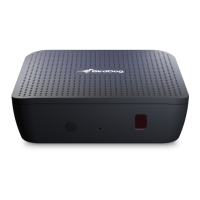
Make Your Connections
• Connect PLAY to USB power.
• Connect PLAY to your TV via the HDMI port.
• Connect PLAY to your network via the Ethernet port.
Logging In
1. Once you've made your connections, the TV will display the BirdDog splash-screen. The PLAY IP address will
be displayed in the top left corner of the TV screen.
2. On your browser enabled device connected to the same network, type this IP address into the browser address
bar and press enter. The BirdDog web interface (BirdUI) will display.
3. Type the default password (birddog, all lower case) into the password eld and press the OK button. You can
change the password later in the BirdU.
Selecting Your Source
There are two ways to select a source to display.
Option 1
Using a CEC compatible TV and remote
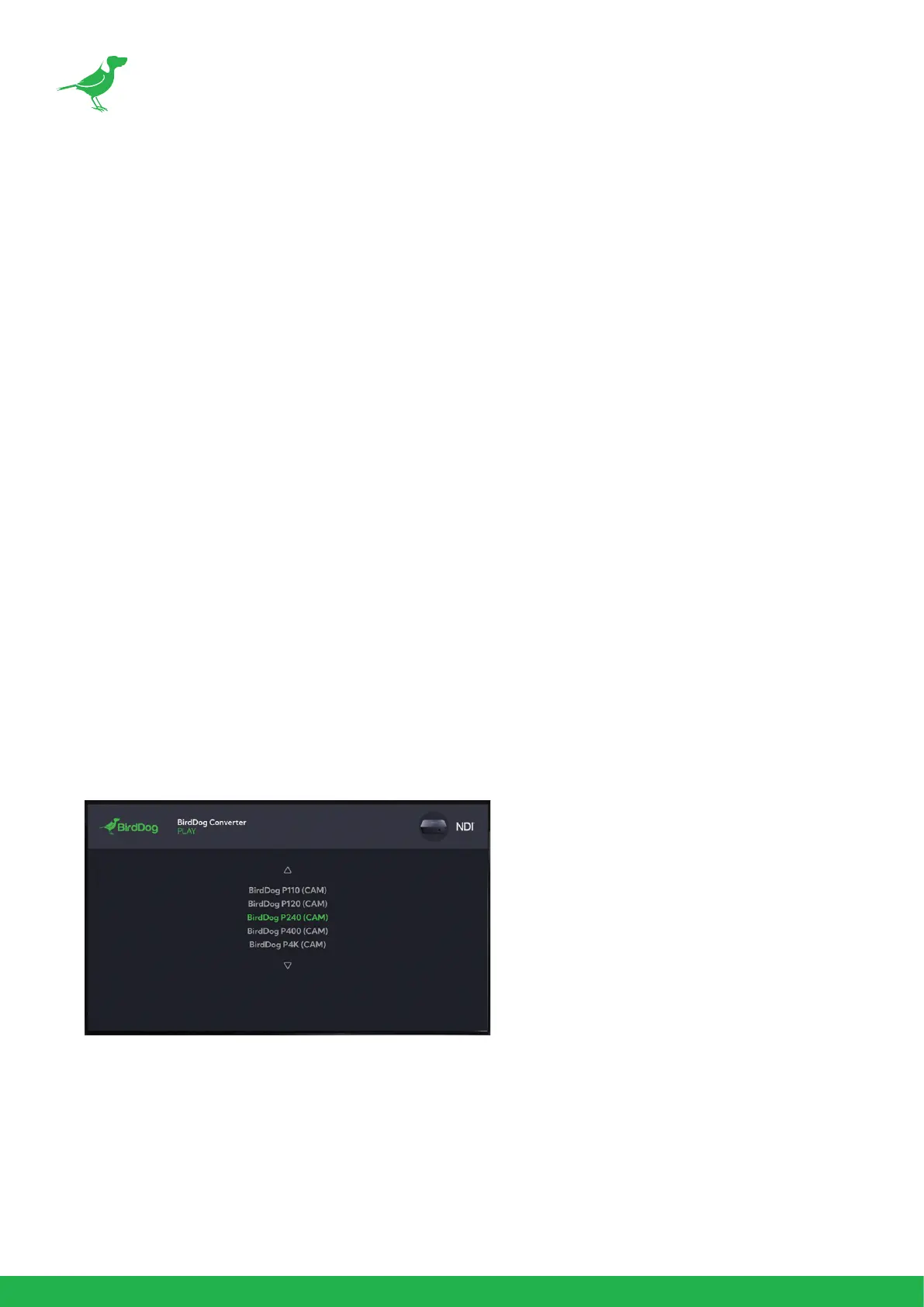
1. Using a CEC enabled TV screen and remote, you can scroll through sources using the up and down buttons on
the TV remote. Select a source then press Enter on the remote to play the source.
2. If this does not work, then it is likely that your TV either does not support CEC, or does not have CEC enabled.
To check for CEC support, please consult your TV manual or search the TV menu settings. Typically, CEC
options will be found in the Advanced Settings of your TV. Once CEC is enabled, exit the TV menu and press
use up or down buttons on the remote - if you see a scrolling menu on the TV, then you can use the remote to
select a source.
Please note, there is often more than one CEC mode so you may need to try all CEC modes. It is important to
note that not all CEC modes will work. If you cannot nd a suitable mode, then move on to option 2.


 To Next Page