Getting Started / 11
| Firmware upgrade method 2 – OTA
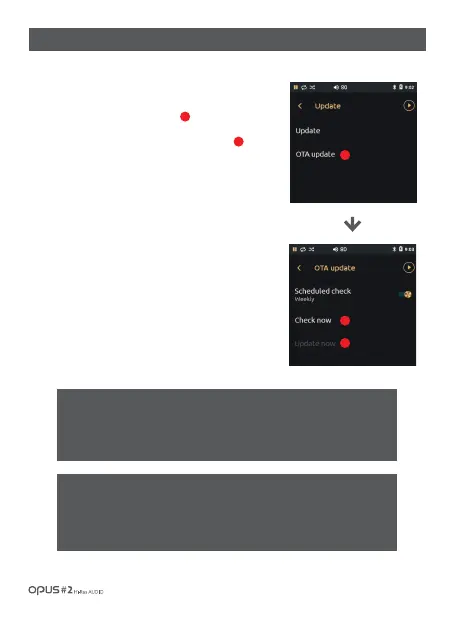
1. Choose Update in Settings menu and enter Update menu.
2. Choose OTA update in Update menu.
3. Choose ‘Check now’ for the newest firmware availability.
4. Download will start automatically if any newest version is available
for a download.
5. After firmware file download, tap Update now to start an update.
(After completion of FW upgrade, you may check the version in
Settings/Information.)
6. When Scheduled Check is on, regular check for the newest firmware
version will be implemented every pre-set period of time.
(Check for an update is done automatically when device has an access
to a network.)
※ Caution: You may need to check if there is enough storage space in the
internal memory. More than 800MByte of internal memory availability is
required for the firmware upgrade. Check if there is enough storage
capacity in the internal memory of the device. The firmware upgrade may
not initialize if the storage capacity is insufficient.
※ Caution: Check for internal capacity availability is required.
Upgrade a firmware after checking that USB power cable is connected and
battery level is sufficient for an upgrade (more than 50% of battery level).
Refer to ‘System settings screen’ -> ‘Update’ section for more detailed
information.
5
6
5
6
7


 To Next Page