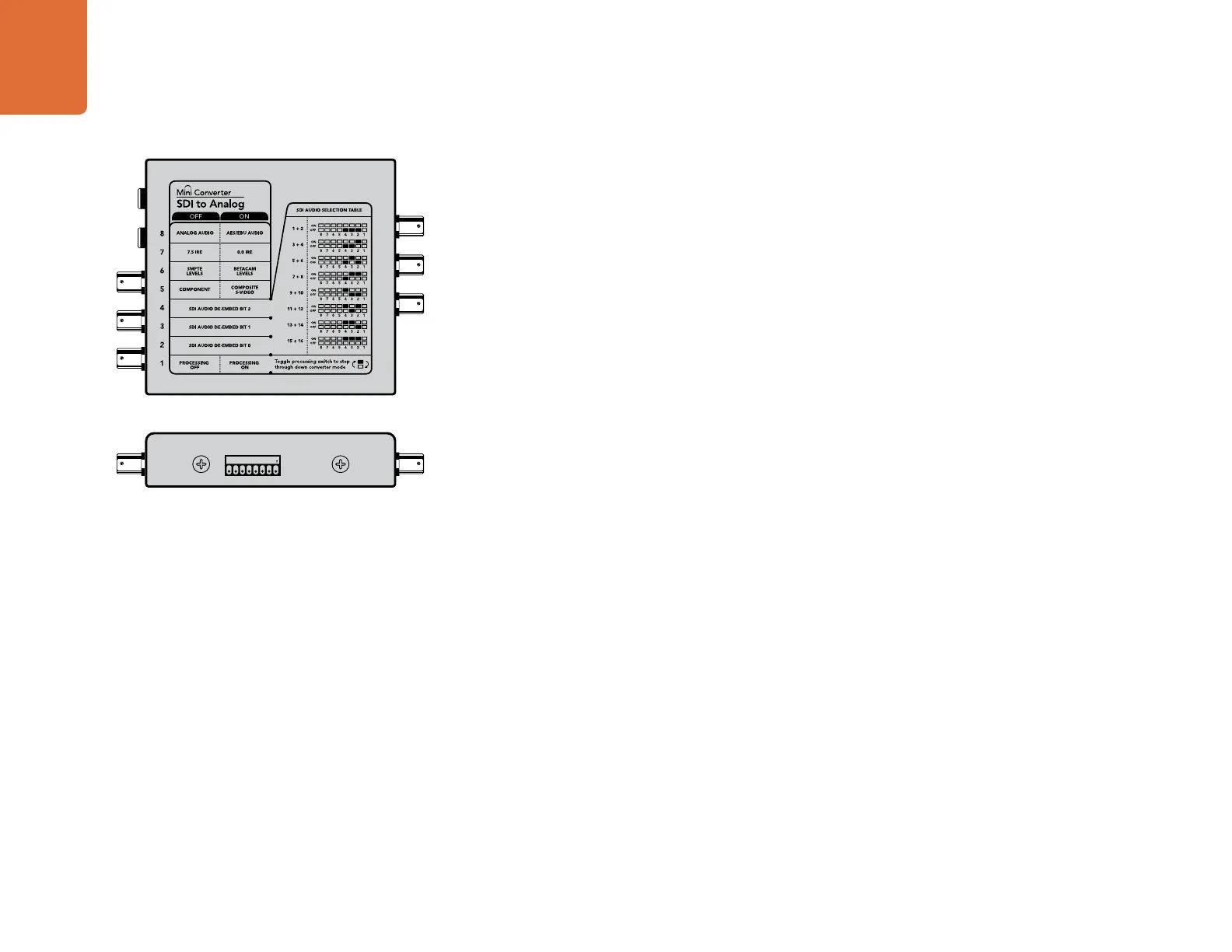
Mini Converter SDI to Analog
8
1
ON
2 3 4 5 6 7 8
Mini Switches
Mini Converter SDI to Analog’s mini switches provide the following settings:
Switch 8 - Analog Audio, AES/EBU Audio
Set switch 8 to OFF to select balanced analog audio, or to ON for digital AES/EBU audio output.
Switch 7 - 7.5 IRE - 0.0 IRE
The USA and countries using NTSC with 7.5 setup should set switch 7 to OFF. If you’re working in countries
not using 7.5 setup, set switch 7 to ON. This setting only affects composite or S-Video outputs.
Switch 6 - SMPTE Levels - Betacam Levels
Set switch 6 to OFF for SMPTE levels, or ON for Betacam levels. SMPTE levels are more common and even
Betacam SP decks can use SMPTE levels, so only switch this to Betacam if you are sure that Betacam levels
are being used.
Switch 5 - Component, Composite or S-Video
Set switch 5 to OFF to select analog component video output, or ON for composite and S-Video outputs.
To display the HD video input on the S-Video and composite outputs, down conversion must be set to ON.
Component analog video supports both HD and SD video.
Switch 4 - SDI Audio De-Embed Bit 2
Switches 4, 3 and 2 are grouped together to provide 8 ON/OFF combinations. Having eight different
combinations allows eight independent pairs of audio channels to be de-embedded from your SDI input.
Switch 3 - SDI Audio De-Embed Bit 1
See switch 4 description.
Switch 2 - SDI Audio De-Embed Bit 0
See switch 4 description.
Switch 1 - Processing Off - Processing On
Down convert HD to SD with 3 types of aspect ratios by cycling through switch 1. For example, each time
you cycle between Off and On you apply anamorphic, center cut or letterbox aspect ratios. Leaving switch
1 set to OFF bypasses the down converter and outputs in HD.
When connected to the Blackmagic Converter Utility via USB, your down conversion settings are controlled
by the software. If you want the converter to remember your software settings, disconnect from the
computer, power cycle your converter and set your down conversion using mini switch 1.
Change your converter's internal settings by adjusting the mini
switches using the tip of a pen.






 To Next Page