4. Volume
This controls the instrument volume. High levels of volume will introduce the effect of
valve power amp distortion and compression. This is a global setting and not saved
when storing a patch.
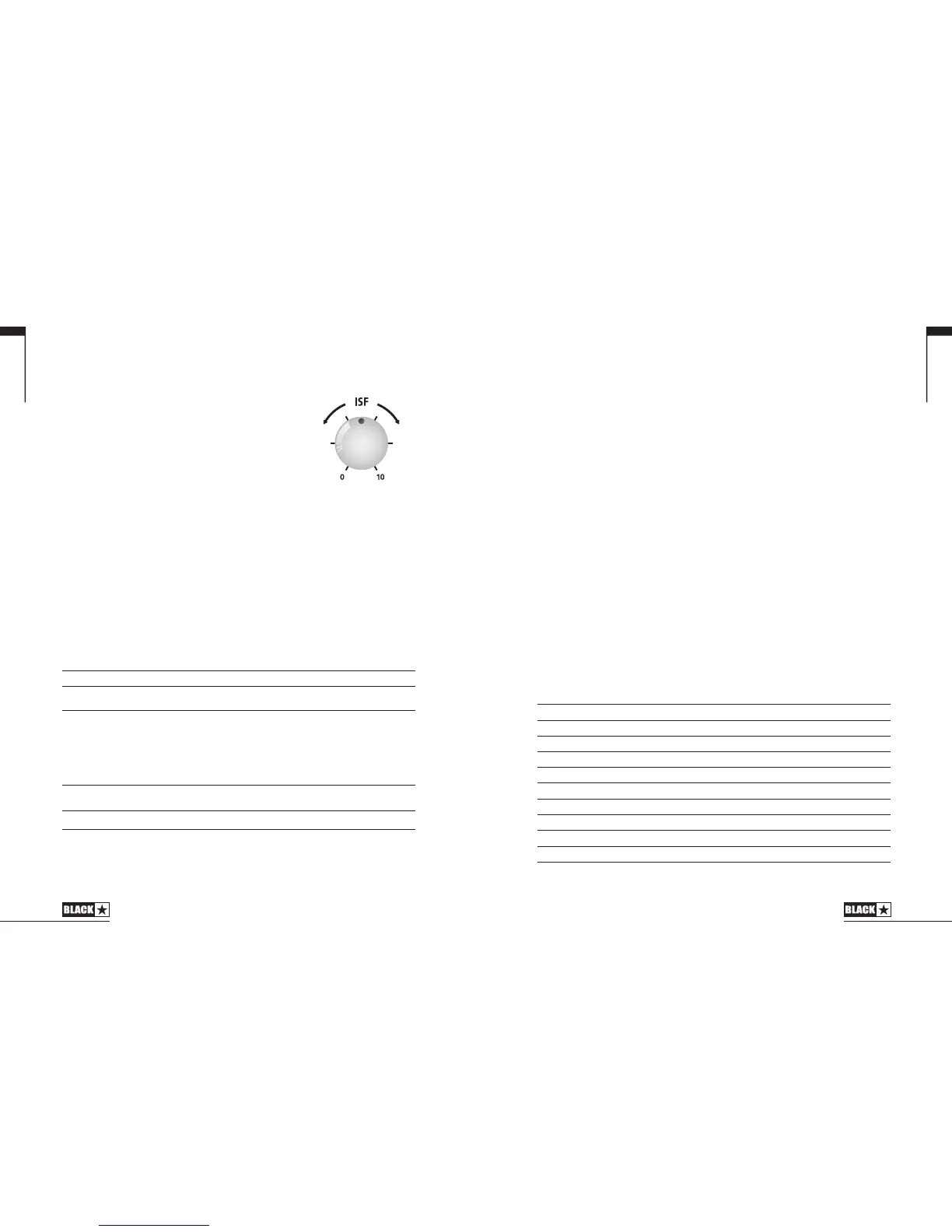
5. ISF
The patented ISF control allows you to choose the
exact tonal signature you prefer. Fully counter clockwise
has a more American characteristic with a tight bottom-
end and more aggressive middle, and fully clockwise
has a British characteristic which is more ‘woody’ and
less aggressive. This leads to a very familiar, musical
response. This setting is saved when you store a patch.
6. MOD (Modulation)
Press this switch to turn the stereo modulation effect on, off, or focus the effect for
editing. This setting is saved when you store a patch.
7. DLY (Delay)
Press this switch to turn the stereo delay effect on, off, or focus the effect for editing.
This setting is saved when you store a patch.
8. REV (Reverb)
Press this switch to turn the stereo reverb effect on, off, or focus the effect for
editing. When a Bass Voice is selected this switch turns on, off or focuses the
current front-end distortion effect in place of a reverb effect. This setting is saved
when you store a patch.
For all three effect switches, the LED shows what state the effect is in:
LED Eect State Description
LED not on Eect o Eect not active
LED red Eect on but not ‘focused’ for editing Eect is active, but not aected by the front
panel eect controls
LED green Eect on and ‘focused’ for editing Eect active and aected by the front panel
eect controls
Repeatedly pressing each effect switch on the front panel has the following effect:
Current Eect State Next Eect State
Eect o Turns the eect on and ‘focuses’ the eect. Any previously focused eect
reverts to an ‘on’ state
Eect on but not ‘focused’ Focuses the eect. Any previously focused eect reverts to an ‘on’ state
Eect on and ‘focused’ Turns the eect o. If any other eect(s) are on, the previously ‘focused’ eect
resumes being ‘focused’
NOTE: Only one effect may be ‘focused’ at any time.
11
English
10
9. Effect Type
This changes the effect type and edits a parameter of the currently ‘focused’ effect
(modulation, delay, or reverb/bass distortion).
Each segment represents a different effect (four for each type of effect). An
LED shows which effect type is currently active. The distance travelled through
the ‘segment’ modifies an effect parameter. The Effects Table below shows the
modifiable parameters.
This setting is saved when you store a patch.
10. Effect Level
This modifies an effect parameter. For modulation and delay effects, turning the
Level control while holding down the Tap switch (11) modifies the speed/time of the
effect (see Advanced Features section on page 17).
The Effects Table below shows the modifiable parameters.
This setting is saved when you store a patch.
11. Tap
The Tap switch is used to set the rate/time of the current ‘focused’ effect. The time
between each press of the tap button defines the rate set.
Once set, the Tap LED will flash in time with the set rate of the currently ‘focused’
effect.
The Tap switch also acts as a ‘shift key
to allow access to further advanced features
of your ID:Core BEAM amplifier (see Advanced Features section on page 17).
The Effects Table below shows the modifiable parameters:
Effects Table
Eect Segment Parameter Level Parameter Tap Parameter
MODULATION
Phaser Mix Depth Speed
Flanger Feedback Depth Speed
Chorus Mix Depth Speed
Tremolo Frequency modulation depth Amplitude modulation depth Speed
DELAY
Linear Feedback Delay level Time
Analogue Feedback Delay level Time
Tape Feedback Delay level Time
Multi Feedback Delay level Time
US



 To Next Page