If you are having issues with the Private Listening feature:
• Ensure the batteries in your remote are working and the audio transmitter
is connected to a power source.
• Ensure the television’s selected audio output is configured to send the
audio to the audio transmitter.
• Ensure the television’s audio output volume is not too low or muted
• Ensure the headphones are plugged in properly.
• Raise the headphone volume using the volume control on the right
side of the universal remote.
If the LED indicator is continuously ashing:
Your universal remote and audio transmitter are already paired to work
together out of the box. The LED indicator on your audio transmitter will
be steady blue when paired properly and will flash 1-3 times when the
Private Listening feature is activated or deactivated. If you notice the
LED indicator is continuously flashing, it means that the audio transmitter
and universal remote are not paired. In that case, please follow the
instructions below.
Follow these instructions only if the LED indicator is continuously
ashing on the audio transmitter
PAIRING MODE
To enter pairing mode:
1. Connect the audio transmitter to a
power source.
2. Plug the headphones into the universal
remote.
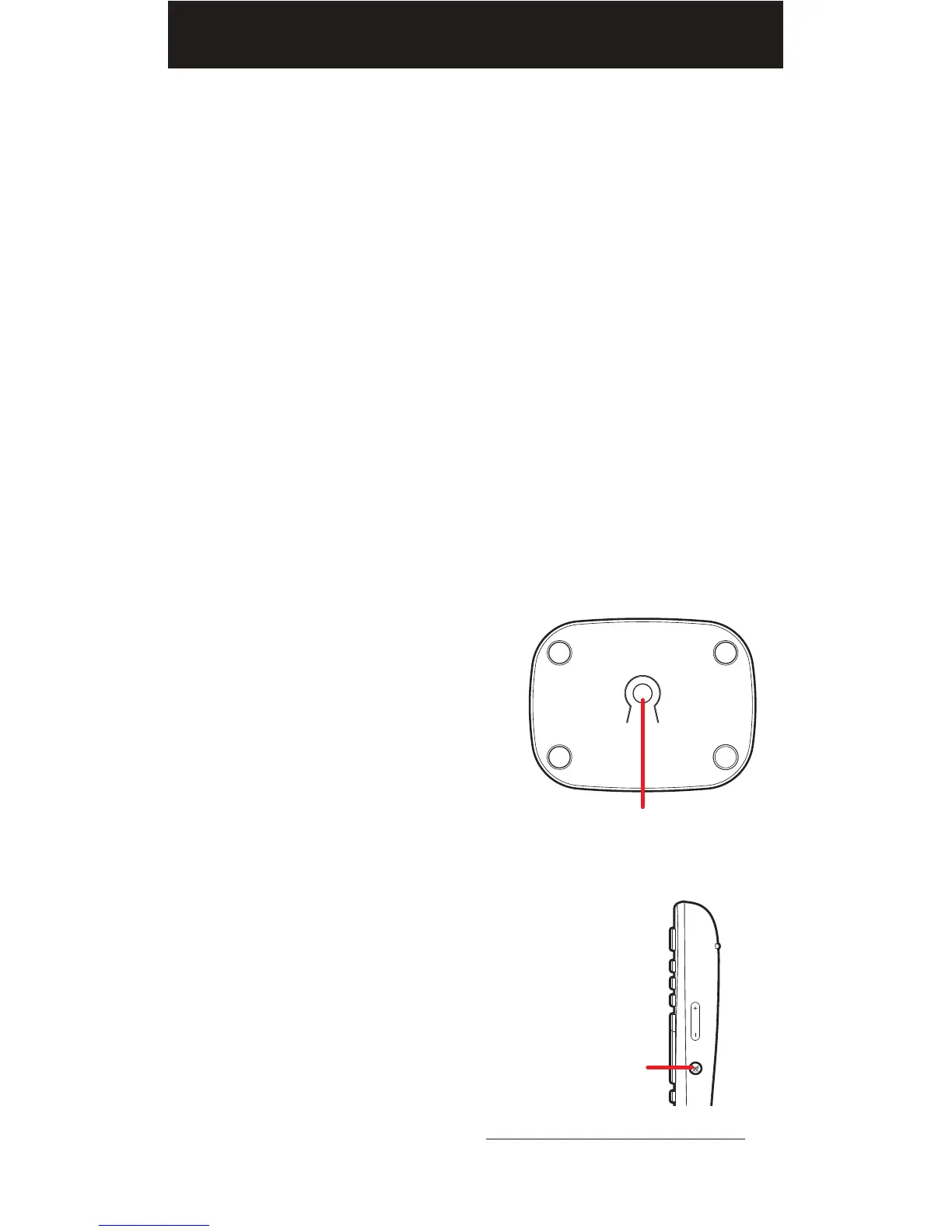
3. Locate the PAIRING button on the
bottom of the audio transmitter.
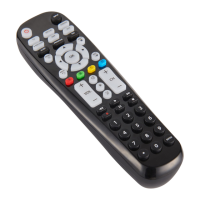
4. Locate the HEADPHONE MUTE
button on the universal remote.
5. With the devices no further than 18”
apart, hold down both buttons for 5
seconds.
When your devices are paired there
will be a short beep in the headphones
and the audio transmitter’s LED
indicator will become steady blue.
For more information, please visit www.myblackwebremote.com
or call the Customer Support Help Line: (877) 907-7010
PAIRING BUTTON
AUDIO TRANSMITTER
BOTTOM
REMOTE
RIGHT SIDE
HEADPHONE
MUTE
24


 To Next Page