
 Need help?
Do you have a question about the Blaupunkt Ft.Lauderdale 900 and is the answer not in the manual?
Important safety advice regarding device usage while the vehicle is in motion.
Detailed explanation of the physical buttons and their operations on the head unit.
Essential warnings to prevent injury, damage, and ensure correct device operation.
Explanation of symbols used in the manual to convey warnings and important information.
Precautions for driver distraction and safe operation of the device while driving.
Instructions for device maintenance, responsible disposal, and package contents.
How to turn the device on/off, adjust volume, and mute audio playback.
Guide to accessing and navigating the main menu and its different source options.
Procedures for seeking, storing, and recalling radio stations.
Features like RDS, AF, and traffic priority for an enhanced radio experience.
Customizing sound profiles and adjusting volume distribution (fader/balance).
Setting audio delay for individual speakers to optimize sound staging.
Connecting USB devices, playing audio, and managing files.
Instructions for connecting, using, and removing USB data carriers.
How to play video files stored on a USB device.
How to view image files stored on a USB device.
Steps for enabling Bluetooth, pairing devices, and establishing connections.
Making calls, accessing contacts, and using the dial keypad through Bluetooth.
Managing incoming calls and streaming audio wirelessly via Bluetooth.
Using Phonelink for mobile screen mirroring on the car display.
Instructions for connecting Android and iPhones via WiFi for screen mirroring.
Using AUX for audio/video and connecting a reverse camera.
Customizing steering wheel controls and managing files on the device.
Adjusting general device settings, Wi-Fi, and video input configurations.
Managing Bluetooth devices and selecting navigation input sources.
Customizing key lighting, CANBUS, and viewing Android system details.
Procedures for software upgrades, resets, and viewing system information.
Guide for wirelessly connecting iPhone and Android devices.
Details on the 2-year warranty and the online registration procedure.
Information for obtaining customer support and service center details.
A table detailing common problems, their causes, and suggested corrective actions.
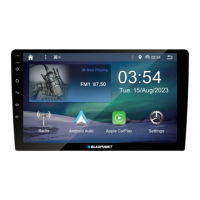
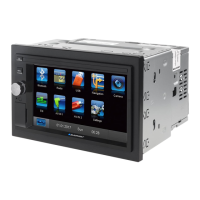
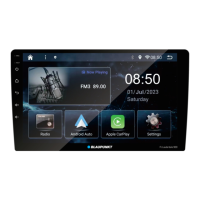
This document describes the Blaupunkt Car Multimedia Ft. Lauderdale 900, a head unit featuring a brilliant capacitive display and running on Android OS Version 9.0. It offers a comprehensive range of functions for in-car entertainment and connectivity.
The device is designed for installation and operation in a vehicle with a 12V (negative ground) vehicle system voltage. It's crucial to observe the output limits of the device and ensure that installation and repairs are performed by an authorized specialist. For self-installation, experience in car audio systems and familiarity with the vehicle's electrical system are necessary.
Safety Notes: For safety, users are advised not to watch videos or use other apps while the vehicle is in motion, as this is a safety violation. To use these functions, the vehicle must be in parked mode with the handbrake activated. Activities that could divert attention from traffic, such as entering navigation addresses or watching videos, should be avoided while driving. Always prioritize traffic regulations over route guidance recommendations. Listening at moderate volumes is recommended to protect hearing and ensure awareness of external warning signals.
Basic Operation: The device is switched ON by a short press of the POWER button and OFF by holding it for more than 2 seconds. The volume can be adjusted from 0 (off) to 40 (maximum) using the [+] and [–] buttons. A short press of the MUTE button mutes or reactivates the audio. The main menu (Home) is accessed by pressing the HOME button, displaying various sources and operating modes. A long press of the HOME button opens apps in the background. The BACK button returns to the previous menu.
Maintenance: The device should not be modified or opened by unauthorized persons. In case of assistance, visit the nearest service center. Solvents, cleaning agents, and dashboard sprays should not be used, as they can damage the surface and screen. Only a dry or slightly moistened cloth should be used for cleaning. The unit and batteries should not be disposed of in household trash but through available return and collection systems.
Radio Mode: The radio mode is accessed via the [Radio] button in the main menu. It supports different memory banks and wavebands, allowing up to 6 stations to be stored in each. Memory banks are selected by repeatedly pressing the [BAND] button. Stations can be tuned manually by briefly pressing the [K] or [>] buttons to change frequency in increments, or by dragging the red "|" in the frequency display.
Storing Stations: Stations can be stored manually by setting the desired station and holding one of the memory buttons [P1] - [P6] for approximately 2 seconds. Automatic station seek tuning can be initiated by pressing the [Q] button after selecting a memory band. This will search for and store the strongest reception in the region, overwriting any previously stored stations.
Seek Tuning Sensitivity: The seek tuning sensitivity can be adjusted using the [Q] button. When LOC (Local) is on, only strong signal stations are selected. When DX (Distance) is on, both strong and weak signal stations are selected.
RDS Functions: Many FM stations are RDS (Radio Data System) signal capable, providing additional functions like station name and genre display. The [RDS] button shows RDS options. The AF (alternate frequency) function, activated by the [AF] button, automatically tunes to the best receivable frequency for the current station. Priority for traffic announcements (TA) can be switched ON or OFF using the [TA] button, allowing traffic reports to be broadcast even if the car audio system is not in radio mode. Program types (PTY) can be selected to search for specific genres of stations.
Sound Settings: The equalizer is accessible via the [+] button in the main menu or the [Q] button of the current audio source. Preset equalizers like Flat, POP, Easy, Rock, Classic, Jazz, User1, and User2 are available. The [User] button allows adjustment of frequency bands. The [Reset] button resets customized settings. The [Flat] button provides linear sound playback, and [Loudness] increases bass and treble at low volume.
Volume Distribution (Fader/Balance): Volume distribution can be adjusted for all sources via the [Q] button in the EQ menu. The fader and balance menu allows adjustment using arrow buttons or by dragging the cursor.
Time Alignment: Audio delay for each loudspeaker can be set via the [Q] button in the EQ menu. This is adjusted by touching or swiping the slide control for individual loudspeakers.
USB Media Playback: The device features two USB ports at the rear for playing MP3 or WMA files, as well as viewing movies and images from USB data carriers. For safety, movie and image playback on the integrated monitor is only allowed when the vehicle is in parked mode with the handbrake applied. The "PARKING" cable must be connected to the vehicle's handbrake connection. Movie playback on an external monitor is possible while driving.
Connecting and Removing USB Data Carriers: To connect, insert the USB data carrier into the USB socket. The device automatically switches to USB mode and begins playback. To remove, turn off the car sound system and then remove the USB data carrier.
Audio Playback from USB: Audio playback (MP3/WMA) principles are identical across all sources. Select the [Music] source from the main menu. The playback menu includes a progress bar, sound effect, folder/file list display, previous/next track, pause/resume playback, and repeat/random play functions.
Video Playback from USB: Select the [Video] source from the main menu. Similar to audio playback, folders and videos are selected and started as described under audio playback. The video playback menu includes a progress bar, play in a small window, folder/file list display, previous/next chapter, pause/resume playback, repeat/random play, and aspect ratio settings.
Image Playback from USB: Select the [Picture] source from the main menu. Thumbnails are displayed, which can be touched to view the pictures.
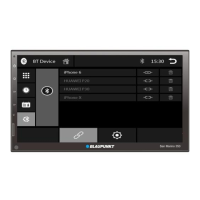
Bluetooth Mode: The Bluetooth® function allows pairing cell phones and media playback devices for hands-free calls and audio streaming. During a call, music playback is interrupted and resumed afterward. The Bluetooth® menu is accessed via [BT Phone] in the main menu and displays known Bluetooth® devices.
Registering Bluetooth Devices: To register a new device, ensure Bluetooth® is activated on both the car sound system and the mobile device. Search for new devices/connections on the mobile device; the car sound system appears as "BP900." Establish the connection, entering a pairing code if required. Once connected, the Bluetooth® icon will light up on the display.
Telephone Mode: When a phone is connected via Bluetooth®, the telephone menu appears, offering options to call up records lists, phone book, dial keypad, device menu, BT setting menu, and the dial keypad. Phone numbers can be entered via the keypad or selected from caller lists/phone book. Incoming calls display the "Calling" number, with green and red buttons to answer or reject calls, respectively.
Audio Playback via Bluetooth Streaming: If a Bluetooth® audio streaming device is connected, music can be played back and controlled via the car audio system by pressing the [BT Music] button. Playback controls include title selection, pause/resume, and repeat.
EasyConnection / Phonelink: The Phonelink function displays the mobile device screen on the car radio screen, synchronizing the smartphone to the car multimedia player. This function's performance depends on the smartphone's configuration. It is accessed via [Phonelink] in the main menu. For Android devices, USB debugging may need to be accessed.
Entering Connection Prompt (Android/iPhone USB):
Android WiFi:
iPhone WiFi:
AUX IN: The device features AUX input for audio/video playback via RCA inputs at the rear. Start AUX-IN mode with the [AUX] button to display audio or video playback from the selected AUX source.
Camera Input: The device includes video input for a reverse camera. When a reverse camera is connected, its image is displayed on the screen when the rear gear is engaged.
Steering Wheel Control (SWC): Access SWC settings via [SWC] in the Settings menu. Select a function icon on the screen, long-press a steering wheel button, and repeat until all settings are done. Touch [Save and Exit] to confirm, or [Reset] to clear programming.
File Manager: Access the File Manager via [Files] in the main menu. Select the desired folder to access files. Options include file type/source, search, list mode, and operation menu.
Settings Menu: The settings menu allows adjustment of basic functions. Access it via the [Settings] button in the main menu. Submenus are accessed via buttons in the lower area.
Video Settings: Touch [Video] in settings. Parking mode can be set to ON or OFF. If OFF, a warning screen will display when playing video to prevent driver distraction.
General Settings: Select an option to access/setup, including Radio area, PhoneLink application, and Navigation split screen.
Wi-Fi Settings: Turn on Wi-Fi and search for available networks. Select a hotspot to connect.
Bluetooth Settings: Manage Bluetooth devices, including pairing new devices and viewing connection preferences.
Source Volume Level: Set the volume level for each audio source.
Navigation Settings: Select a Navigation source from the available list.
Key Light: Set the color of keys on the front display.
CANBUS Settings: View and manage CANBUS settings, including basic body information, operating the host via car panel buttons, and displaying air conditioning/radar information.
Android Settings: View and manage Android settings, including wireless and network, equipment (display, beep, application, USB, memory), personal (location, security, account, language, input), and system (date and time, accessibility, about car).
Upgrade & Reset: Upgrade software and reset default settings. Options include selecting an upgrade package, resetting network settings (Wi-Fi, mobile, Bluetooth), resetting apps, factory reset (clearing all data), and resetting MCU.
System Info: View system information, including Android version, hardware information, kernel version, OS version, and MCU version.
Default Password: The default password for Factory configuration is 8888.
 General
| Touchscreen | Yes |
|---|---|
| Apple CarPlay | Yes |
| Android Auto | Yes |
| Bluetooth | Yes |
| USB | Yes |
| Rear Camera Input | Yes |
| Wi-Fi | Yes |
| GPS | Yes |
| Radio | FM/AM |
| USB Ports | 2 |
| Steering Wheel Control Compatibility | Yes |
| Expandable Storage | MicroSD card |


 To Next Page