Page 7 of 9
Connecting a BlipNode L2i via UMTS / HSDPA
networks
Prerequisites:
Huawei E220 USB modem
UMTS / HSDPA data account with a local (for the BlipNode) network supplier – preferably with an
unlimited usage plan (‘flat rate’)
Initial setup of USB modem and SIM card
Insert the SIM card in the USB modem and plug the modem into a Windows PC.
Follow the setup instructions from your broadband provider and use the modem to connect to the
internet. This way APN settings etc. will be written to the SIM card so the only configuration that is
needed in the BlipNode will a PIN code (if applied). It is also possible to enter the APN name in the
BlipNode settings – see below.
From the modem control application select a PIN code for the SIM card – you could also choose to
disable PIN code usage.
Entering PIN code and APN name in the BlipNode L2i
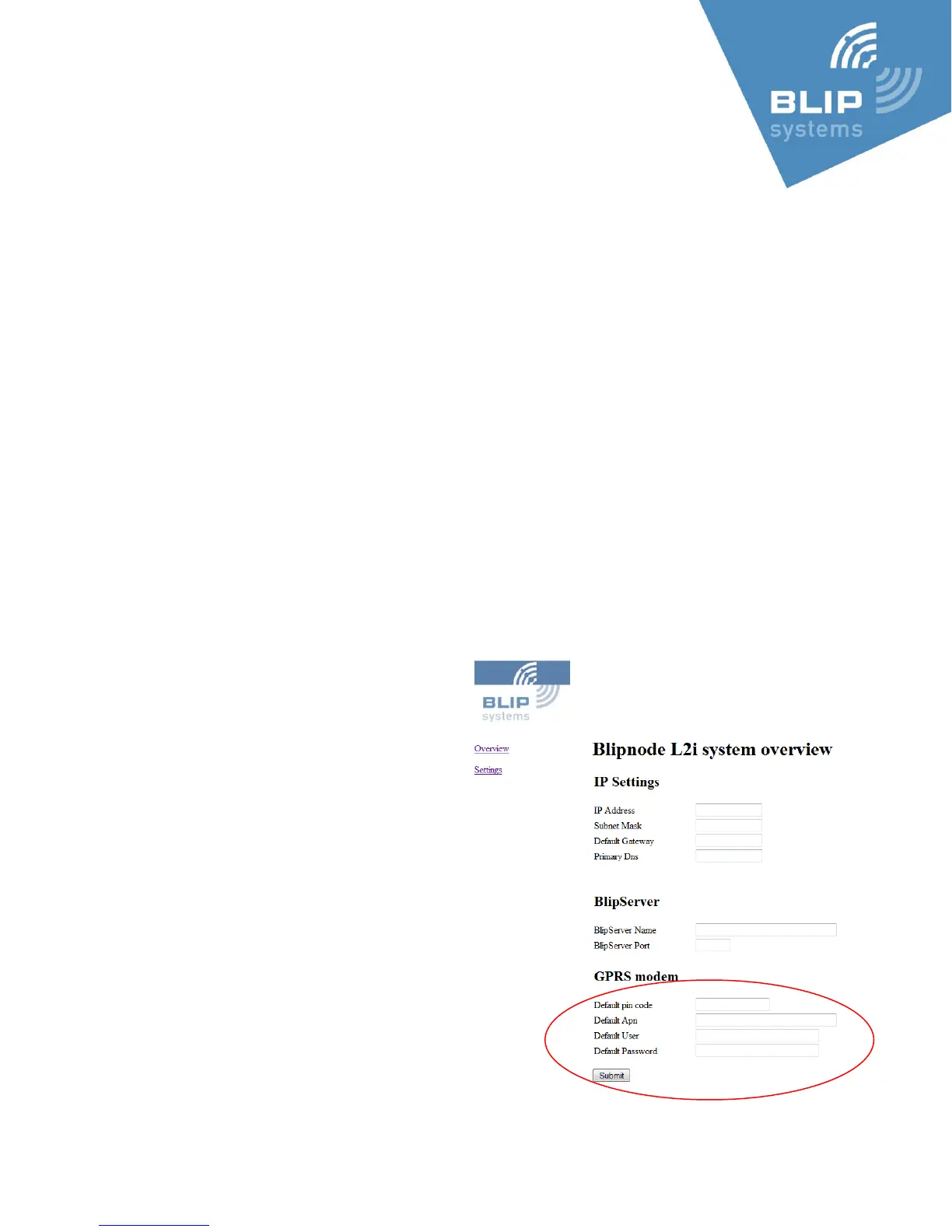
The PIN code for the SIM card is entered in the BlipNode L2i from the BlipNode’s built in web-page –
accessed as described previously in this guide.
On the settings page fill in the PIN code for the
SIM card.
If you disabled the PIN code from the USB
modem Control Application you do not have to
enter a PIN code for the SIM card in the
BlipNode L2i.
It is also possible to enter APN settings (APN,
User name and password) from the settings
page – please get the details from your
operator.
Connecting the BlipNode to the
internet using the modem
Disconnect the power from the BlipNode, insert
the modem in a USB port on the BlipNode L2i
and reconnect the power connector.



 To Next Page