Page 12
SkyBox™ 5 User Manual Rev. C © 2016 Blizzard Lighting, LLC
4. OPERATING ADJUSTMENTS
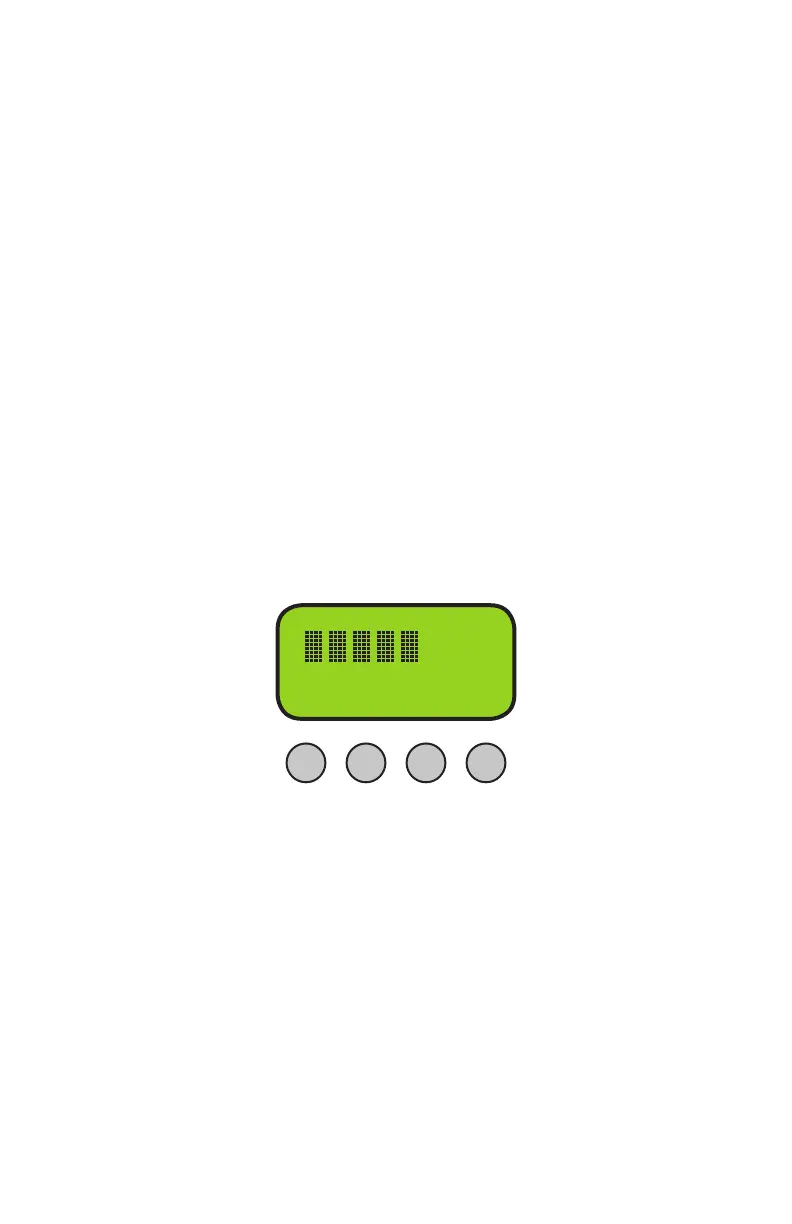
The Control Panel
All the goodies and different modes possible with the SkyBox™ 5 are
accessed by using the control panel on the rear of the xture. There
are 4 control buttons below the LCD display which allow you to navi-
gate through the various control panel menus.
<MENU>
Is used to navigate to the previous higher-level menu item.
<UP>
Scrolls through menu items and numbers in ascending order.
<DOWN>
Scrolls through menu items and numbers in descending order.
<ENTER>
Is used to select and conrm/store the current selection.
The Control Panel LCD Display shows the menu items you select from
the menu map on page #13. When a menu function is selected, the
display will show immediately the rst available option for the selected
menu function. To select a menu item, press <ENTER>.
Press the <MENU> button repeatedly until you reach the desired
menu function. Use the <UP> and <DOWN> buttons to navigate the
menu options. Press the <ENTER> button to select the menu function
currently displayed, or to enable a menu option. To return to the previ-
ous option or menu, press the <MENU> button.
BAT
001Addr
MENU UP DOWN ENTER


 To Next Page