Overview
Frontier Silicon’s Wireless Device Remote Control for
connected audio applications provides the most complete,
versatile and easy-to-use media controller available for next
generation Internet connected audio systems.
Allowing users to navigate between music modes and to
browse content via an iPhone or iPod touch. The application
synchronises automatically with the radio, so you can switch
easily between using the radio’s controls and those of the
Wireless Device Remote Control.
Features supported
Automatically find compatible radios on your network,
and switch between them
Change listening mode on the radio
Browse content on the radio (station list or media library,
depending on listening mode)
Select preset stations in Internet Radio, DAB and FM
modes
See “now playing” information from the radio
Control playback: play/pause, prev/next track . etc.,
depending on listening mode
Listening modes
The Wireless Device Remote Control gives you control over
all the radio’s listening modes:
Internet radio
DAB/DAB+ digital radio
Music player (USB device / Shared media)
FM with RDS (Radio Data System)
•
•
•
•
•
•
•
•
•
•
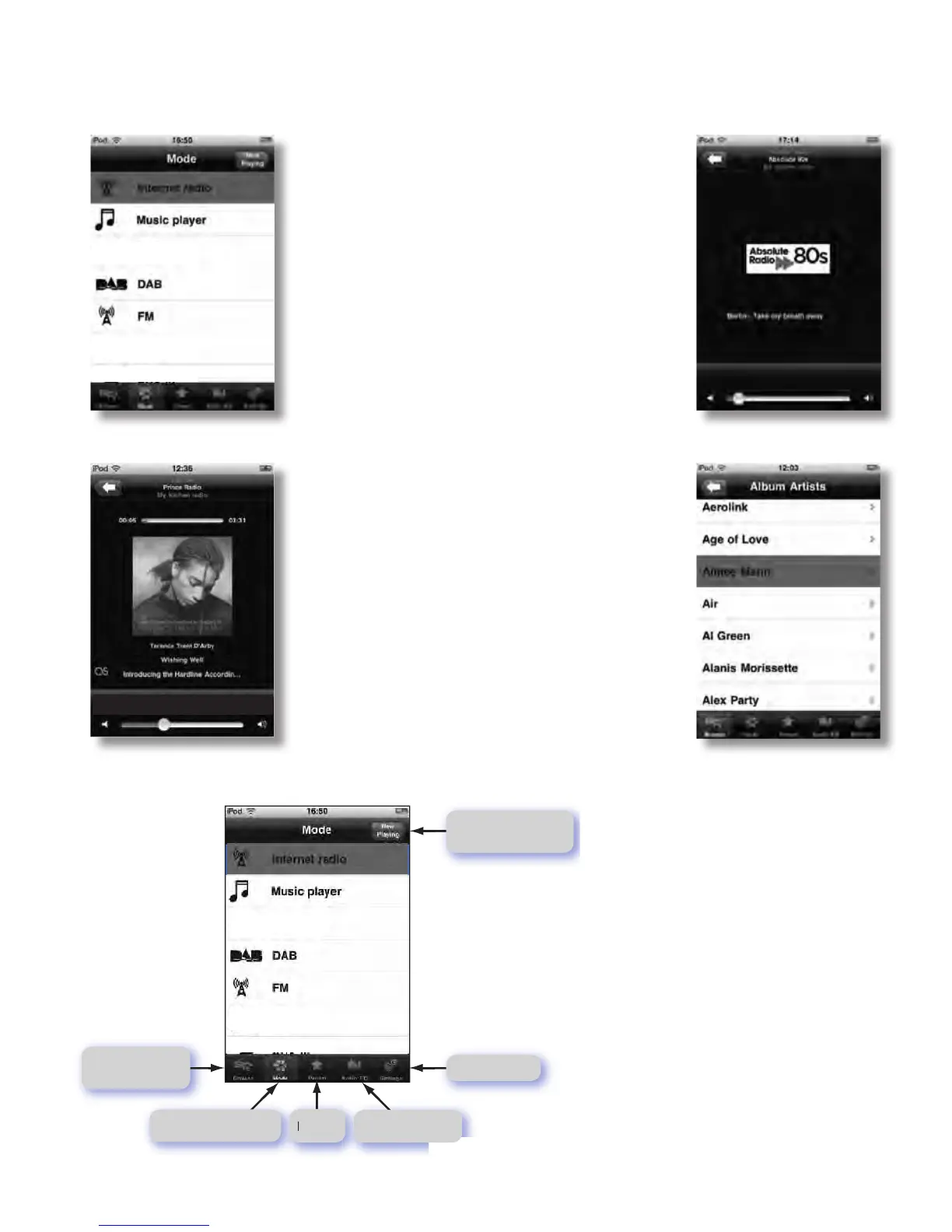
Return to
“now playing”screen
Mode settings
Browse
available content
Audio EQ settingsPresets
Return to Mode screen
Mode screens
Mode screen
The menu structure is straightforward,
consistent between modes and fully flexible.
The application automatically queries the
radio for available services and filters its Mode
list accordingly: services that not available for
a particular radio or in a particular locale are
not shown.
Each mode has a:
Splash screen
“Now playing” screen
Mode menu
•
•
•
Standards and certification
The Wireless Device Remote Control has
been designed to operate seamlessly with
Frontier Silicon’s connected audio solutions
and is compatible with iPhone, iPod touch
and iPad. Requires iOS 3.1.3 or later.
*EQ is not available for CVR 100
in this App.
*Volume control not available
for CVR 100 in this APP.
Before use this function, you have to download App to your iPhone / iTouch/iPad from
App store, the App name is “ Frontier silicon - wireless device remote control”.
And in the menu of CVR100 system setteings --Network settings, select keep network connected,
choice Yes to confirm the selection. CVR100 and iPhone / iTouch/iPad connected in same network.
Wireless Device
Remote control
40
Chapter 3 The device


 To Next Page