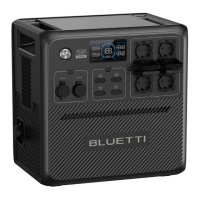
9. Settings
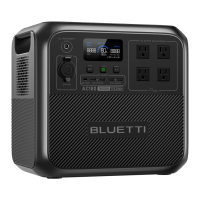
The AC180T offers the convenience of adjusting its settings either via physical buttons or
the BLUETTI App. With the buttons located on the device itself, you have direct control
over various settings such as ECO Mode, output frequency, charging modes, and other
functionalities. Additionally, by using the BLUETTI App, you can access a user-friendly
interface on your phone to conveniently monitor and control the AC180T.
9.1 Setting Mode
When the AC180T is powered on, press and hold the AC and DC Power Buttons for more
than 1 second till the output frequency flashes to enter the Setting Mode.
9.2 ECO Mode
The AC180T has two ECO modes that help you save power and extend battery life:
• AC-ECO Mode
In this mode, if the AC power output falls below or remains at a certain level for a set
period of time, the AC power will automatically turn off.
• DC-ECO Mode
In this mode, if the DC power output falls below or remains at a certain level for a set
period of time, the DC power will automatically turn off.
Attention:
• The AC-ECO and DC-ECO modes are enabled by default to save energy, and it's
recommended to keep them enabled at all times.
• Use the BLUETTI App to enable or disable AC-ECO Mode and DC-ECO Mode separately.
If you use the LCD display, they'll be turned on or off at the same time.
• To avoid any interruption in charging, disable ECO Mode when charging small
devices that consume less power than the set power limit.
In the Setting Mode, press the DC Power Button to navigate through the setting
items. When the icon flashes on the display, press the AC Power Button to enable
or disable the ECO Mode.
9.3 Frequency Switching
The current output frequency (50Hz / 60Hz) is displayed in the lower right corner of the
display. Before making any changes, ensure that the AC output is turned off. Then, access
the Setting Mode and press the AC Power Button to switch the frequency options.
JUST POWER ON 19


 To Next Page