Use the Lock Screen
To protect personal information, adjust the Tablet’s lock settings:
From the Home or All Apps screen, touch the Settings icon.
Scroll down and tap Security > Screen Lock > Type of lock you’d like to use. After you set a
lock here, a lock screen displays whenever your screen wakes up, requesting the pattern, PIN,
or password.
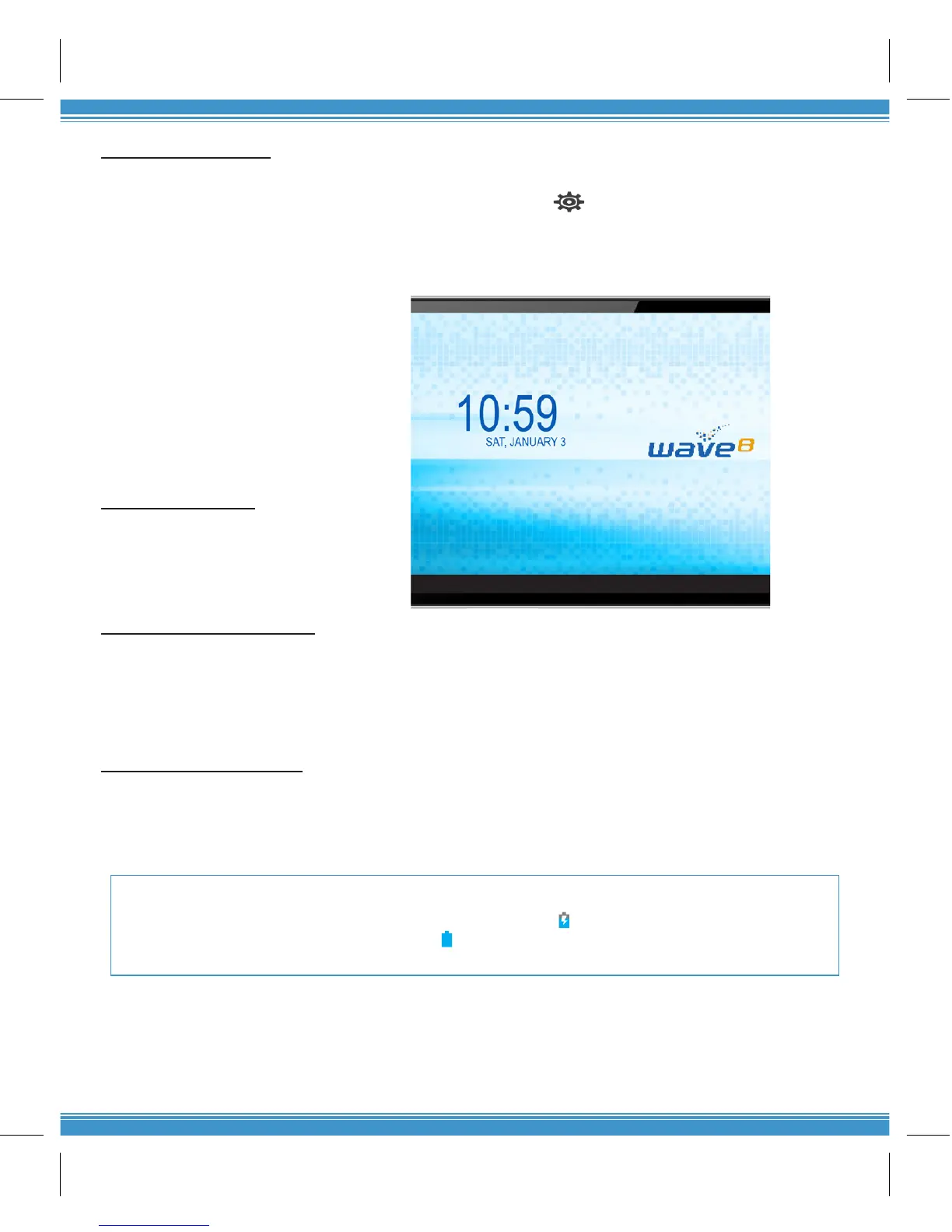
For the slide option, drag the lock icon
to the right to unlock.
Screen lock options are listed in the
appropriate order of the strength of
their security. If your Tablet is playing
music when the screen locks, you
can continue listening or pause the
selection without unlocking.
Charge the Battery
There are two ways to charge the
battery: via Power Adapter and PC/
Notebook.
Charge via Power Adapter
1. Make sure that the power adapter is in good condition. The power cable should be intact
and not have any physical damage to it.
2. Plug the power adapter in 220v outlet.
3. Insert the power adapter securely to the charging port of the Tablet
Charge via PC/Notebook
1. Ensure that the PC/notebook is running.
2. Attach the USB cable to the USB port of PC or notebook.
3. Insert the USB cable securely to the USB port of the Tablet.
Do not use any other power adapters to avoid damaging the baery . When using the Tablet for the rst me, charge the
baery for 8 hours or unl 100% full. Drain the baery fully before charging again. Regular charging may take 4-6 hours.
A baery icon with a lightning symbol indicates that the baery is charging.
A full-charged baery displays a solid blue-colored icon.


 To Next Page