SH042-1 User Manual for BodiTrak LT V1.5, 25 Jan 2019
7
BodiTrak Technical Support: 800-847-3157
5
USING THE BODITRAK LT SYSTEM
5.1 From the tablet Home screen tap the BodiTrak LT shortcut, or go to Apps Drawer and select
the icon for BodiTrak LT.
5.2 Select “Start Mapping”.
5.3 If the blue mats appear on the User Interface the connection was successful.
5.4 Key Item: The system has 2 modes: On-the-Go scanning and Multiple Comparison. You
can switch back and forth by tapping the “square in a square” icon.
5.5.1 On-the-Go Scanning Mode
This mode is intended to provide a quick and easy way to assess a person’s situation
on a surface over time. The scanning starts as soon as you plug in the sensing mat
and select ‘start mapping’.
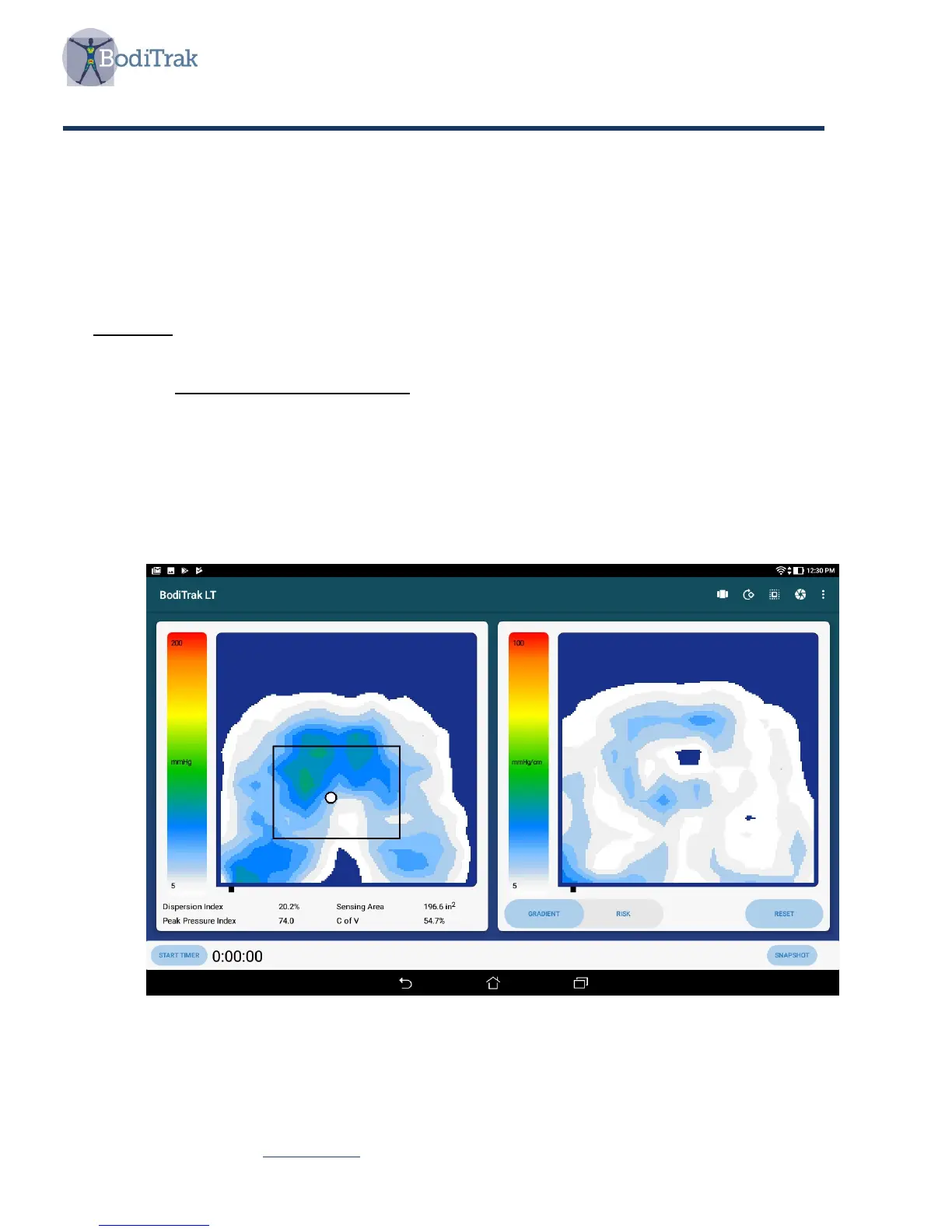
The display is divided to show two seat images as shown here in Figure 1. The image
on the left displays normal force pressures. The image on the right is for gradient and
risk considerations.
Figure 1 – User Interface



 To Next Page