EasyManua.ls Logo

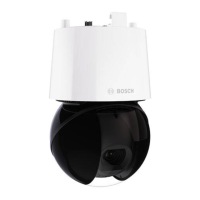
Bosch AUTODOME 7100i - User Manual

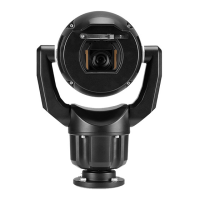
Bosch AUTODOME 7100i
80 pages
Print Icon
To Next Page IconTo Next Page
Loading...
AUTODOME 7100i
NDP‑7602‑Z40 | NDP‑7602‑Z40L | NDP‑7604‑Z12L
en
User Manual

Other manuals for Bosch AUTODOME 7100i

Questions and Answers

  • H
    hardinmichaelAug 22, 2025
    What to do if there is no video on my Bosch Digital Camera?
    • B
      Bernard SmithAug 22, 2025
      First, ensure the mains power to the power supply is on. Verify that the PoE switch or midspan supports IEEE 802.3bt Type 3 (60W) for non-IR models, and IEEE 802.3bt Type 4 (90W) for IR models. Check that the SFP module is used on both ends of the fibers, supports the fiber type, and operates at 1000Mbits/sec. If you don't have a web page, you may have the wrong IP address; use Configuration Manager to find the correct one. If you have a web page, check for 24 V output from the transformer. Verify the integrity of all wires and connectors to the camera. As a last resort, reset the camera to factory defaults.
  • S
    Sydney DavisAug 25, 2025
    How to restore camera control on a Bosch Digital Camera?
    • V
      victorialarsonAug 25, 2025
      First, ensure the LAN cable has a secure connection. Refresh the browser and ensure video is updated. Ping the camera’s IP address and try again to control the camera. If that doesn't work, reset the camera to factory defaults. If using PoE, verify that the PoE midspan or PSE Ethernet switch supports IEEE 802.3bt Type 3 (60W) for Non-IR AUTODOME models, and IEEE 802.3bt Type 4 (90W) for IR AUTODOME models. Non-compliant midspans may not provide adequate power, disabling features like motor control. Finally, cycle the camera's power off and on.
  • K
    kathleensantosAug 28, 2025
    Why does my Bosch Digital Camera reboot frequently?
    • B
      Barbara TaylorAug 28, 2025
      Your camera may have an improper network connection. Try testing your camera with another power supply. Check the Bosch website for a software update that might address the issue.
  • A
    Adam AdkinsAug 29, 2025
    What to do if the image on the screen of my Bosch Digital Camera is distorted?
    • D
      Douglas FosterAug 29, 2025
      Check if the power frequency is set properly in sync. If it's not, the line lock synchronization mode cannot be used. Set the synchronization mode to INT. For the NTSC Model power frequency in LL mode, set it to 60 Hz.
  • M
    Meghan AlvarezAug 31, 2025
    How to fix rolling, noisy or distorted video on Bosch Digital Camera?
    • M
      Maria LeonardAug 31, 2025
      Check that there is not too much vibration in the application. Check the frequency by going to the SETTINGS page, clicking Advanced Mode, then Camera, and then Installer Menu. In the Base frame rate field, choose either 25 ips or 30 ips. Also, check the integrity of all connectors and splices of the Ethernet cable.
  • A
    Ashley JimenezSep 2, 2025
    What to do if background is too bright on Bosch Digital Camera?
    • J
      Jennifer WalkerSep 2, 2025
      Turn on backlight compensation via the Settings menu (or by using 20 Aux ON/OFF). Check if the Iris is in Manual mode and if it is too open.
  • J
    Jessica DunnSep 4, 2025
    Why does my Bosch Digital Camera move when trying to move other cameras?
    • S
      Sara HodgesSep 4, 2025
      Check that the camera’s IP address is properly set. If the camera’s IP address is not set, use Configuration Manager to confirm that two cameras do not have the same IP address. If they do, change the address of one of the cameras.
  • I
    Ian LunaSep 5, 2025
    Why is the image flickering on my Bosch Digital Camera?
    • L
      lauren14Sep 5, 2025
      Check if the camera faces directly into the sun or fluorescent lighting. If so, reposition the camera.
  • J
    Julie JenkinsSep 7, 2025
    What to do if my Bosch Digital Camera shows a web page but no video?
    • R
      Robert BrooksSep 7, 2025
      Refresh the web browser. Close and reopen the web browser. Try a different web browser. Check that the lens IRIS is not closed down all the way by manually attempting to open it. If there is no STREAM1 or STREAM2 display check to see if there is a M-JPEG display. If there is M-JPEG but not a STREAM1 or STREAM2 display in H.264 or H.265 then the problem might be with the BOSCH VideoSDK software version.
  • D
    Dana BarrettSep 9, 2025
    What to do if there is loss of privacy when using Privacy Mask on Bosch Digital Camera?
    • M
      Mason BanksSep 9, 2025
      If using web browsers, BVC, or BVMS, press the FindHome key on the Special Functions menu to realign the mask to its original position. If using Intuikey (keyboard connected to BVC or BVMS), issue a SetScene 110 command to realign the mask.

Summary

Browser Connection

Establishing Connection

Details the steps to connect the camera to a network and access it.

Browser Operation

Live Page Operation

Details the live video display, image selection, and PTZ controls.

Searching Recorded Video

Explains how to search for specific recorded video clips.

Camera Configuration

General Settings

Provides general settings for the camera configuration.

User Management

Details how to create and manage user accounts and permissions.

Connectivity and Cloud Services

Manages cloud services and partner service connections for the camera.

Camera Settings

Configuration related to camera settings and hardware.

Encoder Stream Configuration

Configures stream prioritization, coding standards, and profiles.

Privacy Masks

Allows blocking specific areas of the scene from view.

Lens Settings

Configures focus, IR focus correction, and iris settings.

PTZ Settings

Controls auto pan, inactivity, number of sectors, auto pivot, freeze frame.

Pre-positions and Tours

Defines and manages preset scenes and camera movement tours.

Video Recording

Recording Configuration

Configures recording to iSCSI systems or local media cards.

Storage Management

Manages storage devices like iSCSI, local media, and their configurations.

Recording Profiles

Defines characteristics for recording tracks and assigns them to schedules.

Recording Scheduler

Links recording profiles to specific days and times for scheduling.

Alarm Configuration

Alarm Connections

Configures how the camera connects to predefined IP addresses during an alarm.

Video Content Analysis (VCA)

Provides an overview of VCA fields and setup.

Alarm Email Notifications

Configures the camera to send e-mails upon alarm events.

Alarm Input Configuration

Configures alarm triggers for the unit based on contact states.

Alarm Rules Configuration

Defines rules for inputs to activate outputs and trigger automatic responses.

Network Setup

Network Access Settings

Integrates the camera into an existing network, covering IP settings.

Network Management (SNMP & QoS)

Manages SNMP settings and quality of service for network traffic.

Service and Maintenance

Firmware Updates

Manages firmware updates and maintenance logs for the camera.

Troubleshooting Guide

No Image or Poor Image Quality

Resolves issues with no image, dim image, weak contrast, flickering, or distortion.

No Video Output

Troubleshooting steps when no video is displayed.

Camera Control and Image Issues

Addresses camera control problems, dark images, and bright backgrounds.

Privacy Mask and Network Connectivity Issues

Resolves privacy mask malfunctions and network connection problems.

Hardware Reset

Steps for Hardware Reset

Detailed steps for performing a factory hardware reset on the camera.

Status Code Reference

Bosch AUTODOME 7100i Specifications

General IconGeneral
Ingress ProtectionIP66
Vandal ResistanceIK10
Sensor Type1/2.8" CMOS
Day/NightYes
Video CompressionH.265, H.264, MJPEG
Bit RateConfigurable
Network Interface10/100 Base-T
Power SupplyPoE+ (IEEE 802.3at)
Lens TypeMotorized varifocal

Related product manuals